In pVault®
Set up pVault AP Accruals Defaults
1.From the ribbon toolbar, click APFlow™.
2.Click Manage APFlow.
A dialog similar to the following displays with the General tab active:
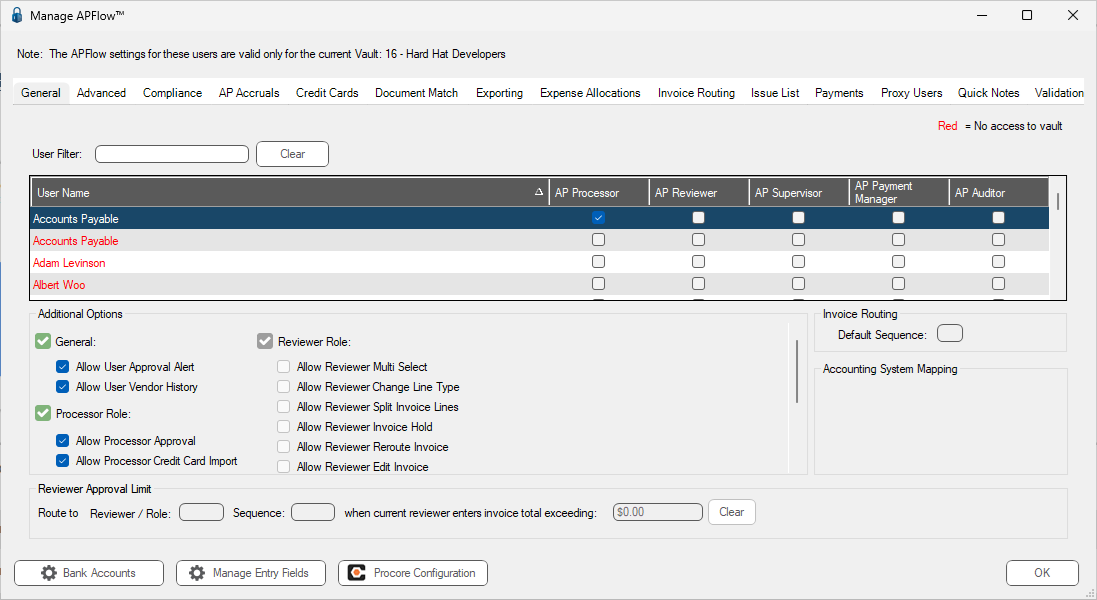
3.Click the AP Accruals tab.
A dialog similar to the following displays:
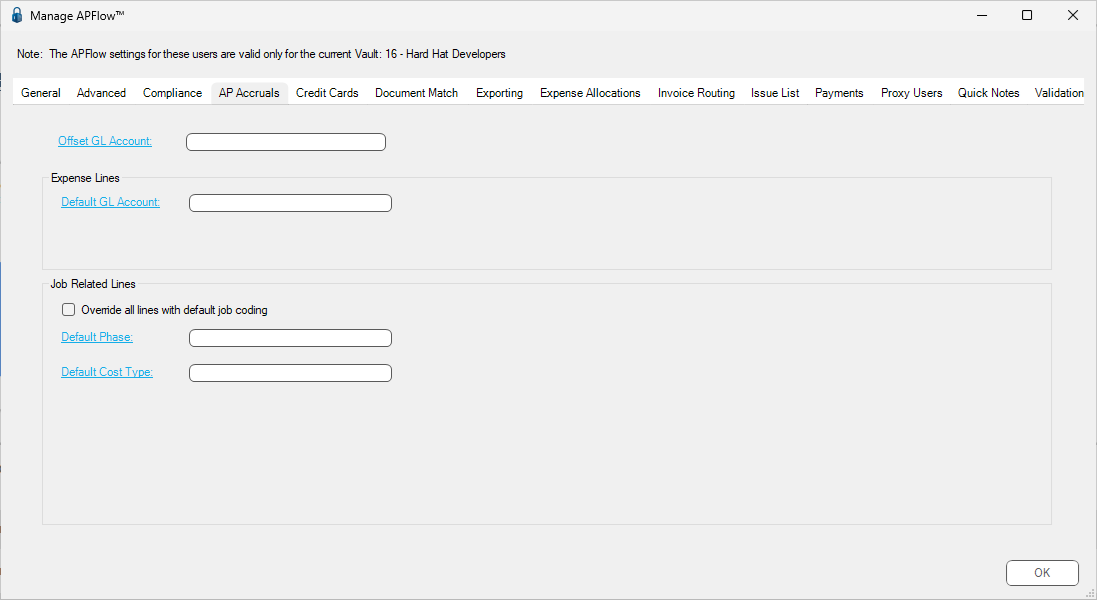
4.In the Offset GL Account field, click the field label to access the GL Account Lookup table.
5.Double click on the entry to select it and populate the field, or click the entry and then click OK in the lookup table to populate the field.
6.In the Default GL Account field, click the field label to access the GL Account Lookup table.
7.Double click on the entry to select it and populate the field, or click the entry and then click OK in the lookup table to populate the field.
8.In the Default Phase field, click the field label to access the Job and Cost Code Lookup table.
9.Double click on the entry to select it and populate the field, or click the entry and then click OK in the lookup table to populate the field.
10. In the Default Category field, click the field label to access the Job and Full Cost Code Lookup table.
11. Double click on the entry to select it and populate the field, or click the entry and then click OK in the lookup table to populate the field.
12. Click OK.
Launch the Invoice Accrual Settings
1.Click AP Accruals.
The following Invoice Accrual Settings dialog displays:
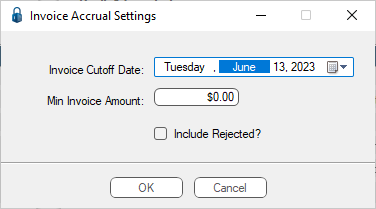
2.In the Invoice Cutoff Date, click the field arrow to access a calendar.
The current date is the field default.
3.In the Min Invoice Amount, enter a dollar amount if applicable.
A zero dollar amount is the field default.
4.If appropriate, click Include Rejected.
5.Click OK.
Launch the AP Invoice Accrual Details
The AP Invoice Accrual Details dialog displays after populating the Invoice Accrual Settings dialog.
The AP Invoice Accrual Details dialog resembles the following with the Expense Lines tab active:
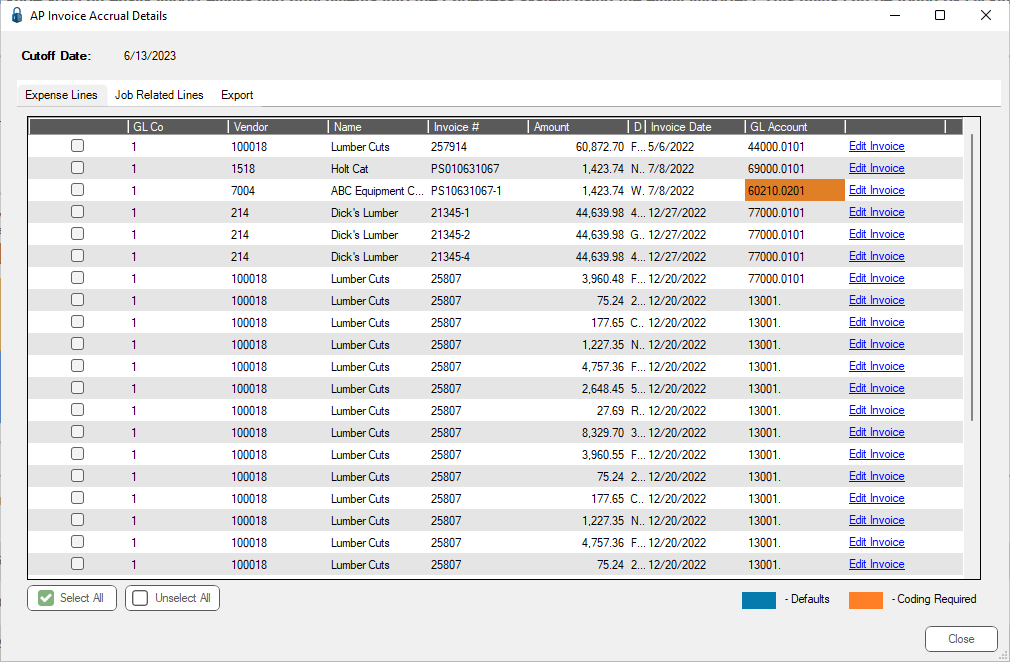
1.On the Expense Lines tab, click to select the invoices to include in the Accrual Entry.
2.Click the Job Related Lines tab.
A dialog similar to the following displays:
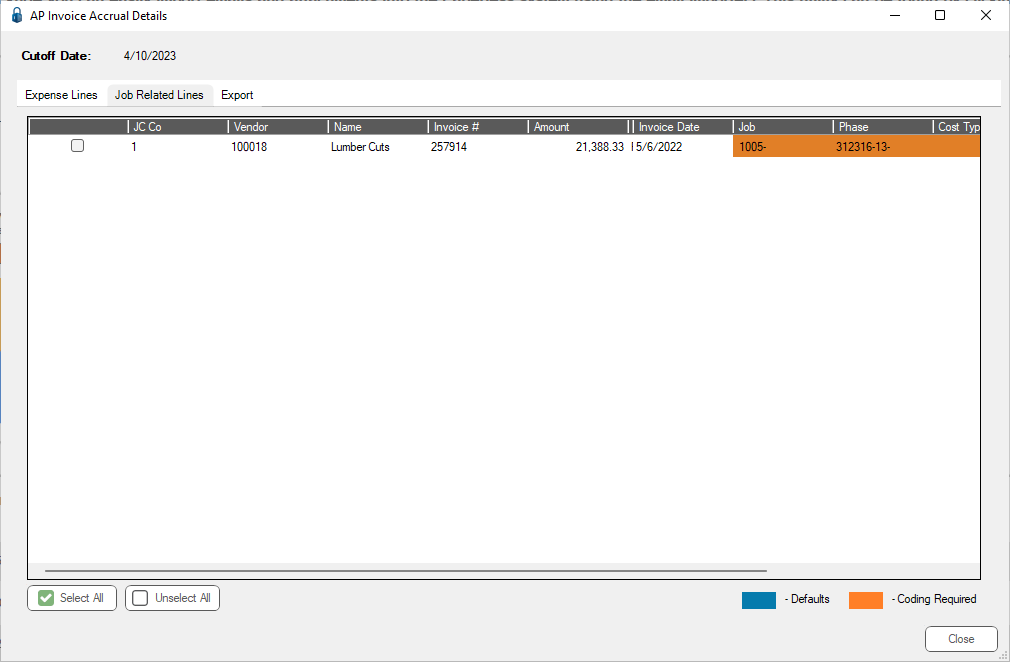
3.On the Job Related Lines tab, click to select the invoices to include in the Accrual Entry.
4.Click the Export tab.
A dialog similar to the following displays:
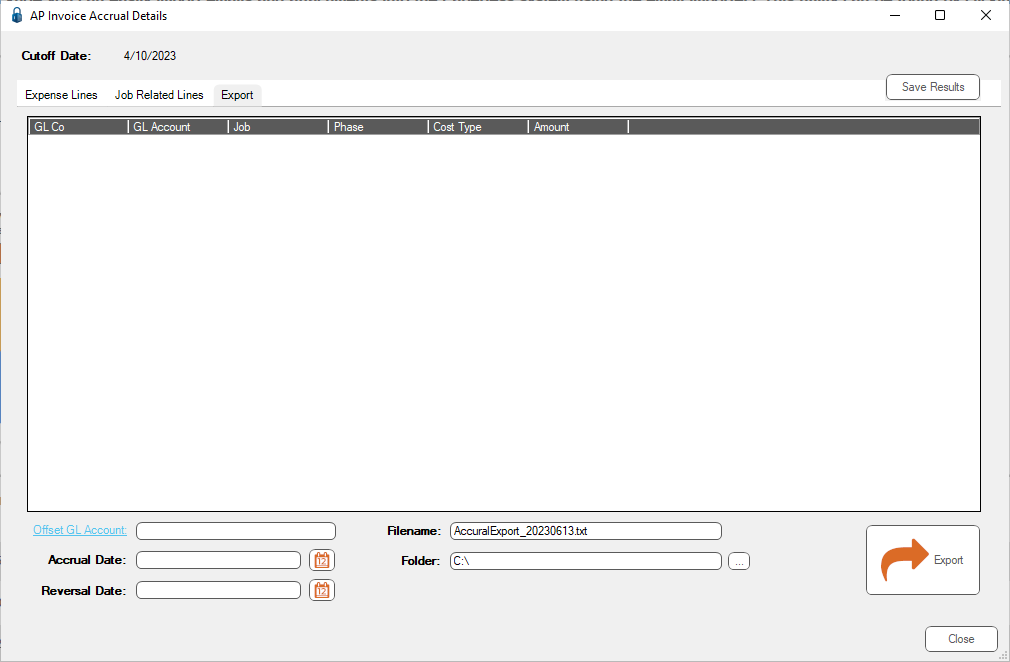
5.In the GL Account field, accept the default or click the field label to access the GL Account Lookup table.
Note: If the GL Account Lookup table was accessed, double click on the entry to select it and populate the field, or click the entry and then click OK in the lookup table to populate the field.
6.In the Accrual Date field, click the calendar icon to select the appropriate accrual date.
7.In the Reversal Date field, click the calendar icon to select the appropriate reversal date.
8.In the Filename field, keep the default name.
9.In the Folder field, enter the path where the accrual export files should be saved.
Click the ellipsis to access the Browse For Folder dialog.
10. Click Export.
An Export Successful prompt similar to the following displays.
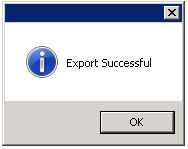
11. Click OK.
In Vista - PEGLAccrue Template
1.From the Main Menu navigation screen, click Imports in the left navigation bar.
2.Click Programs.
3.In the Forms listing, double click IM Import.
The IM Import dialog similar to the following displays:
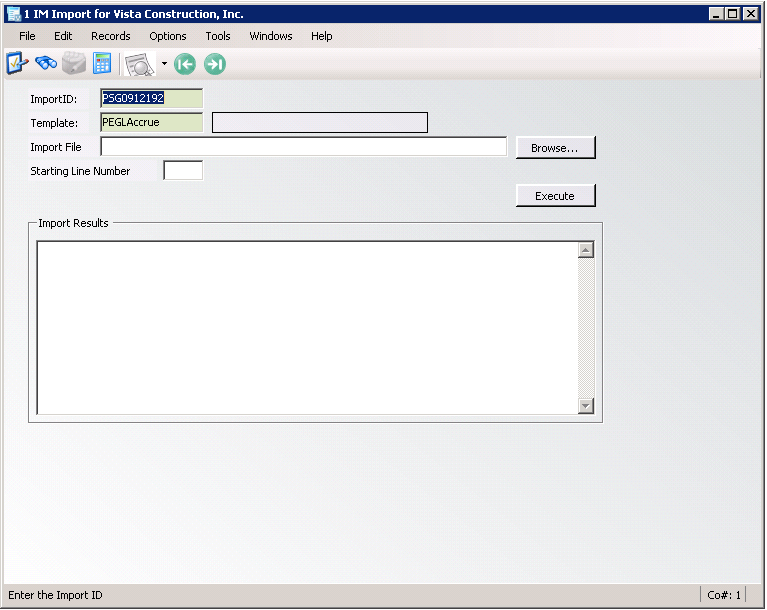
These are the invoices selected on the Expense tab in pVault. A separate GL Expense accrual export file is created.
4.In the Template field, type the following:
PEGLAccrue (this is for an Expense export file import)
5.In the Import File field, click Browse to locate the file.
A Please choose a file to import dialog similar to the following displays:
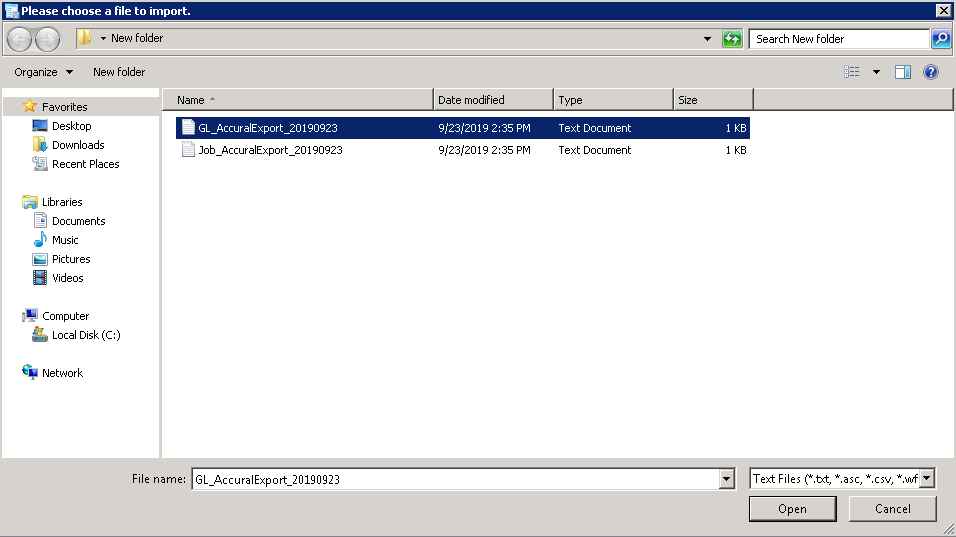
6.Click to highlight the appropriate file.
7.Click Open.
The IM Import dialog redisplays similar to the following:
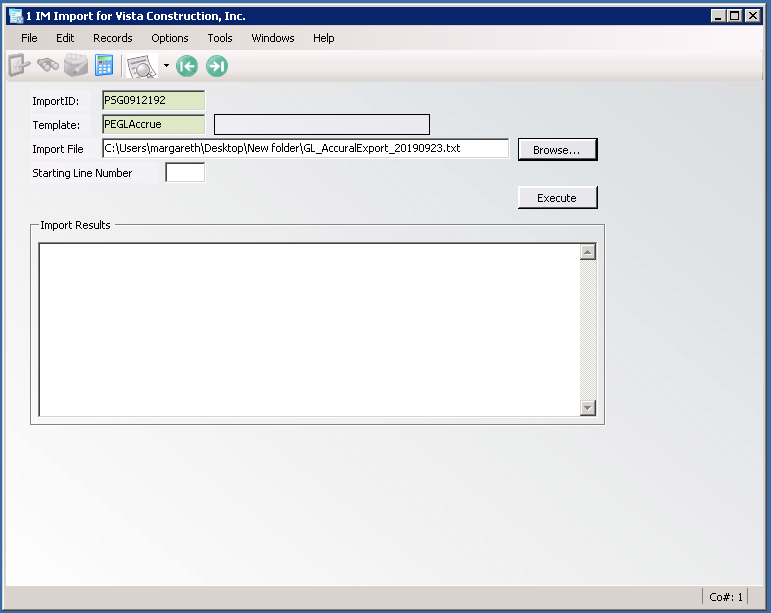
8.Click Execute.
The IM Import dialog, Import Results text box should resemble the following:
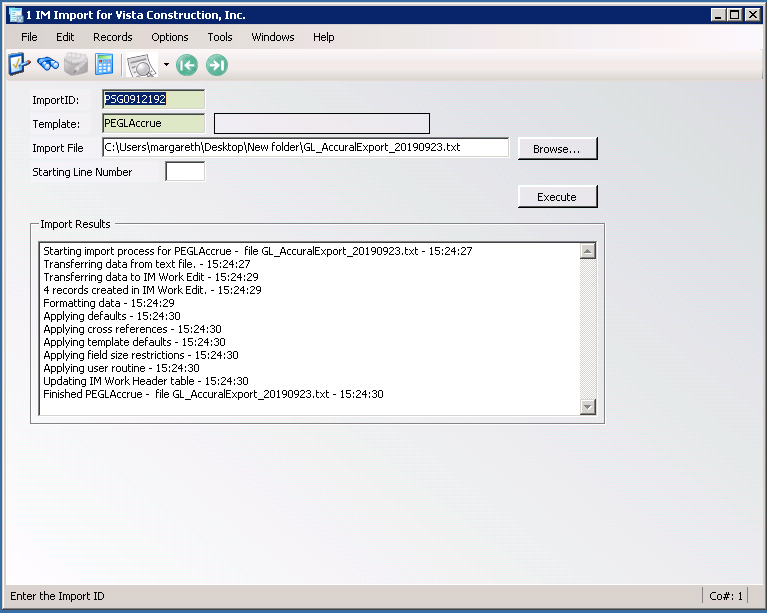
9.On the IM Import dialog toolbar, click File.
10. From the dropdown menu, click Close.
Import Upload
1.Click IM Upload.
The IM Upload dialog similar to the following displays:
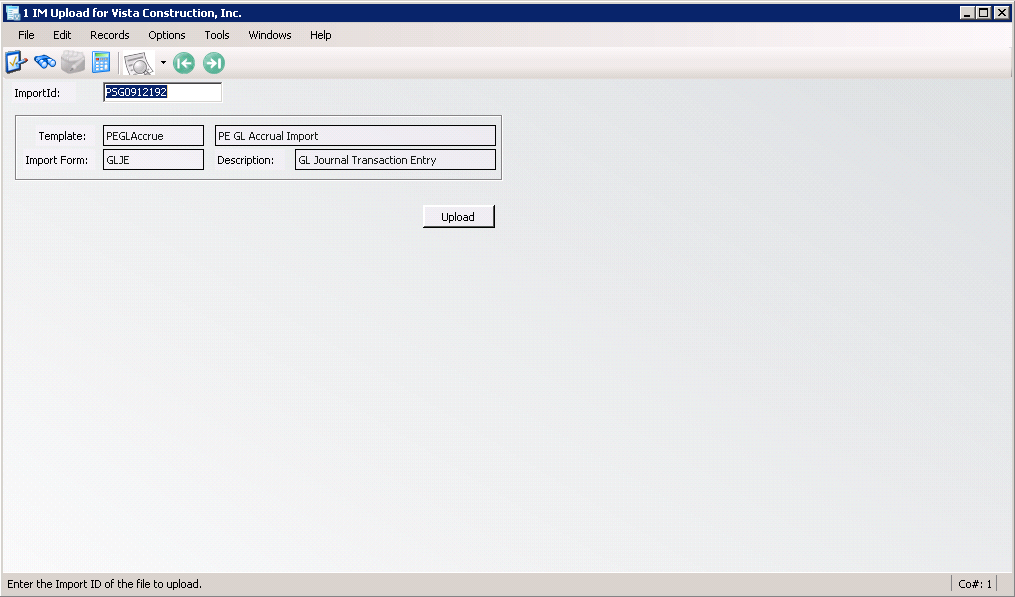
2.Click Upload.
This creates the GL Journal Transaction Entry Batch.
In Vista - PEJCAccrue Template
1.From the Main Menu navigation screen, click Imports in the left navigation bar.
2.Click Programs.
3.In the Forms listing, double click IM Import.
The IM Import dialog similar to the following displays:
These are the invoices selected on the Job tab in pVault. A separate Job Cost accrual export file is created.
1.In the Template field, type the following:
PEJCAccrue
(this is for a Job related export file import)
2.In the Import File field, click Browse to locate the file.
A Please choose a file to import dialog similar to the following displays:
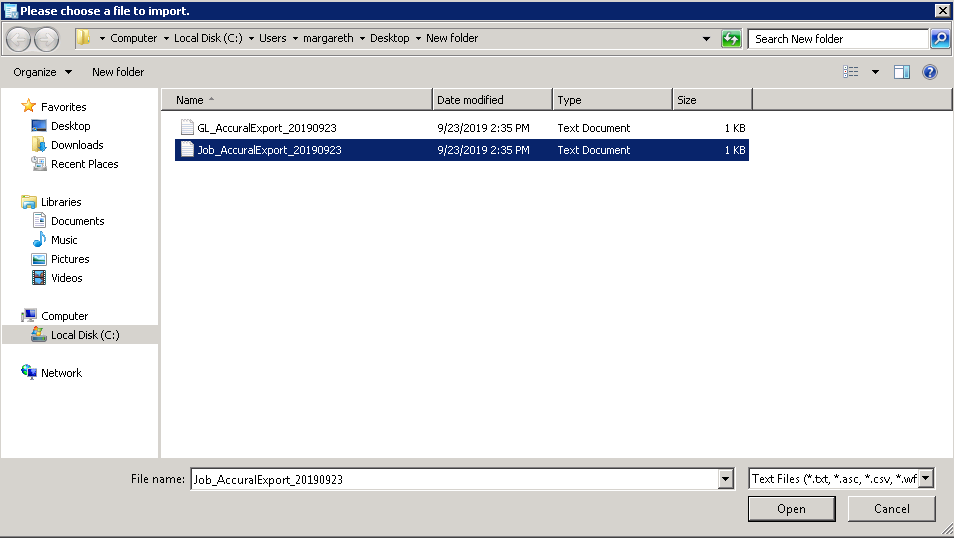
3.Click to highlight the appropriate file.
4.Click Open.
The IM Import dialog similar to the following redisplays:
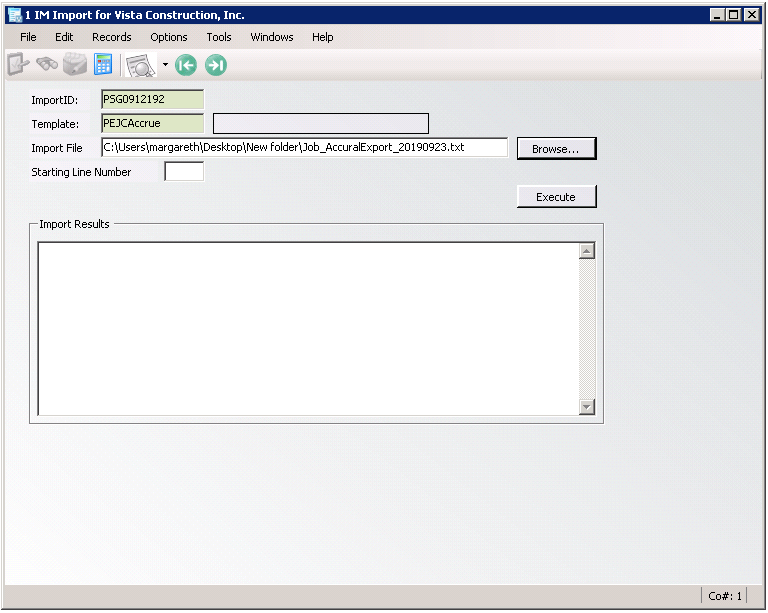
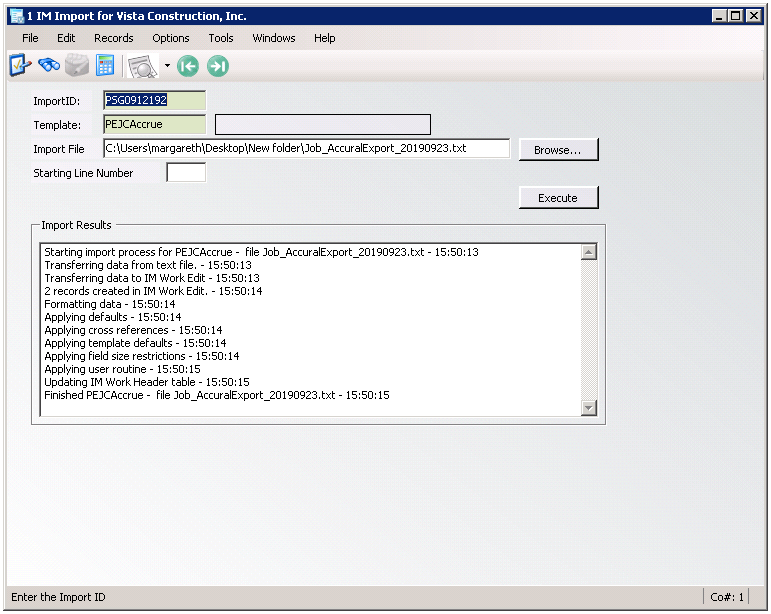
5.Click Execute.
The IM Import dialog, Import Results text box should resemble the following:
6.On the IM Import dialog toolbar, click File.
7.From the dropdown menu, click Close.
Import Upload
1.Click IM Upload.
The IM Upload dialog similar to the following displays:
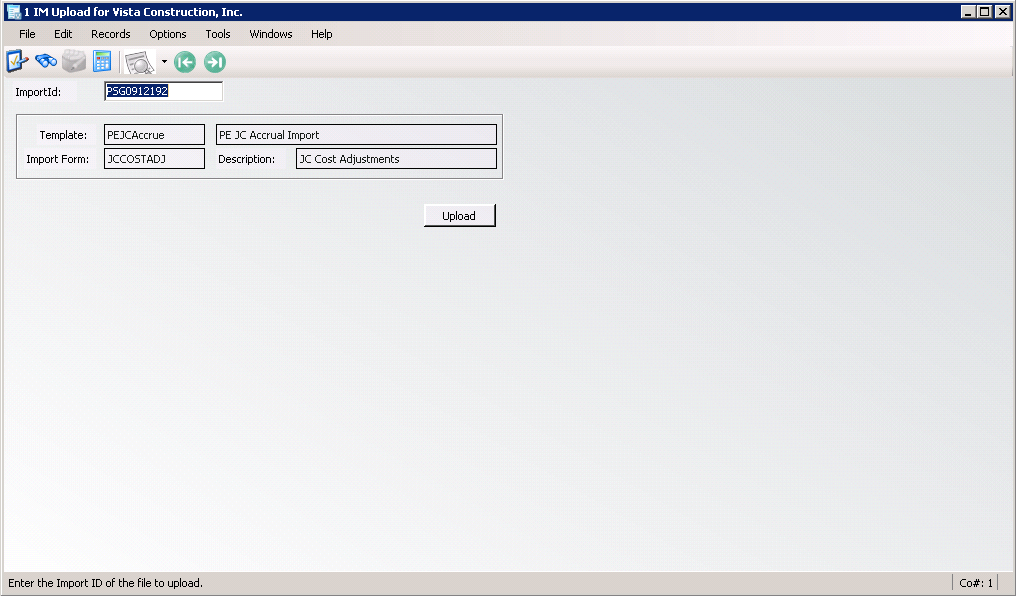
2.Click Upload.
This creates the Job Cost Adjustments Batch.
