Greenlight CM™ provides users with the ability to track an All-Operations/Blanket Vendor to a project using their All-Operations Insurance record for insurance compliance.
1.From the ribbon toolbar, click Greenlight.
2.Click Greenlight.
The main screen displays with the Dashboard tab active:
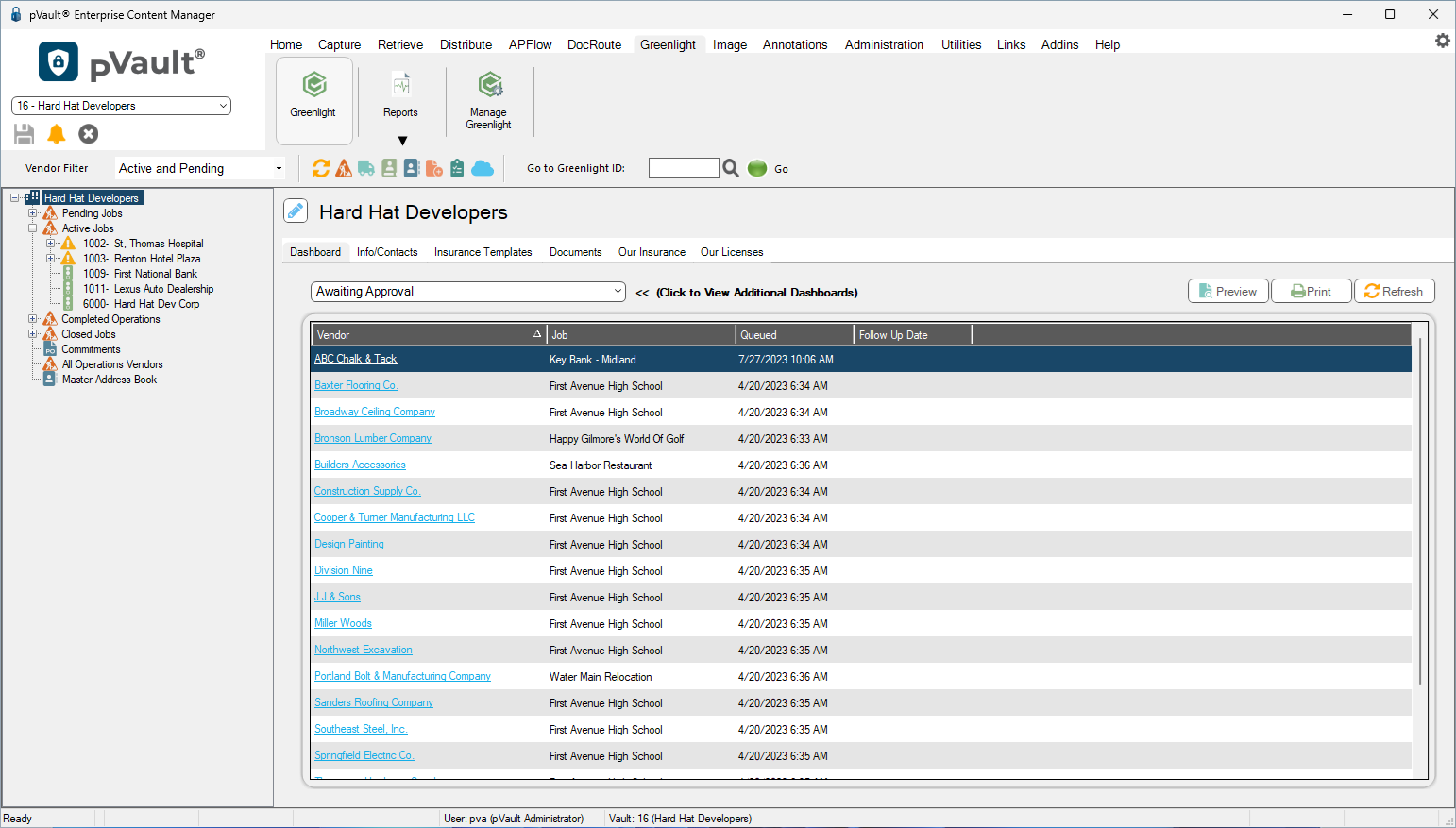
3.In the left navigation bar, click on a vendor.
The following screen displays with the Vendor Info tab active:
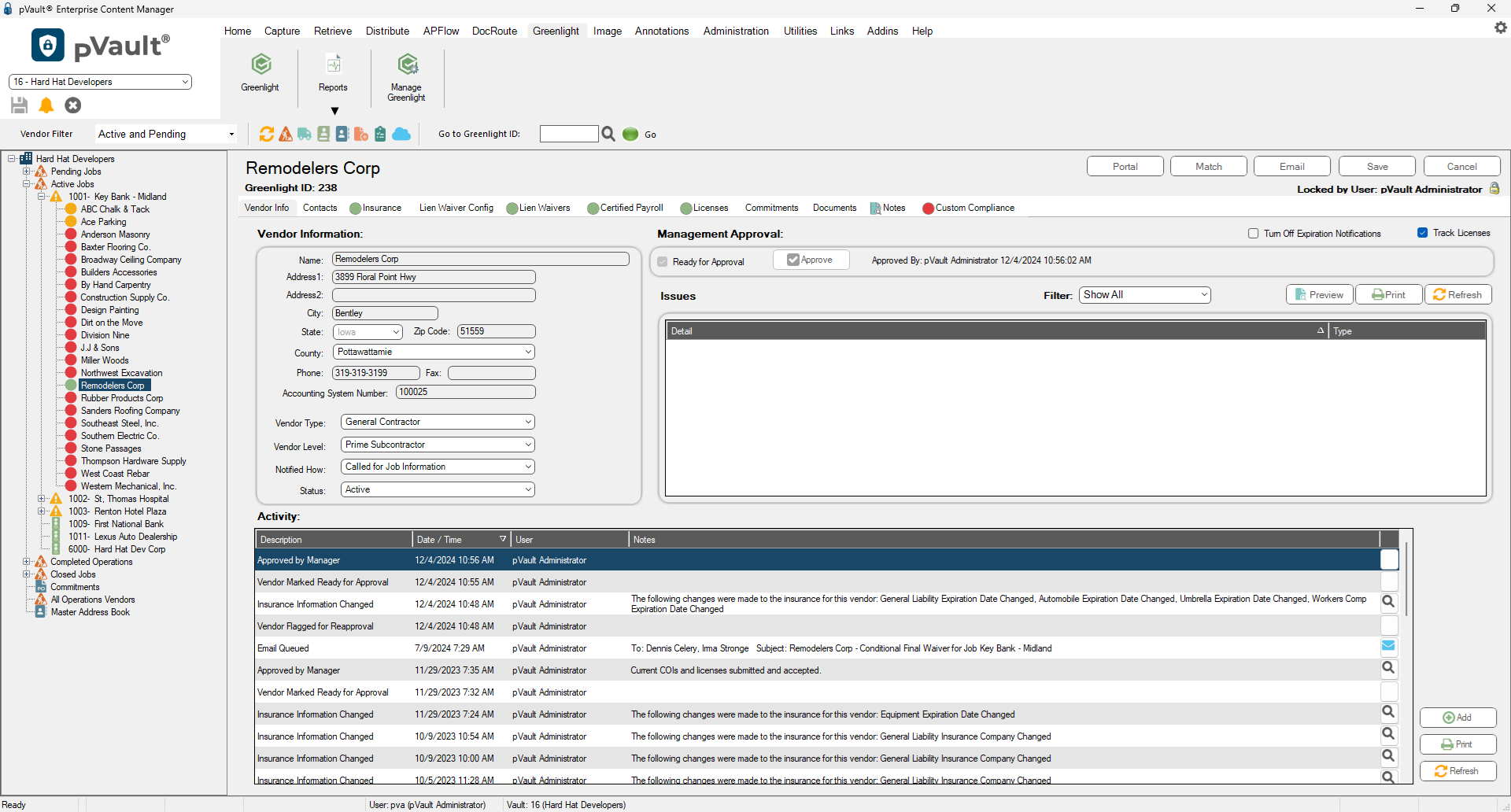
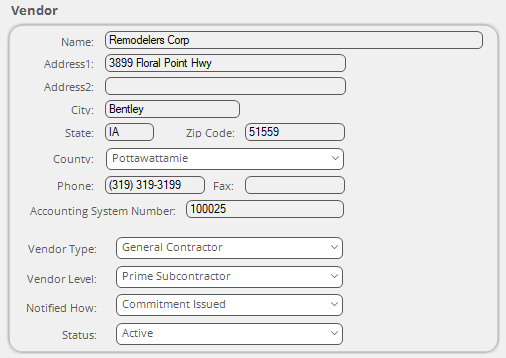
4.In the Vendor pane, locate the Vendor Level field.
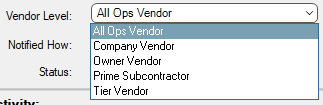
5.Use the Vendor Level field dropdown to select All Ops Vendor.
6.Click Save.
Important Notice that the Insurance tab for this vendor no longer displays. If there are any insurance issues with the All-Operations certificate, the vendor is out of compliance on this job as well as on any other job on which the vendor is working. You can switch back to Job-Specific Insurance tracking by selecting any of the other Vendor Level field dropdown entries. |
