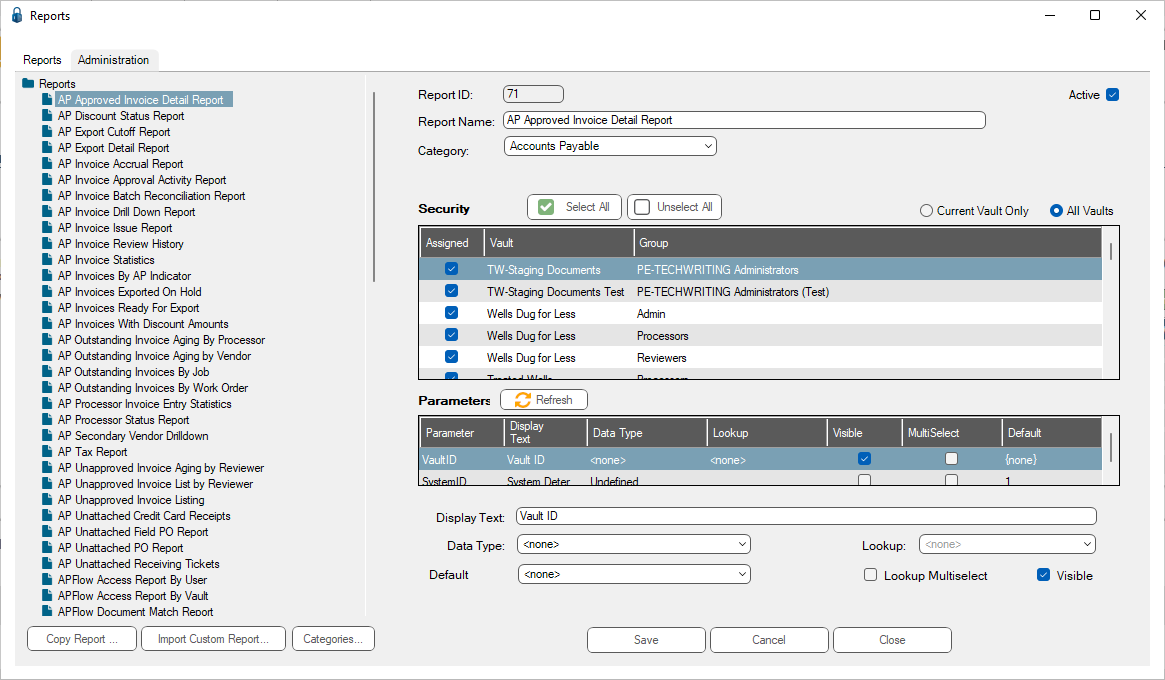
At the bottom of the Administration dialog is Categories.
1.Below the pane listing available reports, click Categories.
The following dialog displays:
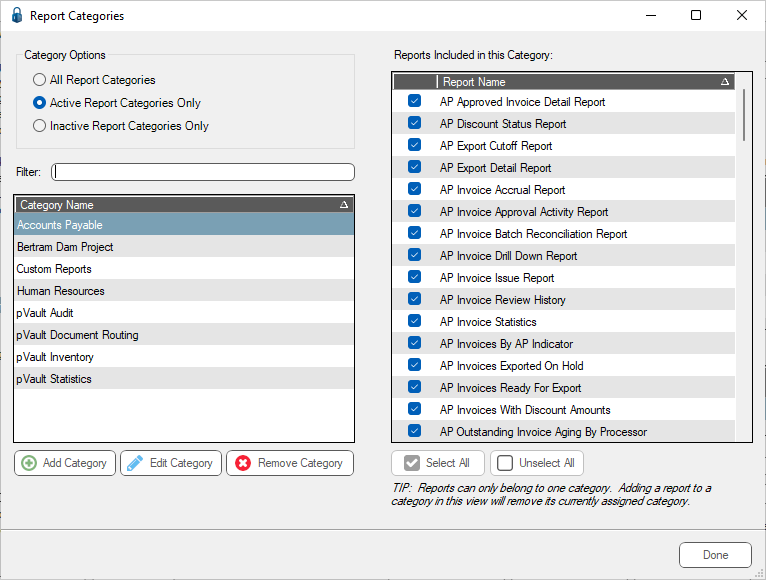
There is a Filter text field where you can start to enter a category to narrow the list.
2.Start typing in the Filter field to narrow the list similar to the following:
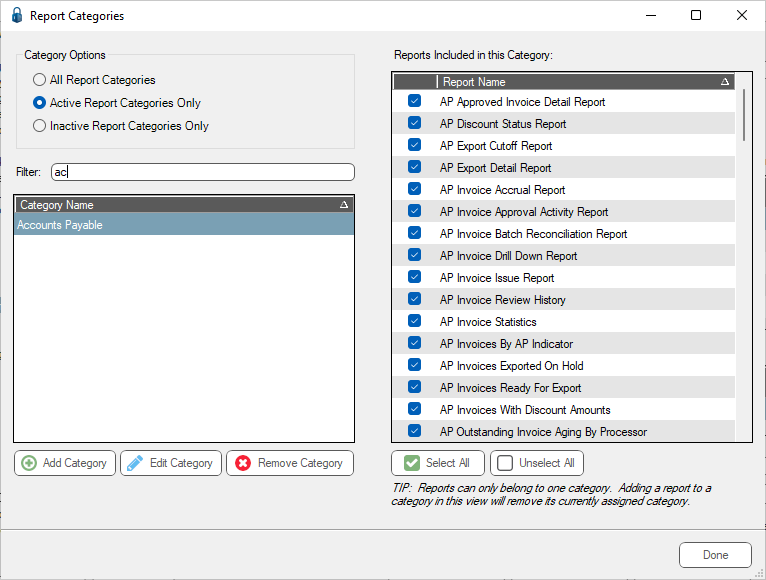
Reports for the highlighted category are selected
3.Click Add Category.
The Add New Report Category dialog displays:
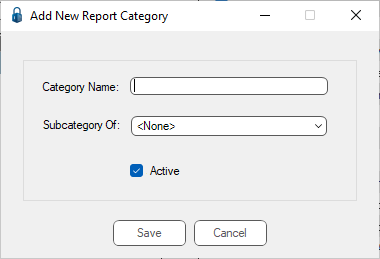
4.Enter the new category name in the Category Name field.
5.If this new category is a subcategory under an existing category, click the Subcategory Of field dropdown to display the list:
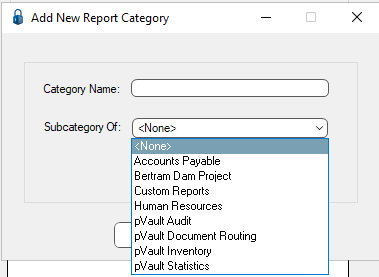
6.Click to highlight one on the listed categories.
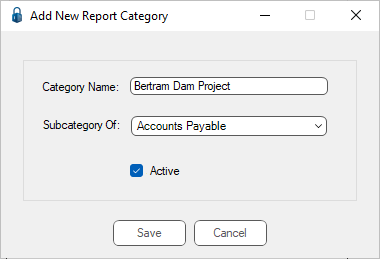
7.The Active check box is clicked by default. If this new category should not be active, click the Active check box to deselect it.
8.Click Save.
The Report Categories dialog displays with the new category listed:
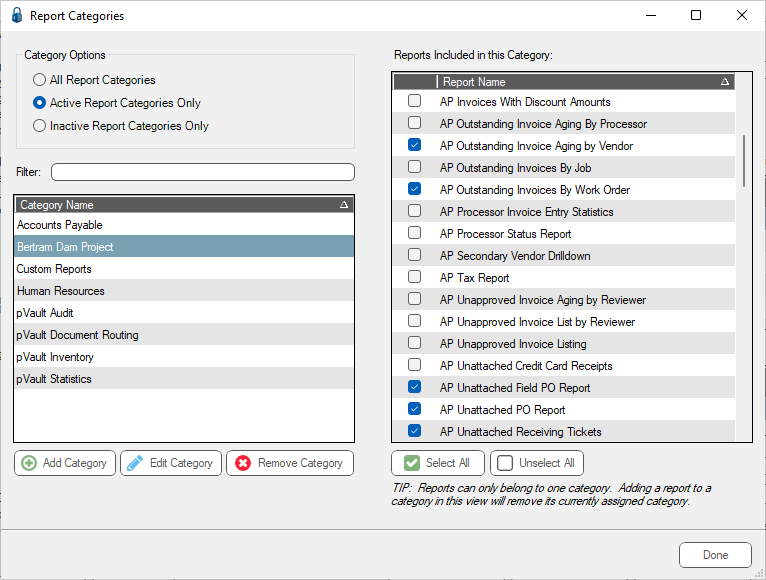
9.Go through the reports listed in the right pane. Check all the reports that should be included in the newly created category.
10. Click Done.
11. Click the Reports tab.
12. Click Refresh.
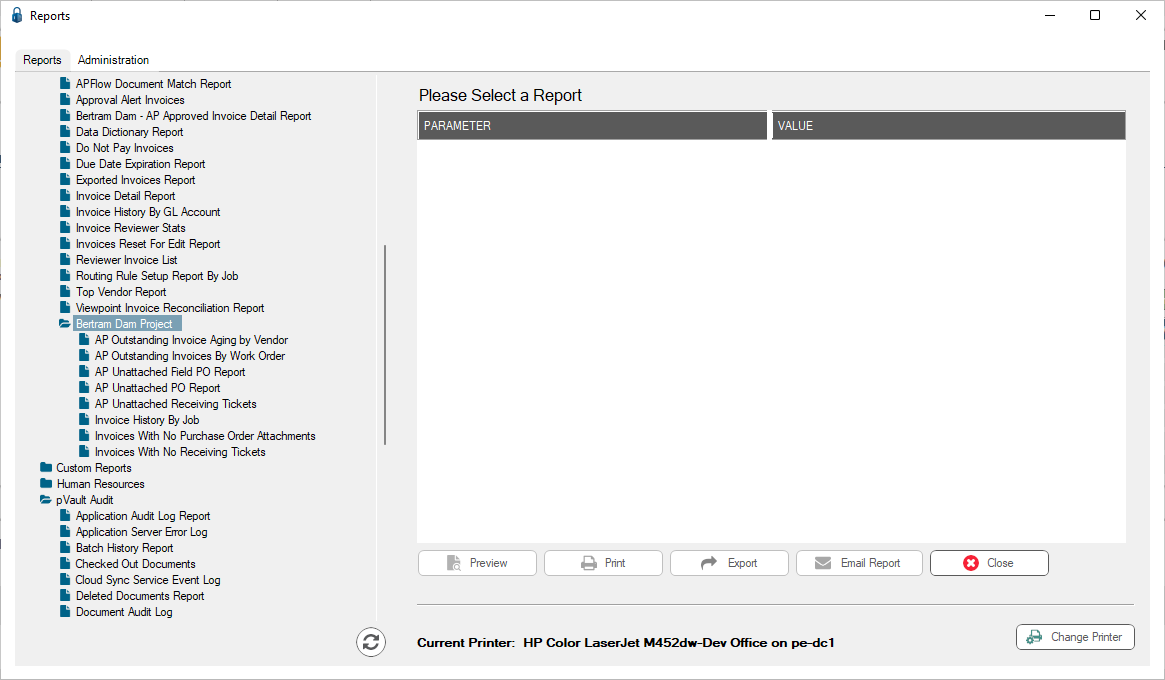
In the Reports pane, your new category nested is under the existing category. In this example, the newly created Bertram Dam Project category is listed under the existing Accounts Payable category. Those reports assigned to the new category display similar to the following:
Important: A report can only belong to one category.
Editing Categories
1.From the ribbon toolbar, click Retrieve.
2.Click Reports.
3.Click the Administration tab.
4.Click Categories.
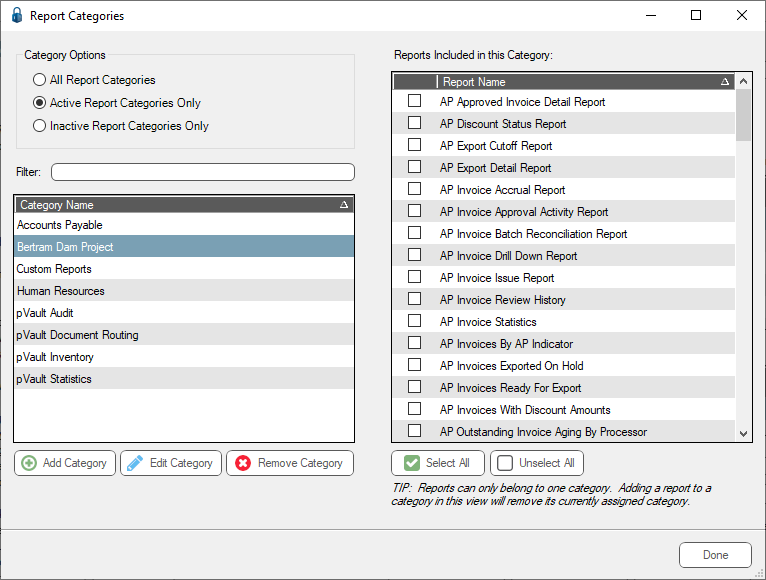
5.Highlight the category that you want to edit.
6.Click Edit Category.
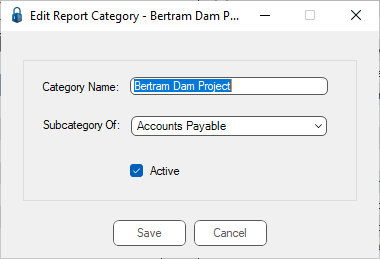
7.Revise the category name, change or remove the subcategory, or mark the category inactive.
8.Click Save.
Removing Categories
1.From the ribbon toolbar, click Retrieve.
2.Click Reports.
3.Click the Administration tab.
4.Click Categories.
5.Highlight the category that you want to remove.
6.Click Remove Category.
The following warning prompt similar to the following displays
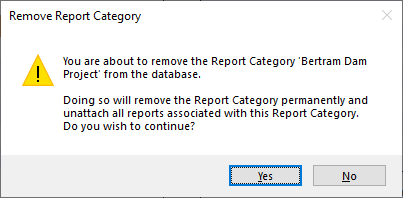
7.If you click Yes, the category you created is deleted. Any reports assigned to that category is systematically assigned to the Unclassified category.
If you click No, no changes are made.
8.Be sure to check the Unclassified category so you can reassign those reports to a different category.
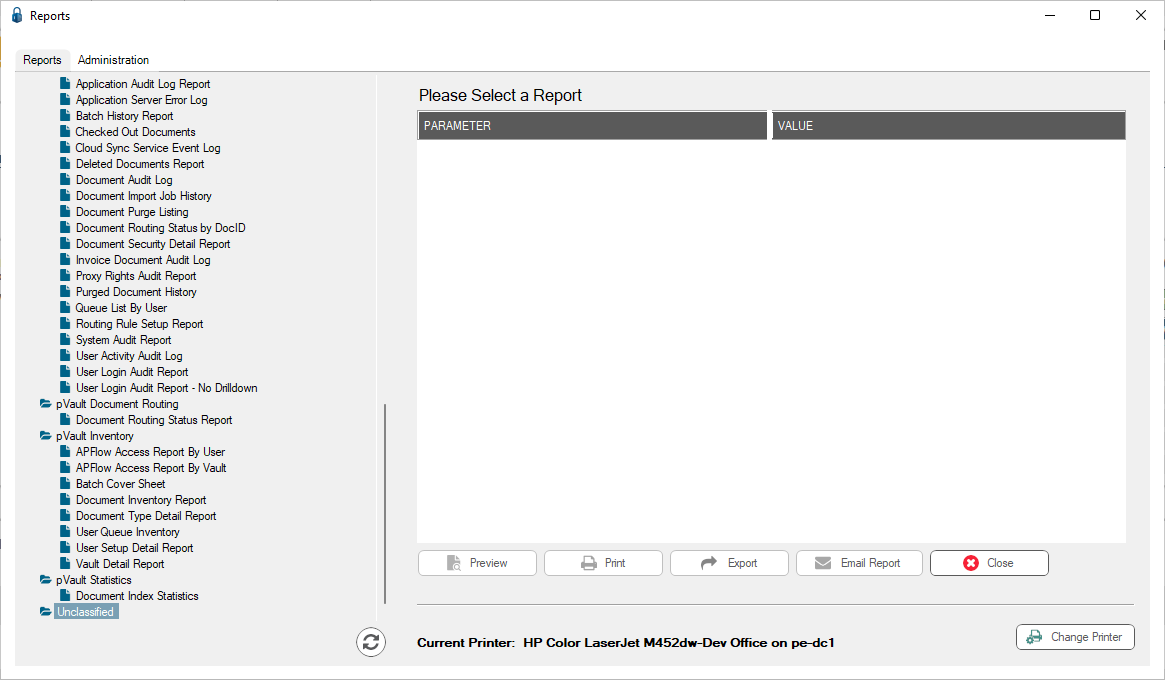
Note: To see what reports are assigned to the Unclassified category, look for an Unclassified group listed in the Reports pane tree on the Reports tab: