pVault® and the purchased modules require license codes to operate.
1.From the ribbon toolbar, click Administration.
2.Click License.
The License dialog similar to the following displays:
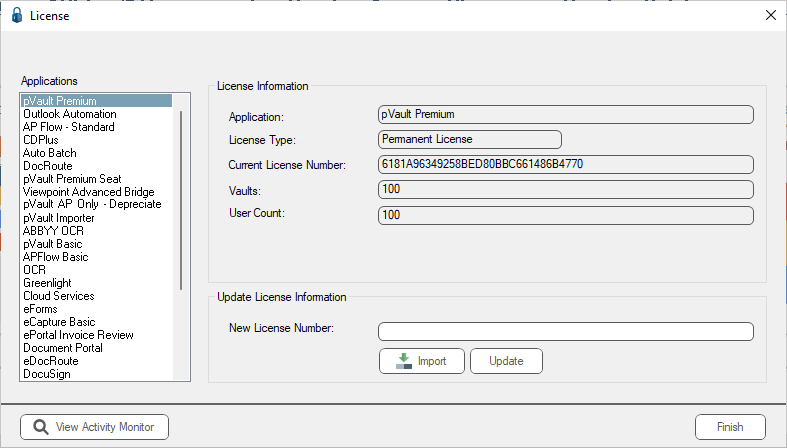
This is where Administrators can view and manage the purchased license codes. Administrators can also view and manage users who are currently connected to the system from this dialog.
Note: If the APFlow - Standard or APFlow™ Basic application is selected, an additional button, View APFlow License Usage, displays.
Click this to view the APFlow License Usage dialog. Here APFlow Users are identified as well as their APFlow Rights detailed (Vault / AP Processor / AP Reviewer / AP Supervisor / AP Payment Manager).
The Applications list displays the various modules available for the pVault system. As a module is selected from the list, the license code and other information displays in the License Information section.
Note: If for some reason a license code is sent manually from Paperless Environments, paste the license code into the New License Number field and click Update to add the license to the database.
1.From the License dialog, Administrators can click View Activity Monitor.
The pVault Enterprise Content Manager Activity Monitor dialog similar to the following displays:
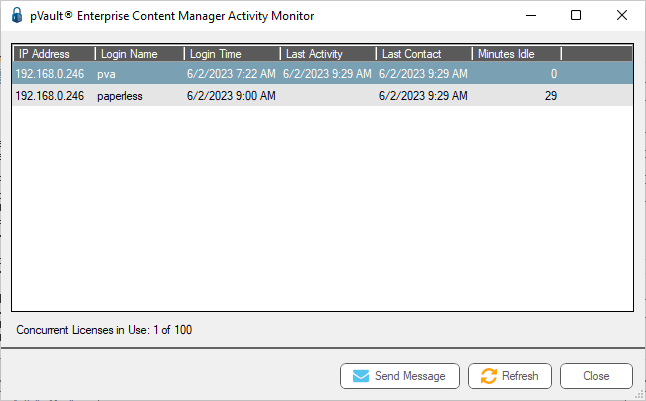
2.Identify which users are currently in the pVault system, determine how long they have been logged in, and see how many licenses are in use.
1.From the pVault Enterprise Content Manager Activity Monitor dialog, click Send Message.
The following Send Server Message dialog displays:
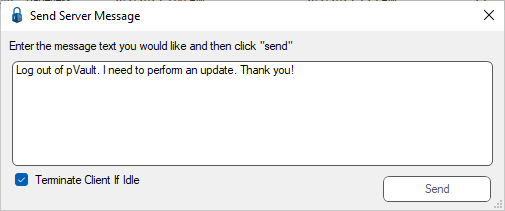
2.Enter the message text in the text box.
3.Click Send.
The typed message immediate displays to the receiver.
Terminating Idle Users
1.Click the Terminate Client If Idle check box to log an individual out of pVault if they have been idle for over 15 minutes.
A warning 15 seconds before termination displays to allow the user to save their work.
Important: Only users who have been idle for over 15 minutes have their connections terminated. The idle user is typically someone who failed to log out successfully.
2.Click Send.
