On occasion, Administrators may need to move documents from Archive back to Production.
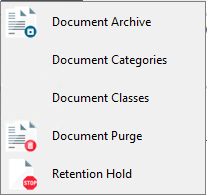
1. From the ribbon toolbar, click Administration.
2.Click the Documents dropdown.
3.Click Document Archive.
The Document Archive dialog similar to the following displays:
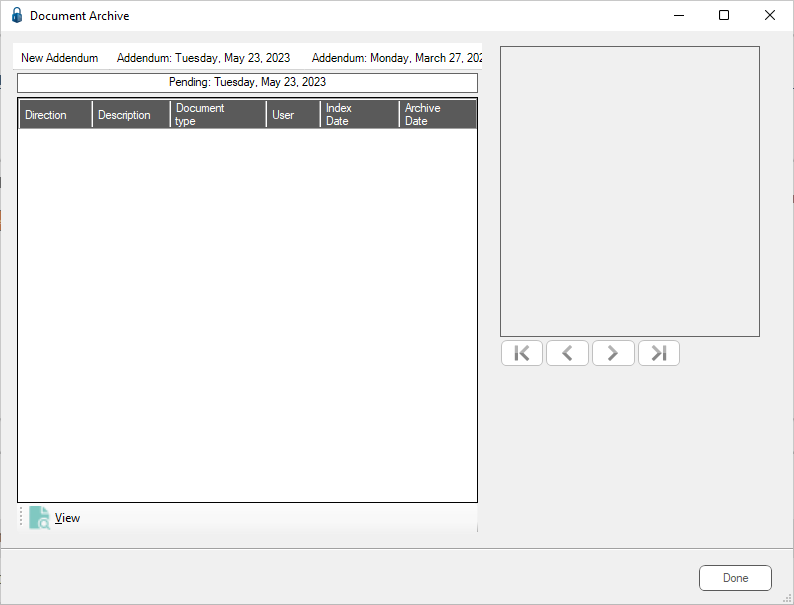
4.Click the New Addendum tab.
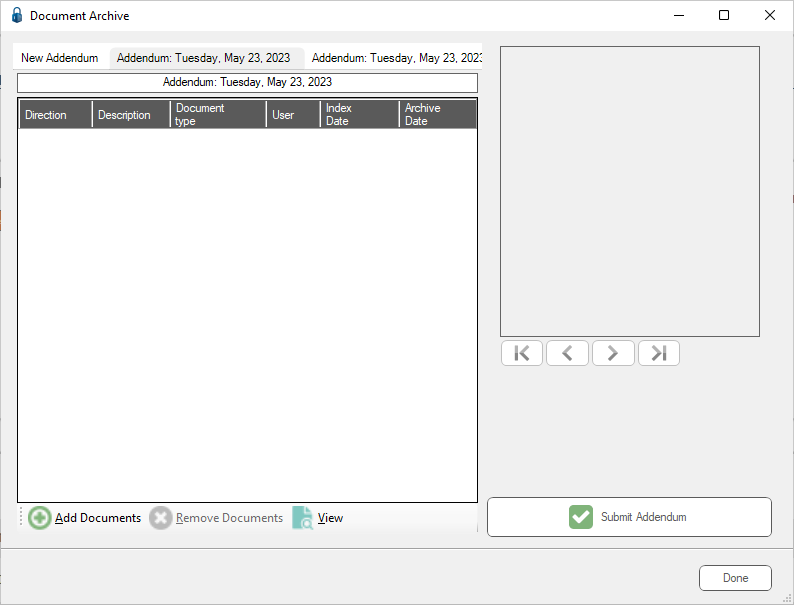
5.Click Add Documents to search for documents to move back into Production.
The Search Utility dialog displays:
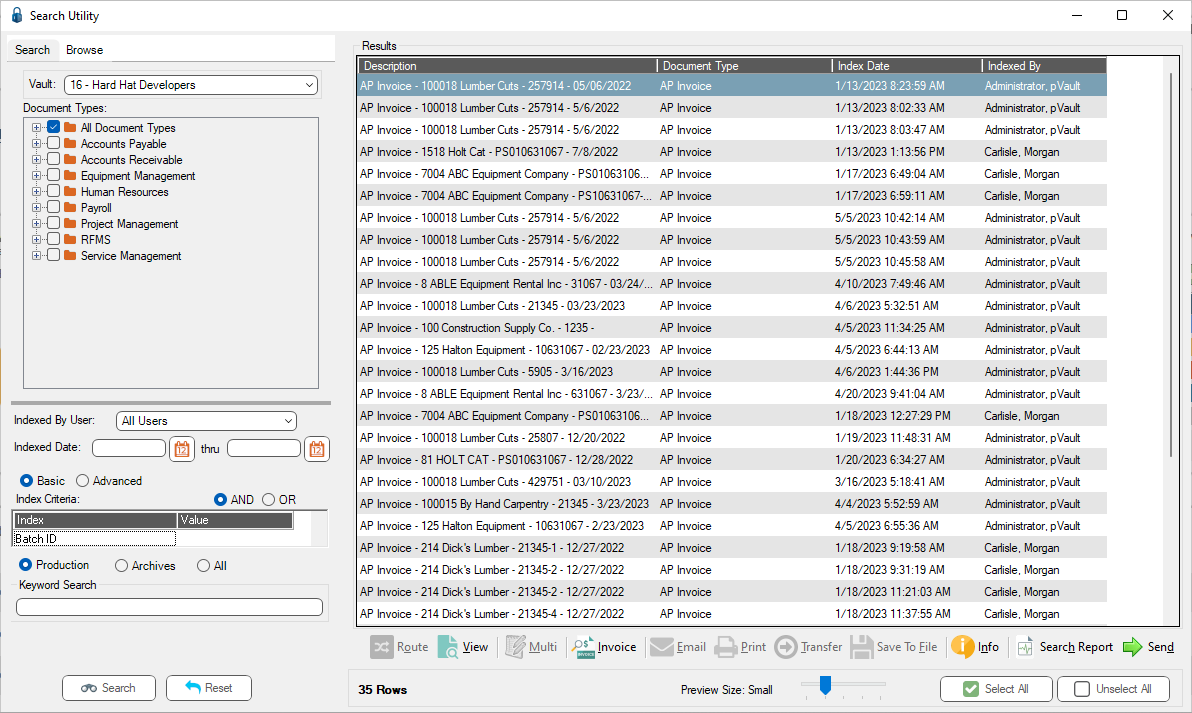
6.Click the Archives radio button to limit the search to only archived documents.
7.Click to highlight the document(s) selected to move from Archive to Production.
8.Click Send to send the Document IDs to the archive screen.
The Document Archive dialog re-displays.
Notice that the Direction column label name displays “Production” to indicate that the job moves the document to “Production”.
9.Add or remove documents to the Addendum by clicking Add Documents or Remove Documents.
10. Once the list is complete, click Submit Addendum to add them to the archiving job.
When the job runs, the documents are moved from Archive to Production.
