1.In the Validation Type field dropdown, select Ranked List.
2.If the Ranked List field dropdown is blank, click Manage Lists.
The Manage Custom Compliance Ranked Lists dialog similar to the following displays:
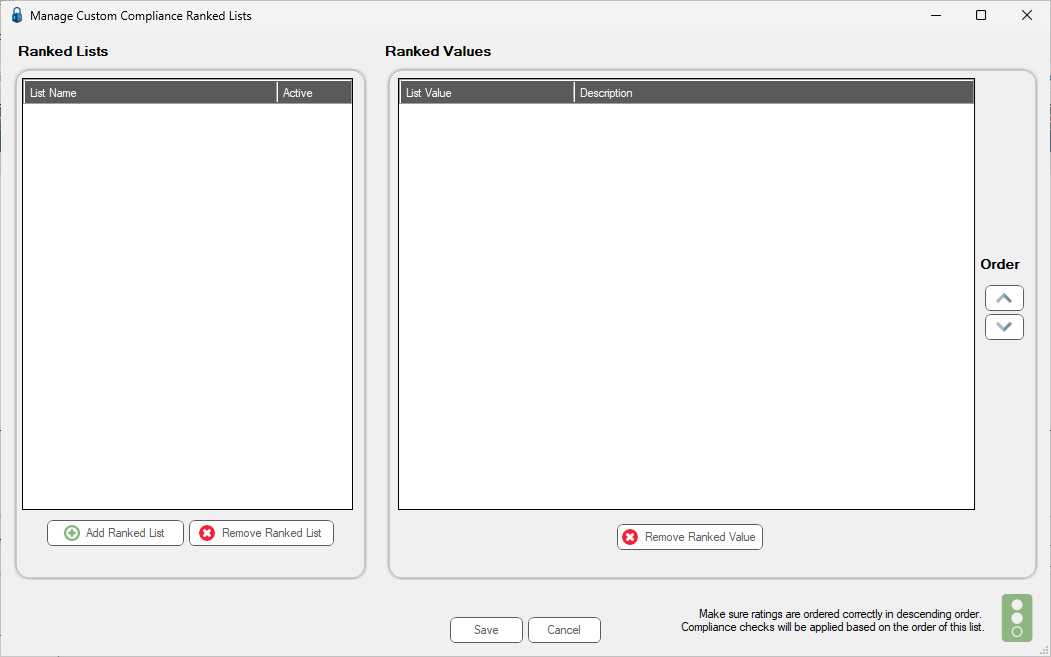
3.Click Add Ranked List.
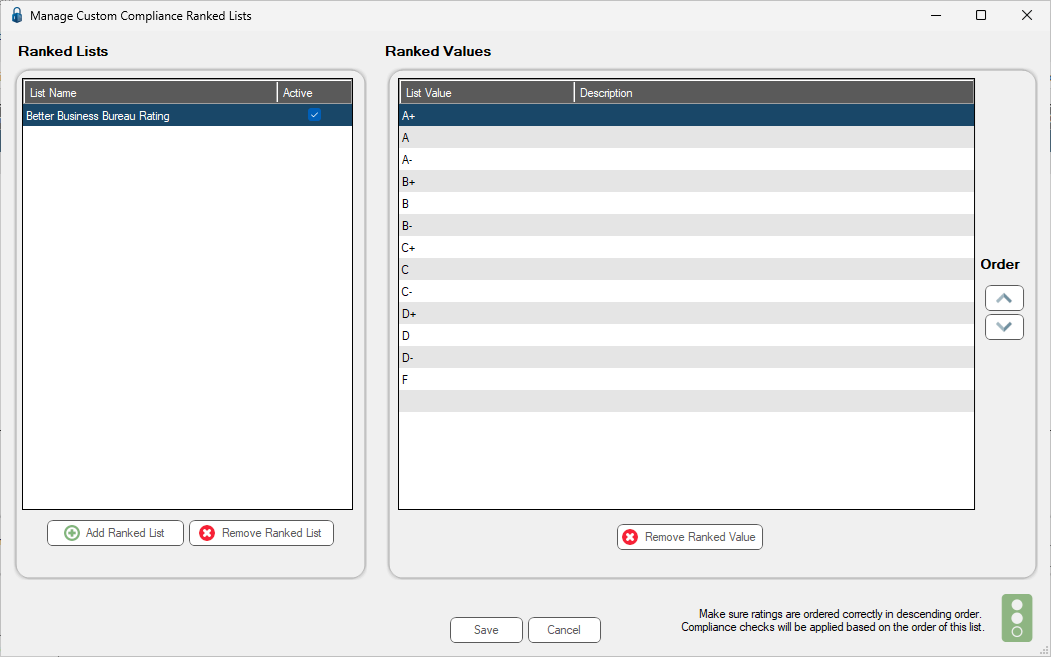
4.Type in a List Name. For example, Better Business Bureau Rating.
5.Click the Active check box to make this Ranked List active.
6.In the Ranked Values grid, click in the List Value header.
7.Enter the list values.
Important: Make sure ratings are ordered correctly in descending order as compliance checks are applied based on the list order.
8.Click Save.
A populated Manage Custom Compliance Ranked Lists dialog should resemble the following: