In addition to capturing paper documents with a dedicated scanner, documents stored on a computer or network drive can be imported. These files can be produced from multi-function copy machines with scan-to-file capability, fax machines, stand-alone scanners or printer drivers that can produce TIFF images. The import process begins by opening a new batch.
A batch is a file created by pVault® that:
•allows as many scanned pages to be added as necessary
•applies a description to the batch of scanned documents
•assigns the batch to a pVault user
Batches are automatically numbered by pVault to facilitate the tracking of the grouped documents through the system. A link is provided between the indexed documents and the physical paperwork, should the decision be made to physically file the paperwork in a filing cabinet.
1.From the ribbon toolbar, click Capture.
2.Click New Batch.
The first New Batch Wizard dialog displays:
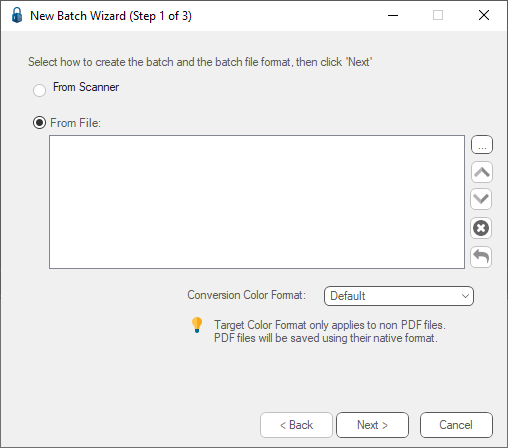
3.Click From File.
4.Click the ellipsis to browse files to import.
5.Highlight all files to import into the batch by clicking the file name (for a single file) or shift-clicking (for multiple files).
Note: To select multiple files in a row, click the first file in the list, holding down the Shift key and then clicking the last file. To select multiple files that are not listed sequentially, hold down the Ctrl key while clicking on the files.
6.Once all files for importing are highlighted, click Open to return to the first New Batch Wizard dialog.
The New Batch Wizard dialog resembling the following displays:
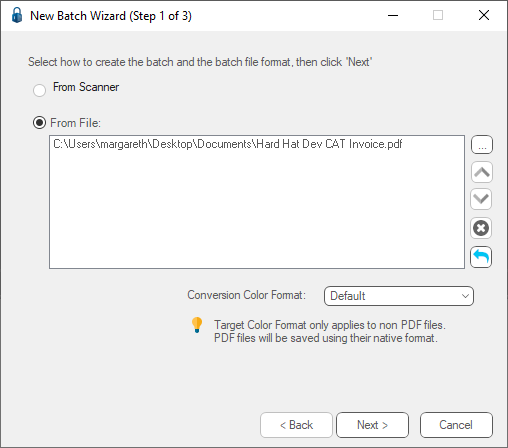
7.Determine if the order in which the selected files are imported into the batch must be modified.
8.If no, skip to step 10.
If yes, continue with step 9.
9.Highlight the file names in the list and click any of the following icons displaying on the right side of the dialog:
|
Move selected file Up |
|
Remove selected file |
|
Move selected file Down |
|
Clear all files |


10. Click Next.
The second New Batch Wizard dialog displays:
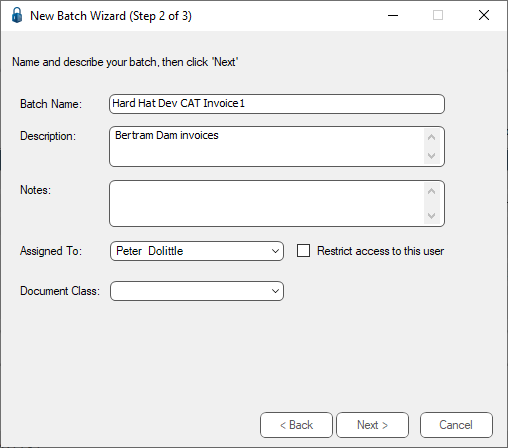
11. The Batch Name field defaults with the file name. Change the system-generated batch name as necessary.
12. In the Description text field, enter a description to be associated with this batch.
13. In the Notes text field, enter any pertinent information.
14. In the Assigned To field, use the dropdown list to assign one person to this batch:
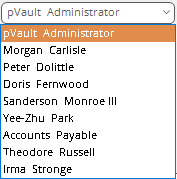
Leave this field blank if this batch is not assigned to an individual.
15. If this batch should be restricted to the user identified in the Assigned To field, click the Restrict access to this user check box.
Leave this field blank if access is not restricted to the user, or if the Assigned To field is blank.
Note: Use the Restrict access to this user option if the documents are confidential, such as payroll journals, or contain medical information.
16. In the Document Class field, use the dropdown list to assign a document class to the batch. The document class further categorizes the documents as they are processed through the system.
Leave this field blank if a document class is not appropriate for this batch.
17. Click Next.
The third New Batch Wizard dialog displays with a summary of the import selections:
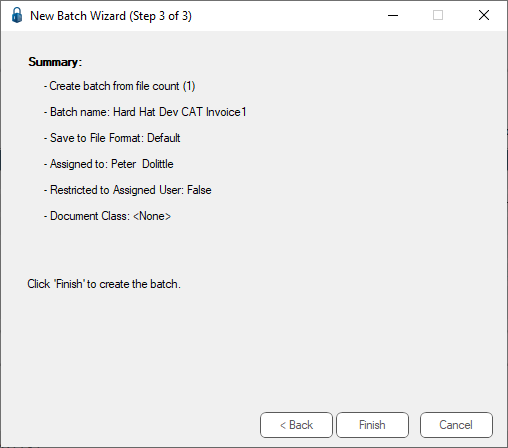
18. Review the information displayed in the Summary dialog for the batch. If any of the information is incorrect, click Back and revise the information accordingly.
19. Once the Summary information is correct, click Finish to begin the import process.
When the files are finished importing, the following dialog displays:
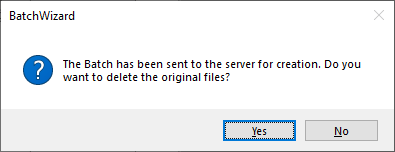
This prompt indicates the files selected for the new batch were copied to the batch location indicated by the user configuration.
20. Click Yes to delete the original files from their location.
Click No to leave the original files intact.
After choosing to delete or keep the files, the following dialog displays:
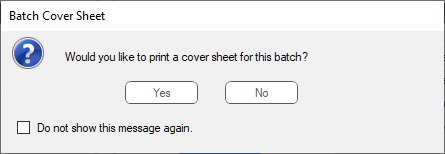
21. Click No and the images display on the pVault desktop where the indexing process can begin.
Click Yes and a cover sheet for the batch is created similar to the following:
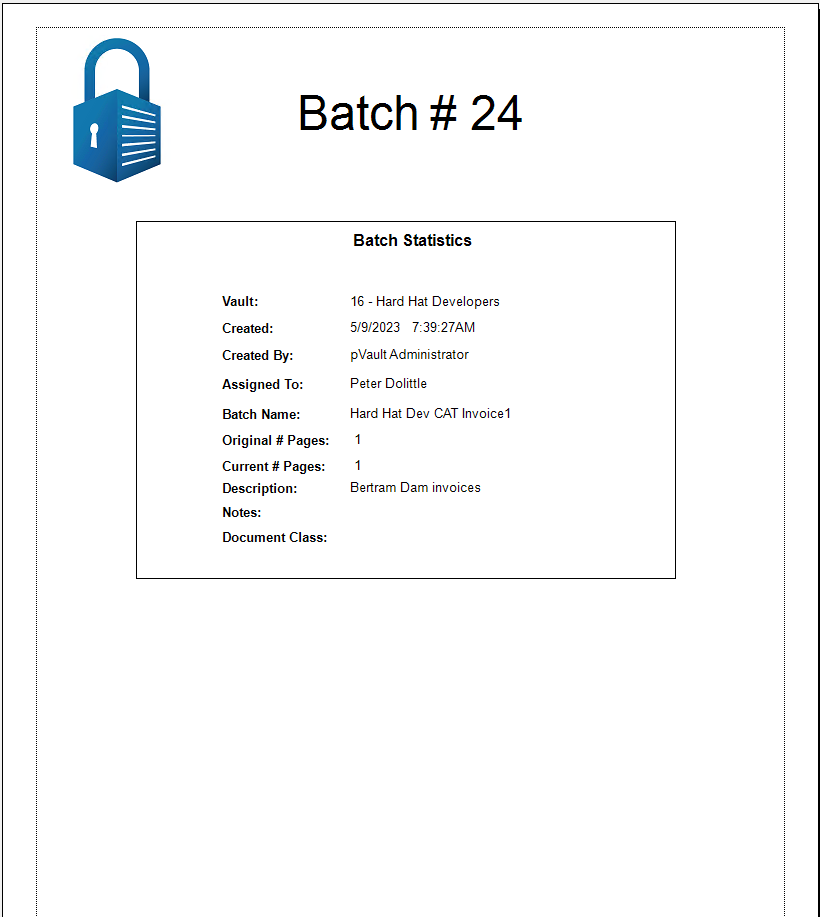
A Save / Close Batch dialog similar to the following displays:
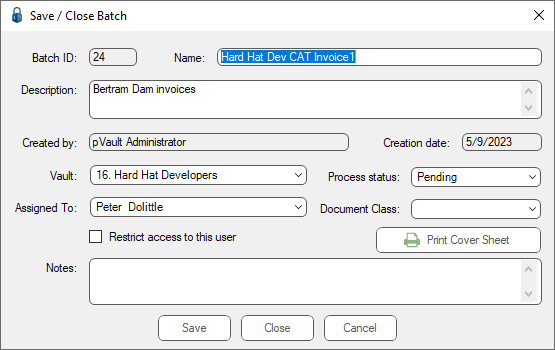
22. Click Save and the changes are saved.
23. Click Close and the changes are not saved.
The scanned images then displays on the pVault Desktop where the indexing process can begin.
