1.From the ribbon toolbar, click Greenlight.
2.Click Greenlight.
The main screen displays with the Dashboard tab active:
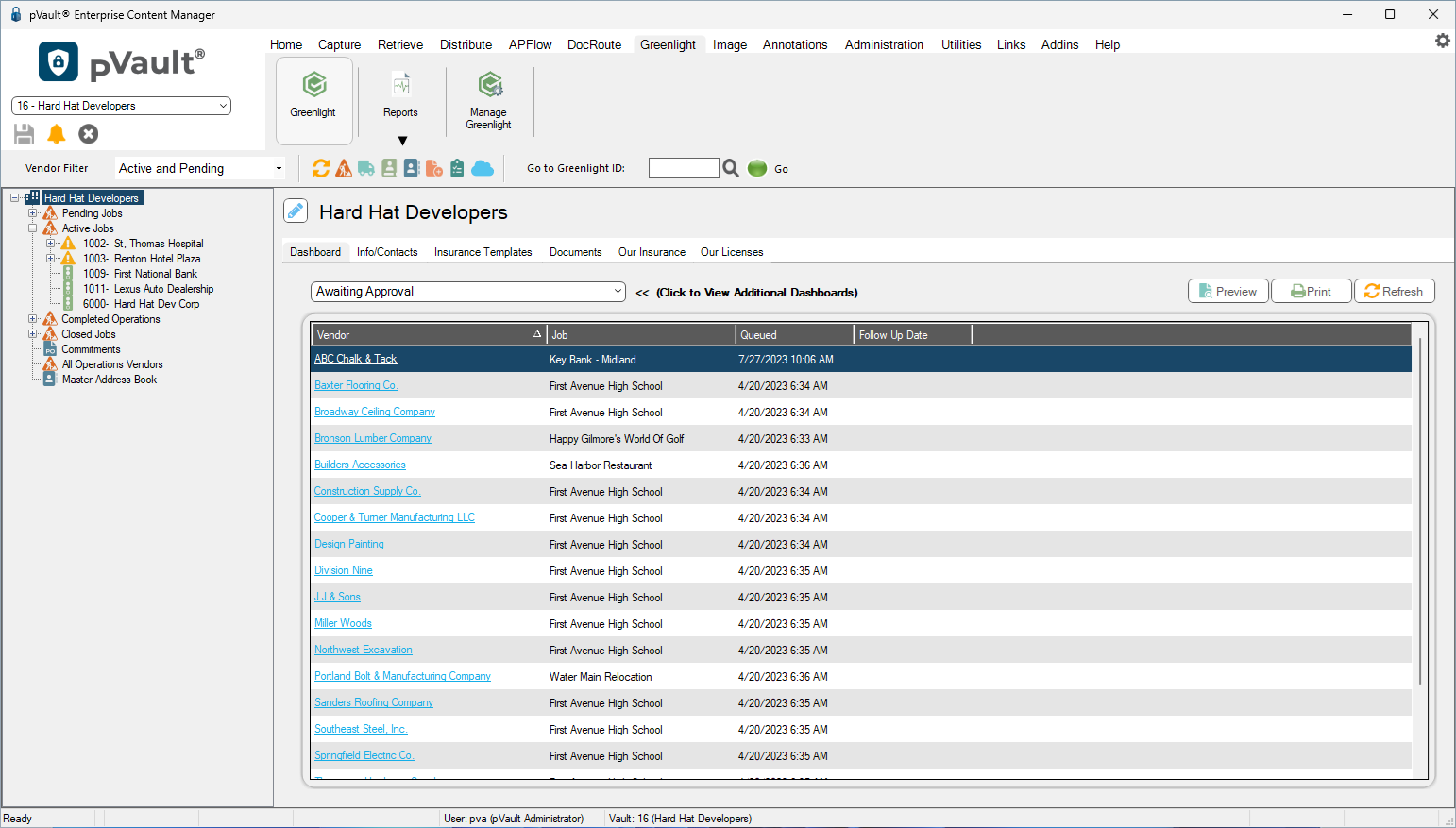
3.In the toolbar, click the Record Waivers Received icon.
The following screen displays:
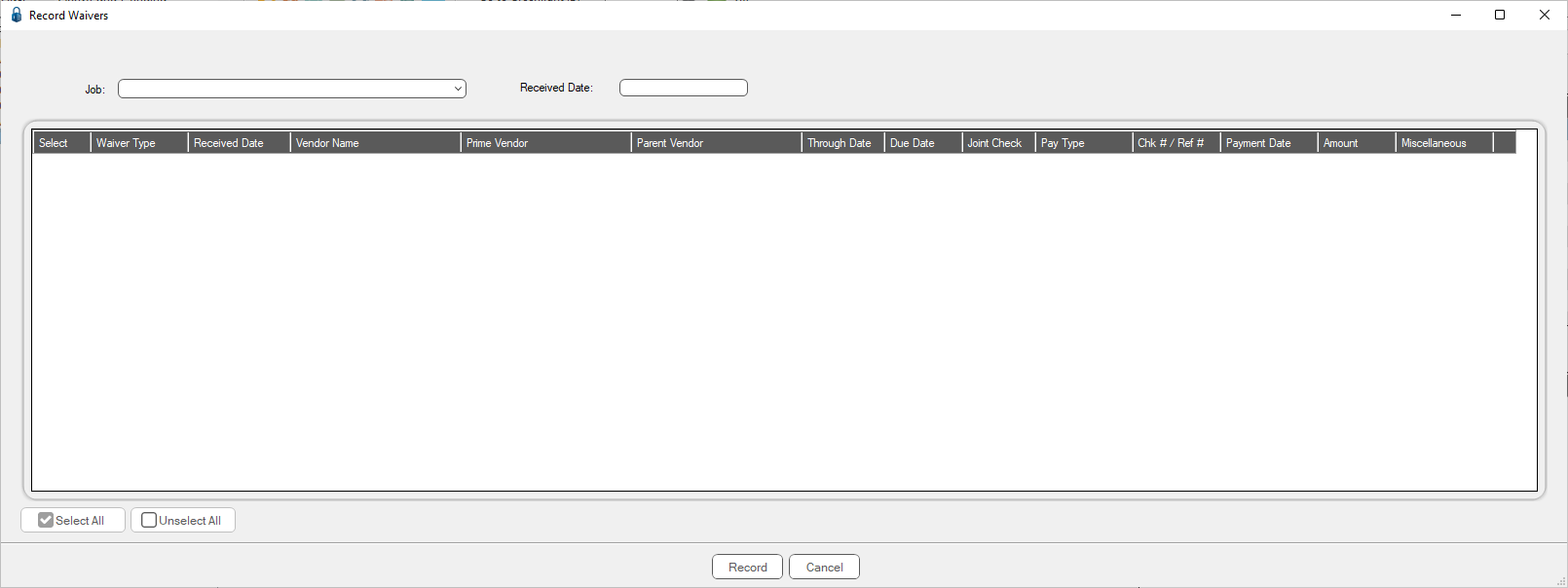
4.From the Job field dropdown, select the job.
The Record Waivers screen populates based on the job selected.
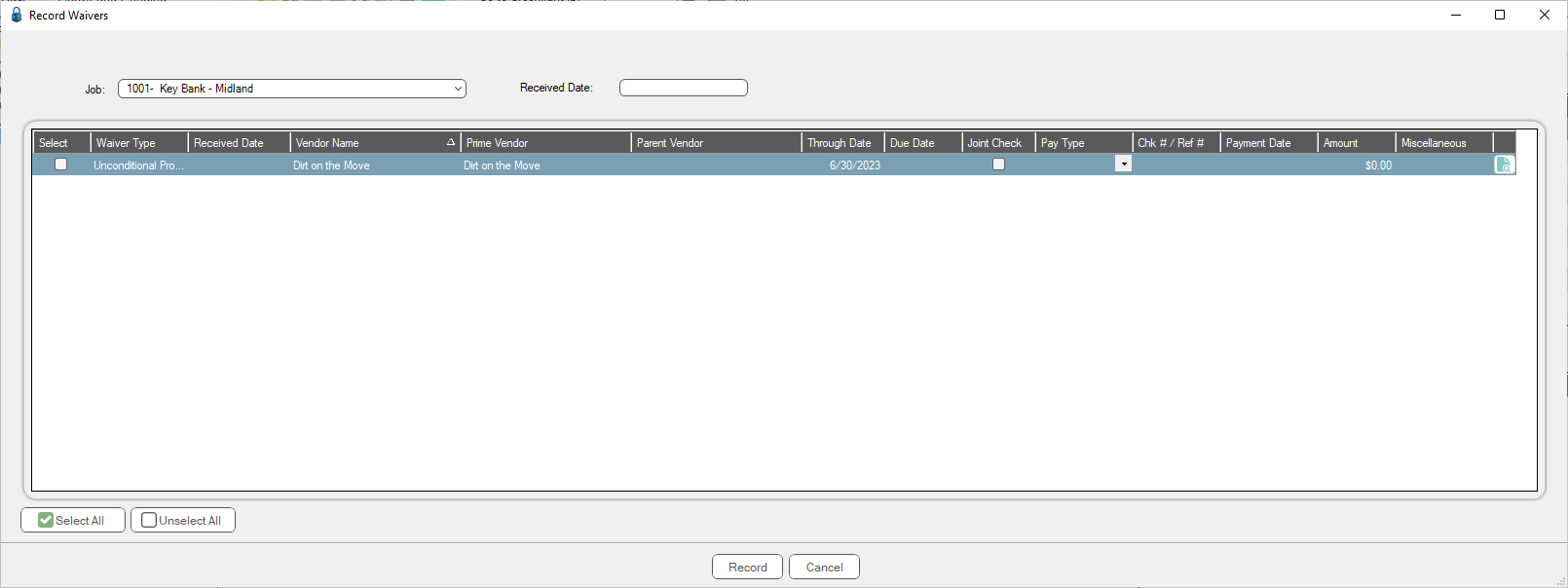
5.In the Received Date field, enter a date.
The Received Date field located in the top of the screen is considered the default Received Date for all entries in the grid.
Note: If you want to enter a unique Received Date for specific grid entries but not all entries, there is a Received Date column where you can enter dates manually.
If the Received Date field is blank, and you click Record, the following error message displays:
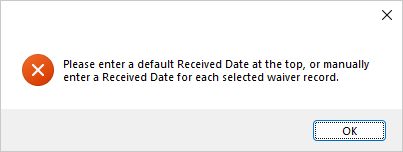
Click OK to close the prompt.
6.Click Record.
