pVault® has the ability to add linking files to the attachment system of certain accounting software, which provides a mechanism to show all related files stored in pVault when the paperclip is clicked in the accounting program. Use the Attachment Sync Configuration dialog to configure which records in the accounting database are linked to pVault through “paperclip” links.
1.From the ribbon toolbar, click Administration.
2.Click Attachment Sync.
The Attachment Sync Configuration dialog similar to the following displays:
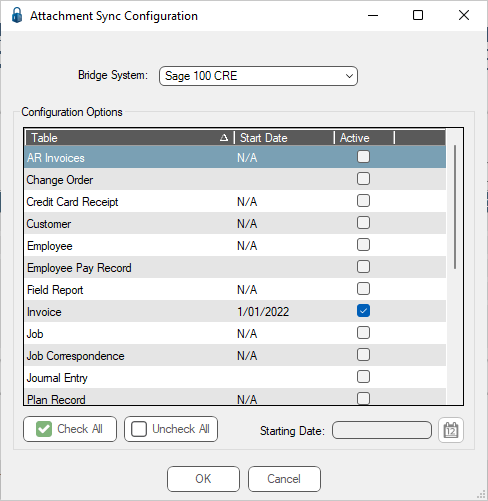
3.Select Sage 100 Contractor in the bridge system dropdown menu.
4.Click to select the tables to be linked back to pVault.
5.For date-specific records such as AP Invoices, Purchase Orders, etc., add a date in the Starting Date field to only include records in the accounting database that are equal to--or greater than--the entered starting date.
6.Once the tables are configured, a Job Poll Service job must be set up to schedule the placement of the linked files into the accounting system.
The attachment "link" displays in the Attachments dialog within Sage 100 Contractor with a description of "XXXX SPC Documents.pvsync".
There is only one link per master record in Sage 100 Contractor, similar to the following:

7.Click Open to access the pVault Document Viewer.
