In the Sage 300 accounting system, a generic vendor is set up as a Summary Vendor type. This generic vendor is used as a placeholder and does not have their own invoices. Instead this Summary Vendor type is used to deal with one-time vendors.
Note: The pVault Quick Vendor functionality is not the same as Add Vendor, as the Add Vendor functionality is for a new vendor that is not yet in the accounting system but has already begun generating invoices. Click here to read more about the Add Vendor functionality.
In pVault
1.From the ribbon toolbar, click APFlow™.
2.Click Invoice Entry.
3.From the APFlow sidebar, click New Invoice or Edit Invoice.
The Invoice Entry screen similar to the following displays:
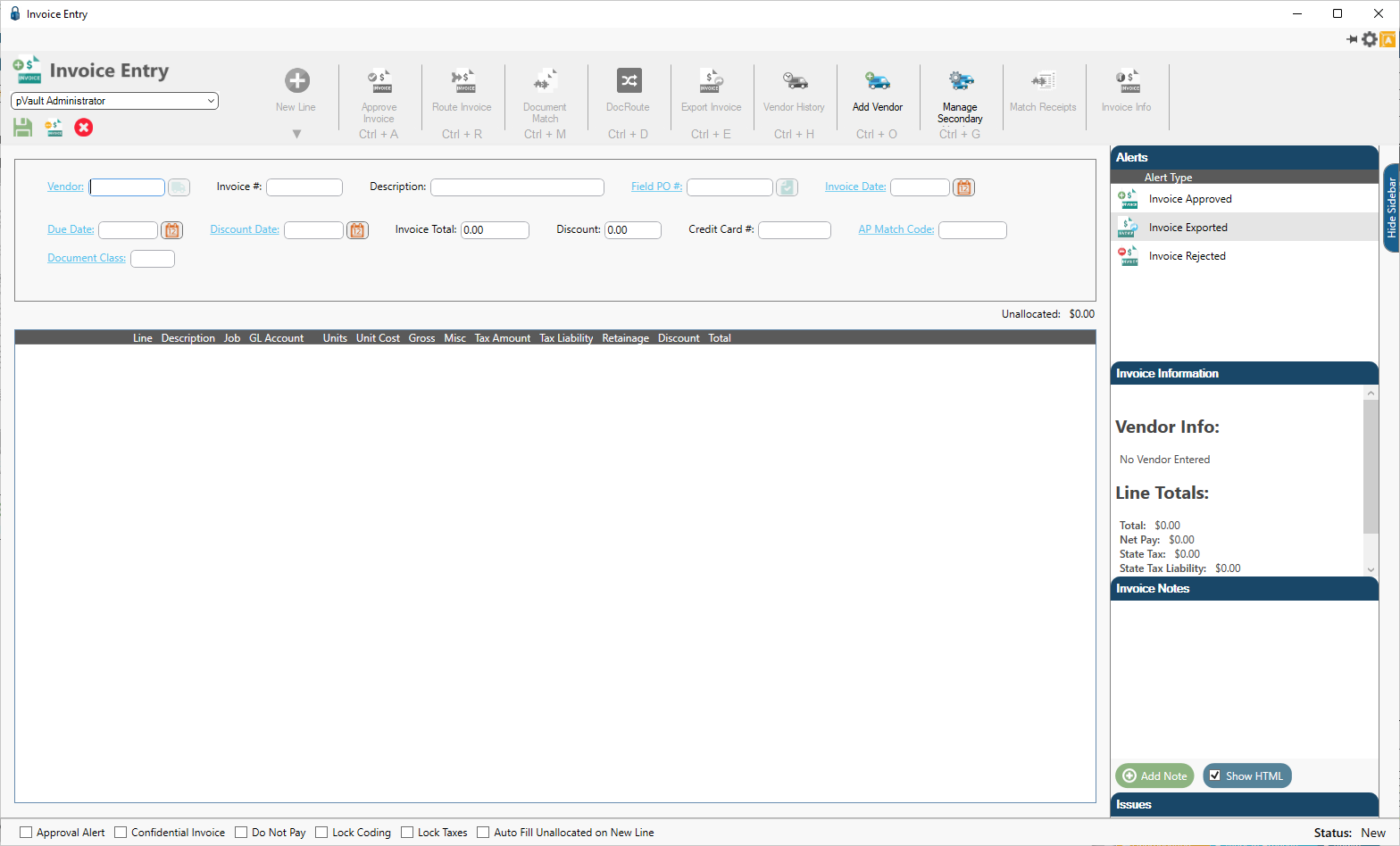
4.In the Vendor field, enter the vendor number assigned as a Summary Vendor type.
5.Press Tab.
The Quick Vendor icon that displays adjacent to the Vendor field is active if the vendor number represents a Summary Vendor type created in the Sage 300 accounting system. Otherwise the icon is grayed out.
When a vendor number (identified in Sage 300 as a Summary Vendor type) is entered in the pVault Vendor field, a Quick Vendor dialog systematically generates:
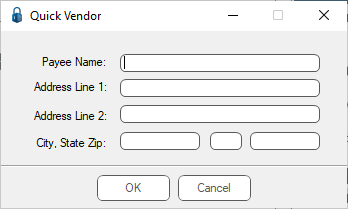
6.Fill in the Quick Vendor dialog fields with the one-time vendor information and then click OK to close the dialog.
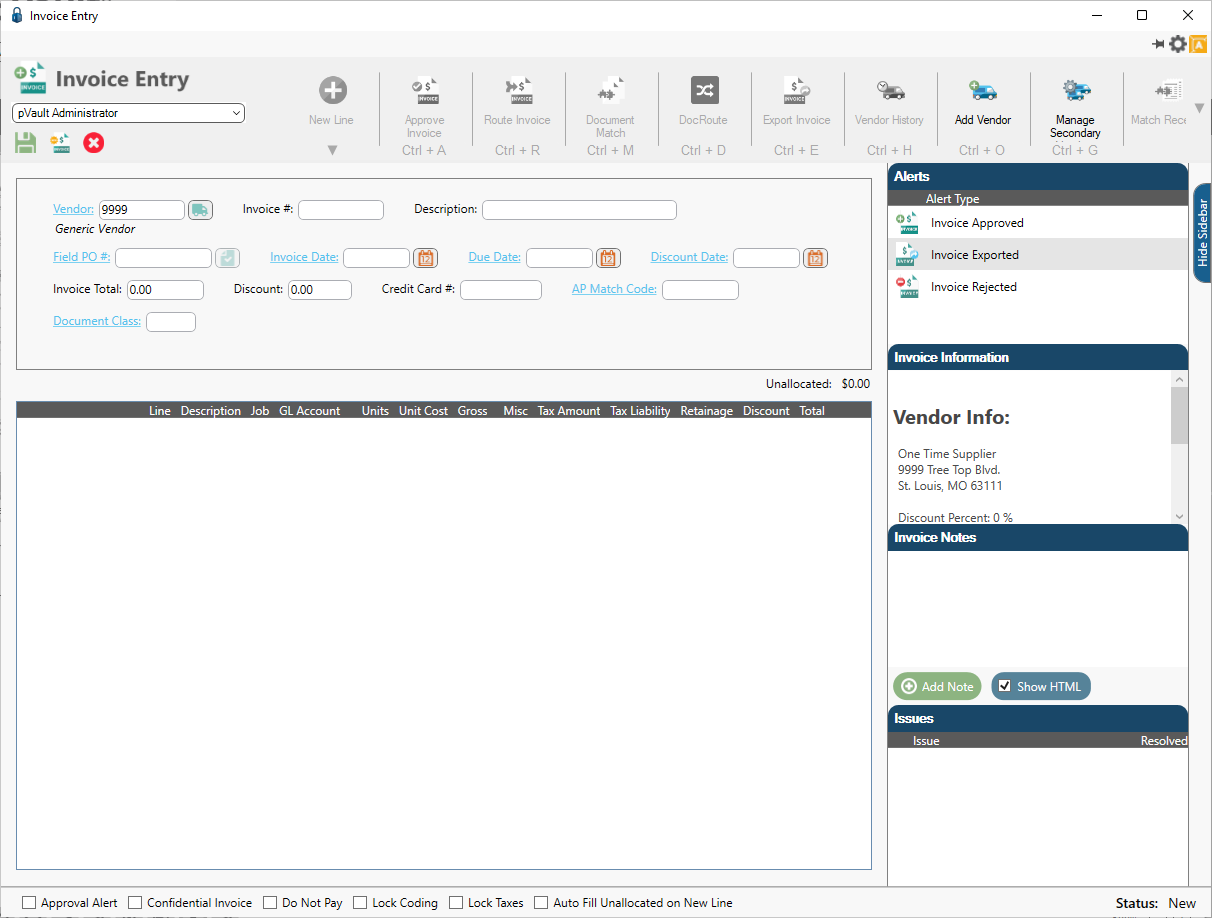
Note: The Invoice Information pane of the Invoice Entry sidebar populates with the one-time vendor information.
The Invoice Entry dialog resembles the following:
In Sage 300
A generic vendor set up as a Summary Vendor type in Sage 300 influences the Vendor field in pVault.
1.In the Accounts Payable module, from the ribbon toolbar, click Setup.
2.From the Setup dropdown menu, click Vendors.
The following Vendor Setup dialog displays:
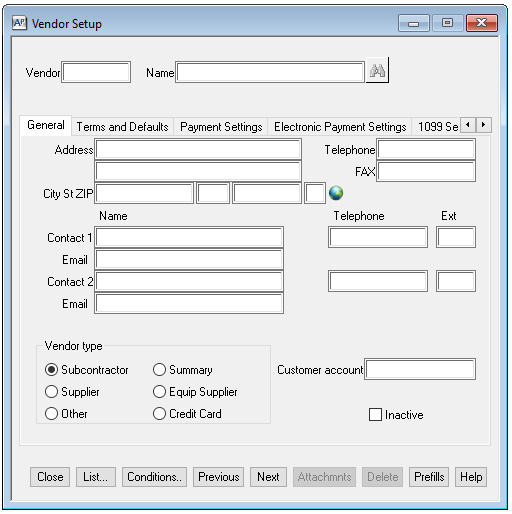
3.In the Vendor field, enter the vendor ID number that is identified as a generic vendor. This is the vendor number that is used for one-time vendors.
4.In the Name field, enter an appropriate vendor name. For example, Generic Vendor
5.Tab through the remaining fields. Information does not need to be entered in these fields because as a Summary Vendor type, this one-time vendor information is entered in pVault in the Quick Vendor dialog.
6.In the Vendor type pane, click to select Summary.
7.Click Save.
