|
Sage 300, the pVault® GL Account Field and the pVault Allow GL Override on Invoice Advanced Bridge Setting |
Scroll Prev Top Next More |
In pVault
Setup
1.From the ribbon toolbar, click APFlow™.
2.Click Manage APFlow.
The Manage APFlow dialog similar to the following displays with the General tab active:
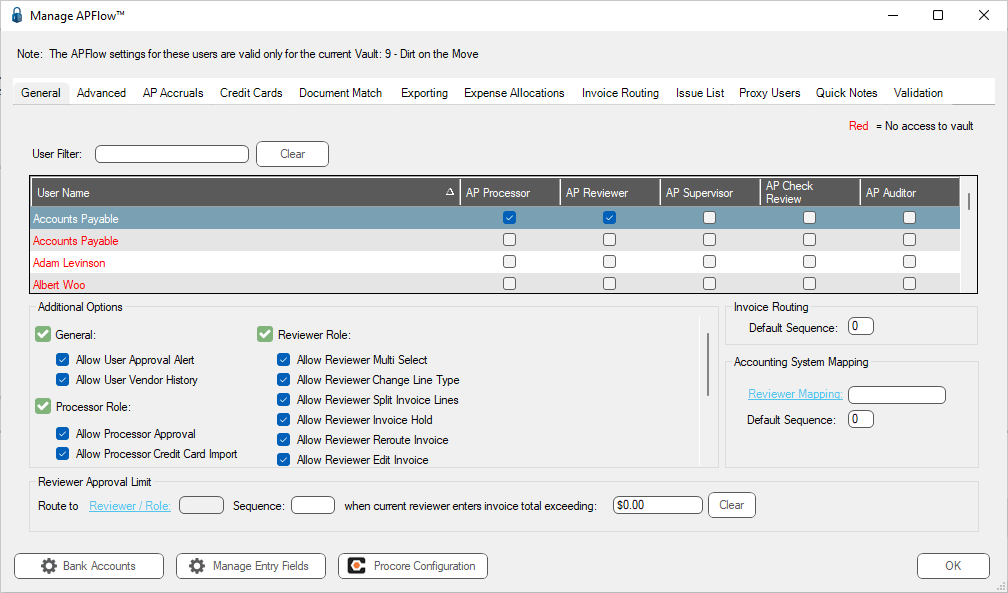
3.Click the Advanced tab.
The dialog similar to the following displays:
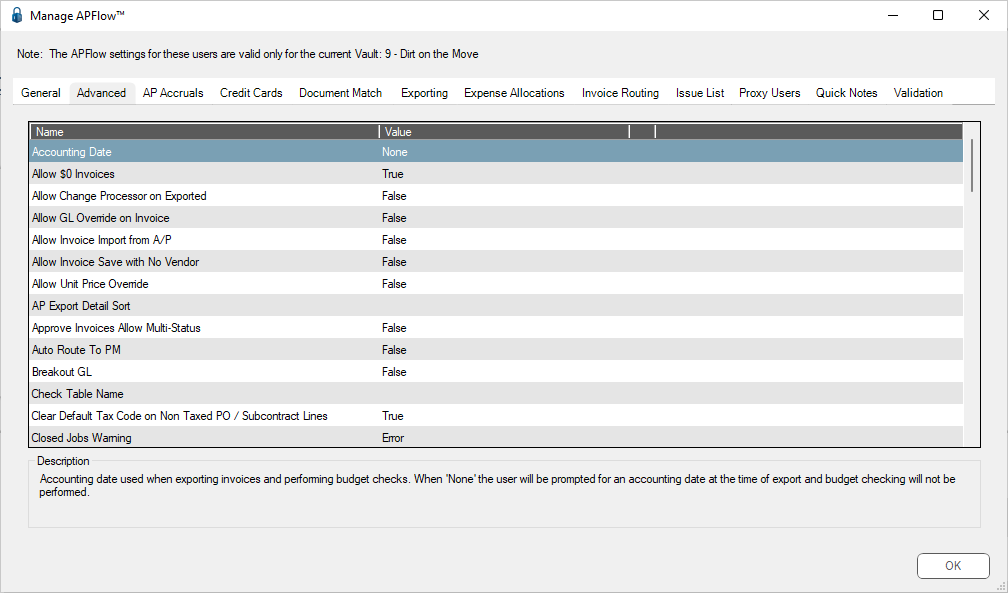
4. In the Allow GL Override on Invoice entry, Value column dropdown, select True.
5.Click OK.
Invoice Entry
1.From the ribbon toolbar, click APFlow.
2.Click Invoice Entry.
3.From the APFlow sidebar, click New Invoice or Edit Invoice.
The Invoice Entry screen similar to the following displays:
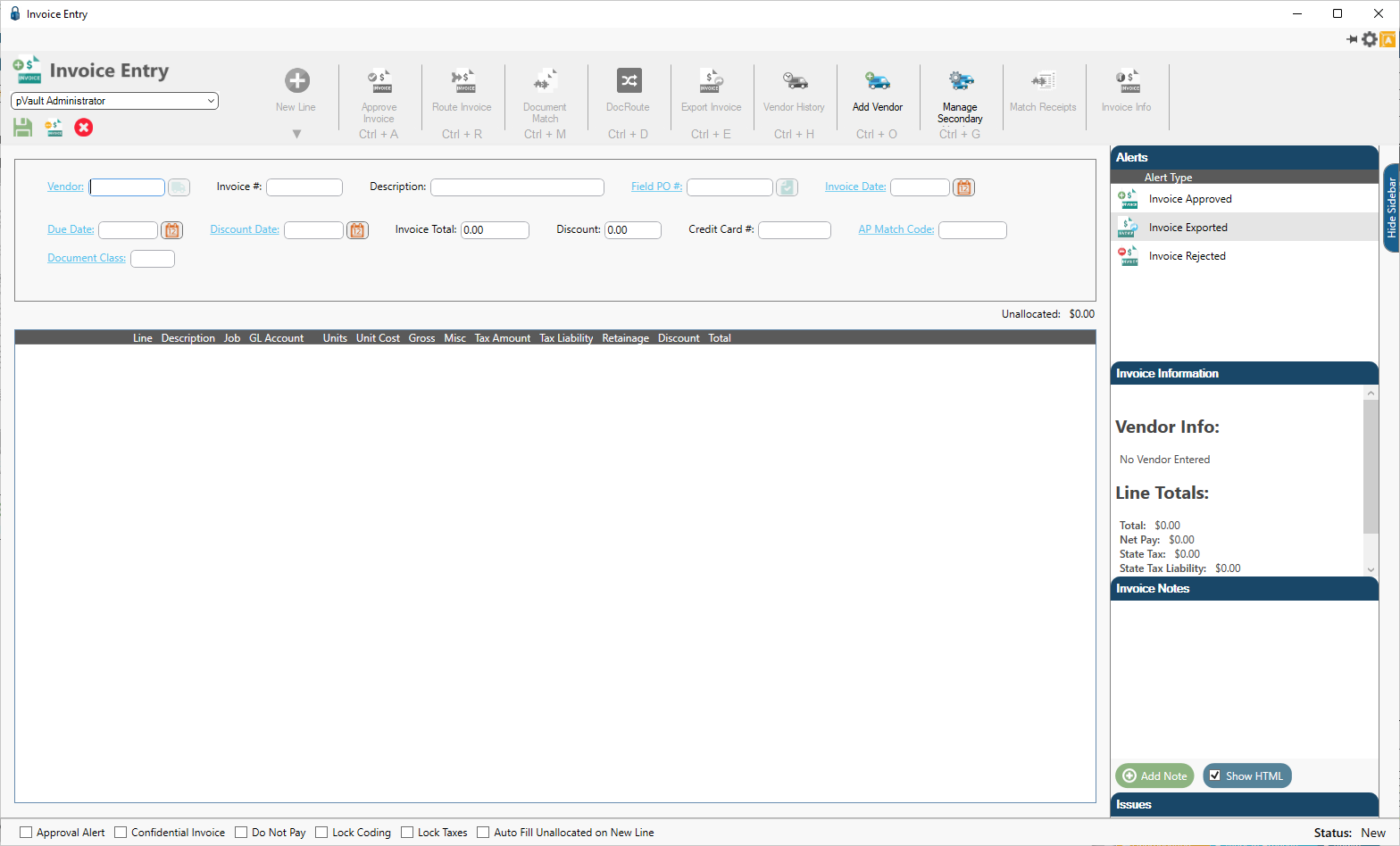
4.In the Vendor field, enter the vendor number or click the Vendor field label to access the Vendor lookup dialog.
5.In the Invoice # field, enter the number of the invoice.
At any time after the Vendor and Invoice # fields are populated, the New Line icon becomes active and items may be clicked from the dropdown to generate blank invoice lines.
6.From the New Line dropdown, select the appropriate line type.
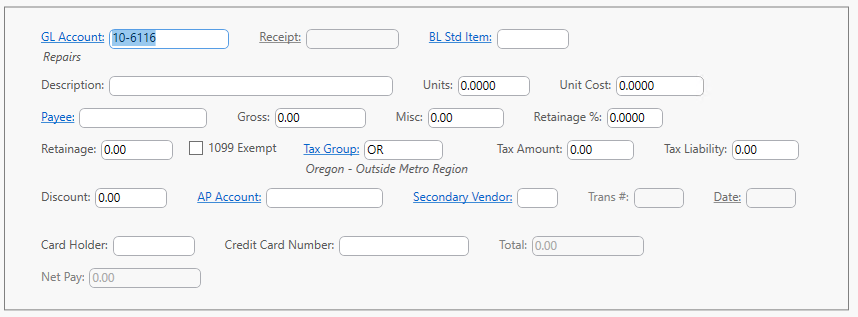
When an invoice line displays in the middle pane, the associated invoice line grid displays and resembles the following:
Important:
The GL Account field is always enabled on Expense lines for Processors.
• If the value is False for the Allow GL Override on Invoice Advanced Bridge setting, the GL Account field is only enabled on the Expense line for Processors.
• If the value is True for the Allow GL Override on Invoice Advanced Bridge setting, the GL Account field is enabled on all other lines for Processors.
In Sage 300
1.In the Accounts Payable module, from the ribbon toolbar, click Setup.
2.Click Vendors.
The Vendor Setup dialog similar to the following displays with the General tab active:
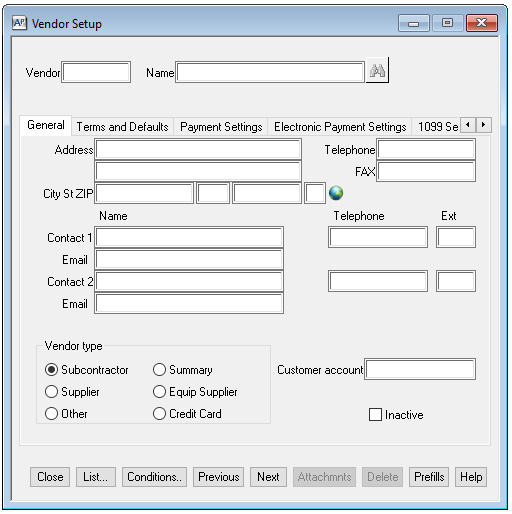
3.Enter a vendor number in the Vendor field.
4.Click the Terms and Defaults tab.
A dialog similar to the following displays:
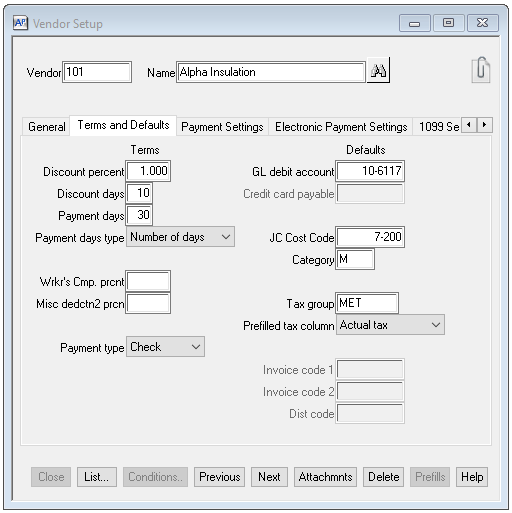
The GL debit account field default is listed on this dialog.
This is the number that displays in the pVault GL Account field in the detail pane.
Additional Information
1.In the Job Cost module, from the ribbon toolbar, click File.
2.From the File dropdown menu, click Company Settings.
3.Click JC Settings.
The JC Settings dialog similar to the following displays:
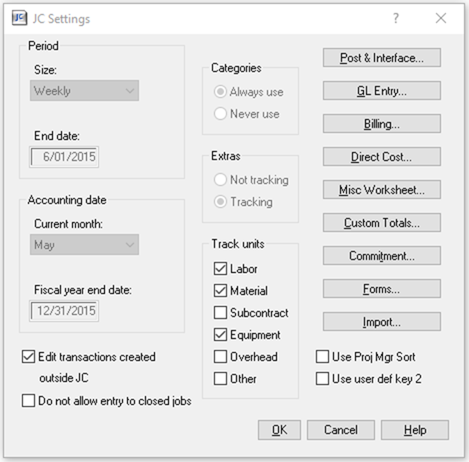
4.Click GL Entry.
The GL Entry Settings dialog similar to the following displays:
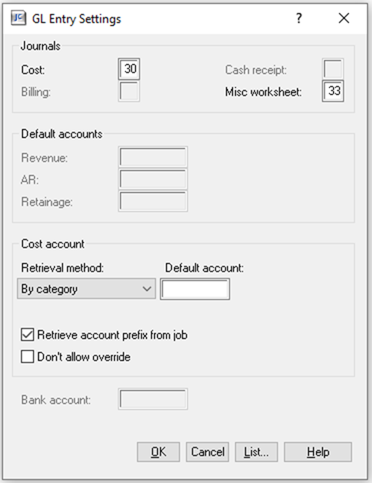
Sage 300 has a field, Don't allow override, located on this dialog.
Important: The Don't allow override field that displays on this Sage 300 dialog and the pVault Allow GL Override on Invoice Advanced Bridge setting are not associated in any way.
