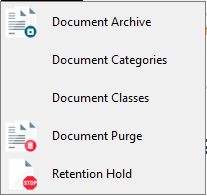
1.From the ribbon toolbar, click Administration.
2.Click the Documents dropdown.
3.Click Retention Hold.
The Retention Hold Manager dialog displays:
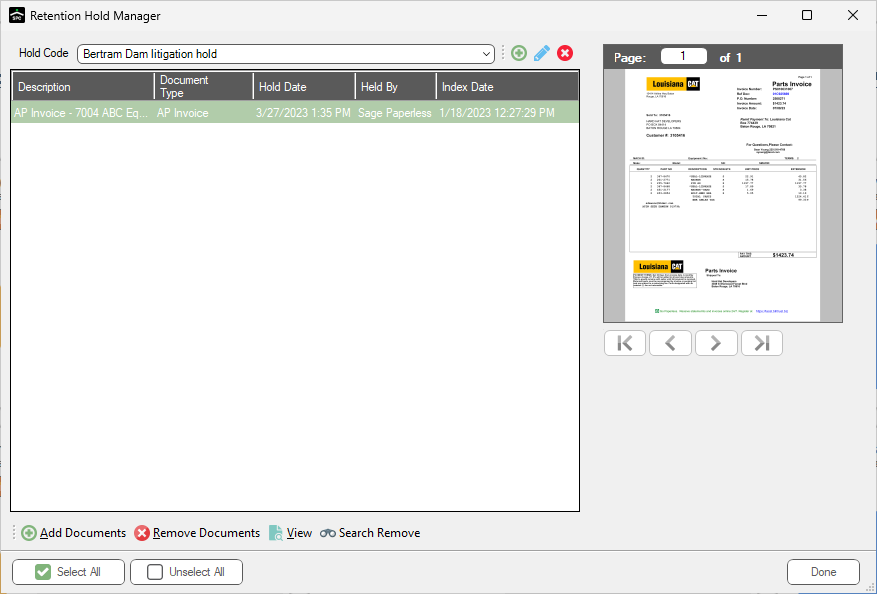
4.Create a descriptive document Hold Code. In the toolbar, click the plus toolbar icon.
A New Hold Code dialog displays:
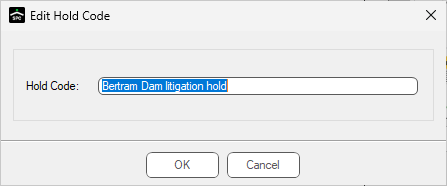
5.In the Hold Code field, type in descriptive hold code text.
6.Click OK.
The Retention Hold Manager dialog re-displays:
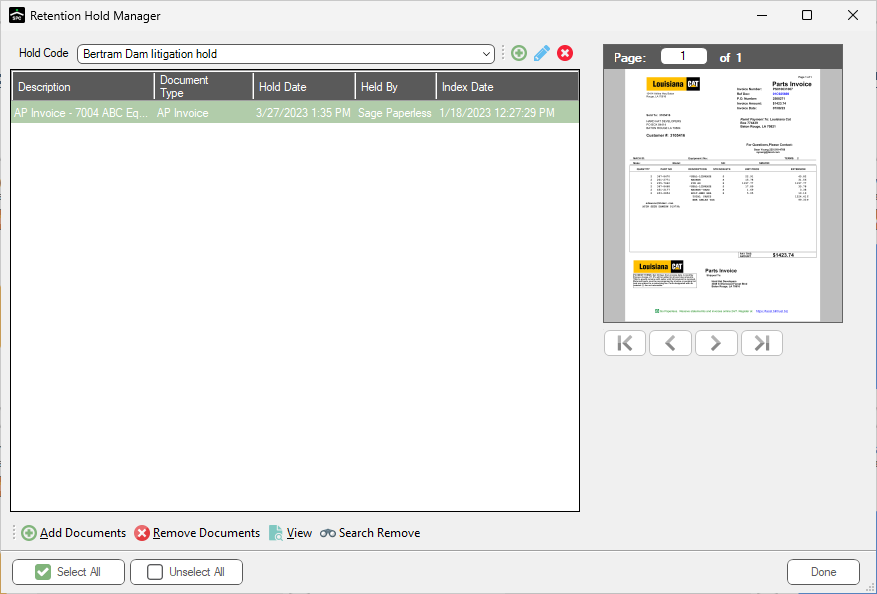
7.Click the Add Documents icon to search for documents needing to be placed on hold.
The Search Utility dialog displays:
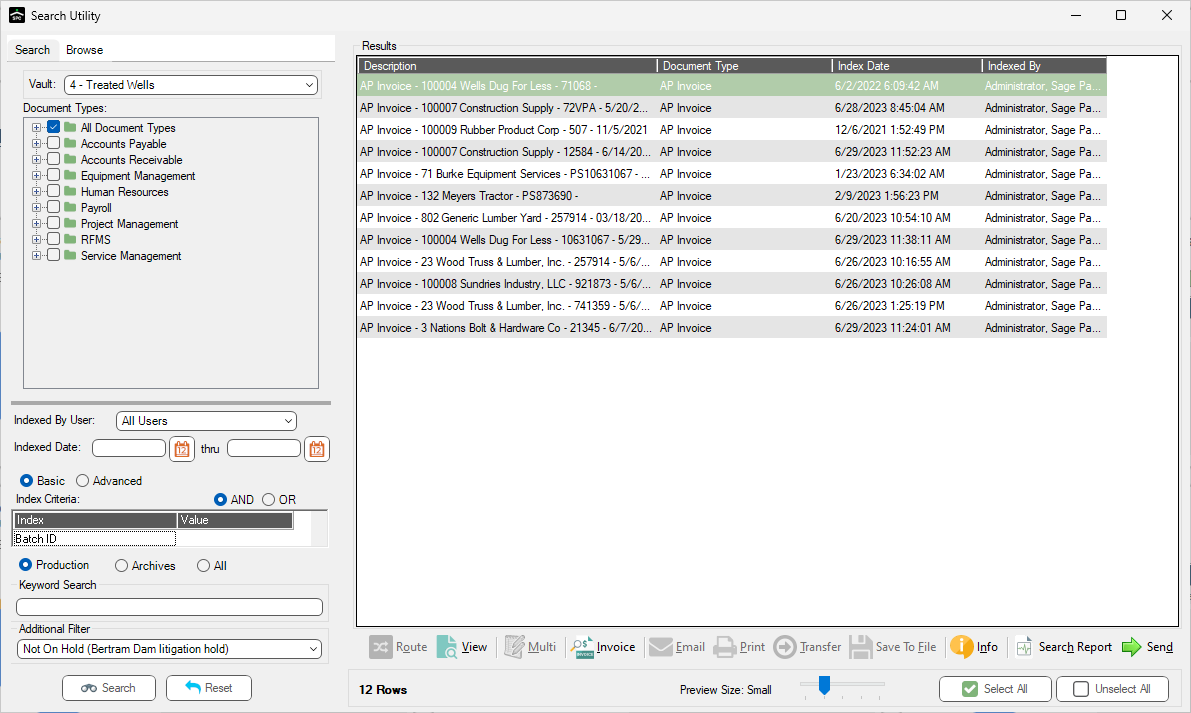
Notice that there is an Additional Filter field that displays in the lower left corner.
8.Use the Additional Filter field to enter text similar to the following:
Not on xxx Hold Code
This ensures that the search results do not include documents previously placed on hold.
9.Select documents to return to the Retention Hold Manager dialog.
10. Click Send.
The document(s) listed on the Retention Hold Manager dialog have a hold code. Users are unable to alter or delete these document(s) until the hold code is released.