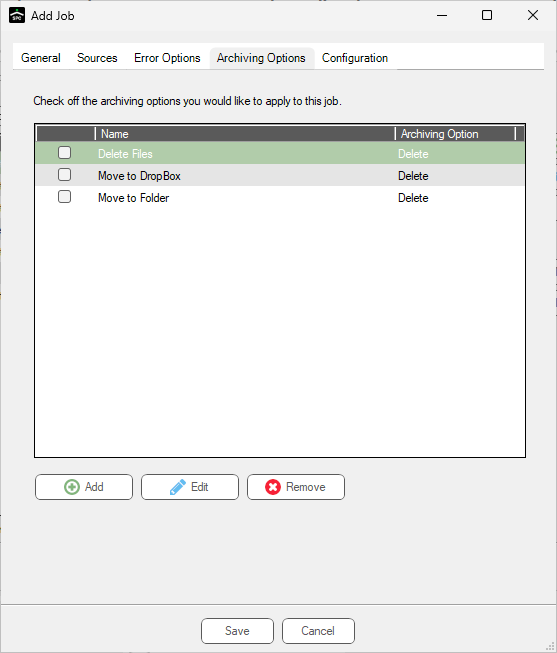
The Archiving Options tab is where the system is instructed how to handle the successfully imported files.
1.Click the Archiving Options tab.
A dialog similar to the following displays:
2.Click Add.
For each archive option selected, an Archiving Option Properties dialog requiring specific information based on the archive option displays.
The following archive options are available:
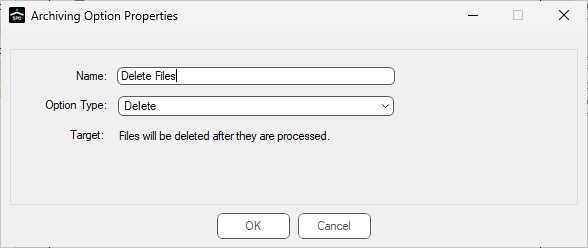
- Delete - Delete the files after successful import.
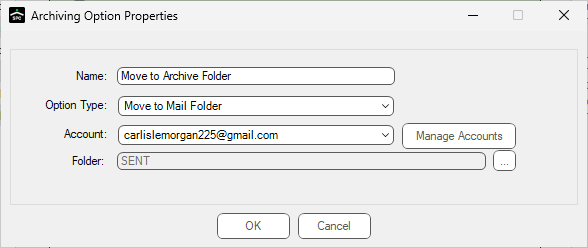
- Move to Folder - Indicate a folder to where imported files move.
Delete Files option
Move to Folder option
3.Enter the appropriate information in the Archiving Option Properties dialog(s).
4.Click OK.
The Sources tab dialog re-displays.
5.Click the Configuration tab.