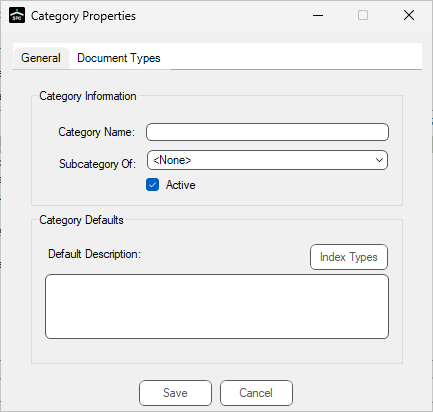
General Tab
1.In the Category Name field, create a document category according to how the document types are grouped.
For example, create an Accounts Payable category name to organize all document types that relate to the accounts payable process. Other category types could include Project Management, Human Resources, Payroll, Equipment Services.
2.In the Subcategory Of field, accept the default of none, or select an existing category from the dropdown list.
3.In the Default Description text box, set up a default document description "template" for use later when creating new document types.
Document Types Tab
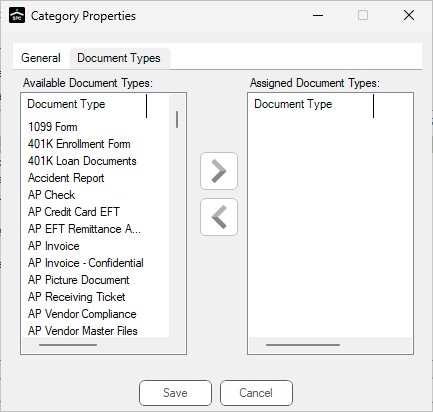
1.Scroll through the list in the Available Document Types column and click to highlight those document types appropriate for the associated document category.
2.Click the arrow to move the document type(s) from the Available Document Types pane to the Assigned Document Types pane.
Once document categories are set up, they display on the Search Utility screen. The first category in the list is always All Document Types. The next set of categories is any categories set up by the user under the User Settings dialog (See Document Categories ). Finally, all public document categories set up by an administrator are listed.
3.Click Save to save the new document category.
To view the categories and document types access the Search Utility screen.
For Search Utility screen details, click here.