For those fields in Invoice Entry (and Approve Invoices) with associated Lookup Utilities (these are the fields with labels in blue font), there are configurable filters.
1.From the ribbon toolbar, click APFlow™.
2.Click Invoice Entry.
An Invoice Entry screen similar to the following displays:
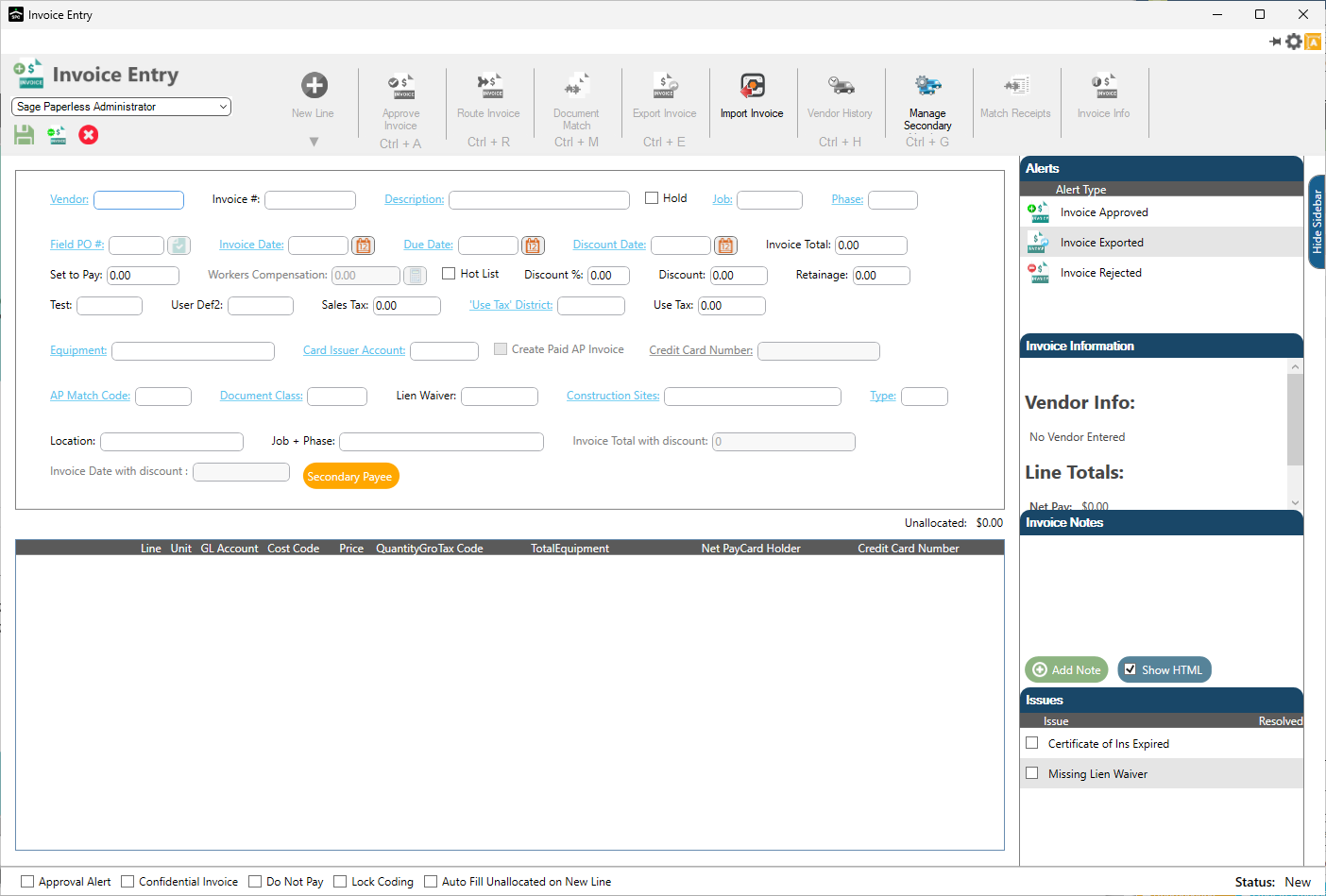
3.Click the Vendor field label.
A dialog similar to the following displays:
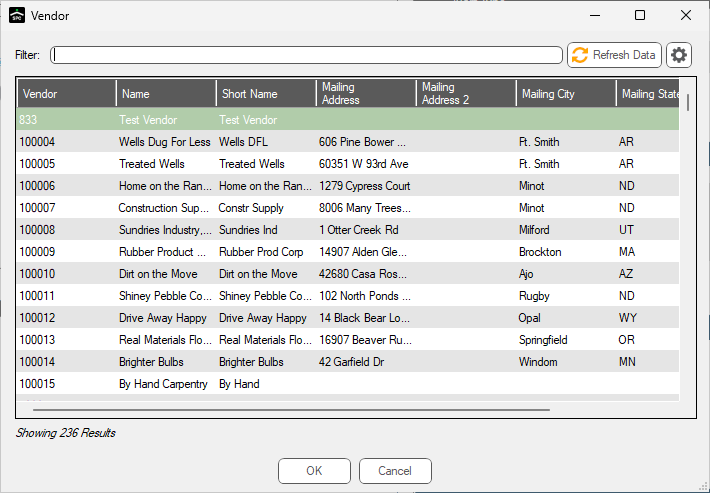
Note: The number of rows included in the current lookup display below the grid.
4.Refine the filter by clicking the gear icon.
The Configure Filter dialog displays:
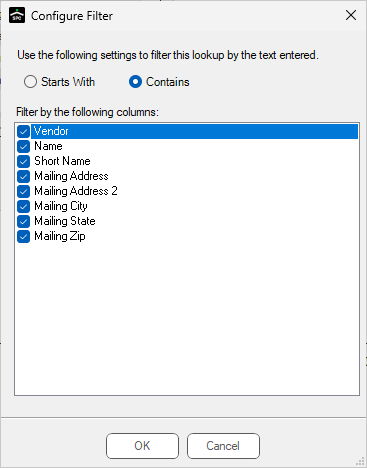
Note: The filter settings differs based on the selected field.
5.Determine whether the filter for the lookup with Starts With or Contains and select that option.
6.Select or deselect the columns, as appropriate.
7.Click OK.
Refresh Data
Click Refresh Data to refresh (re-pull) the data cache on the Field Lookup dialog.
Administrators can set their Refresh/Lifetime Bridge settings higher for better performance, but users can click Refresh Data to access real-time data if accounting system changes are made without having to wait for the data to re-pull.