1.From the ribbon toolbar, click Administration.
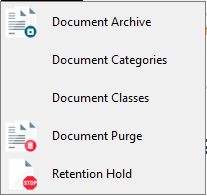
2.Click the Documents dropdown.
3.Click Document Archive.
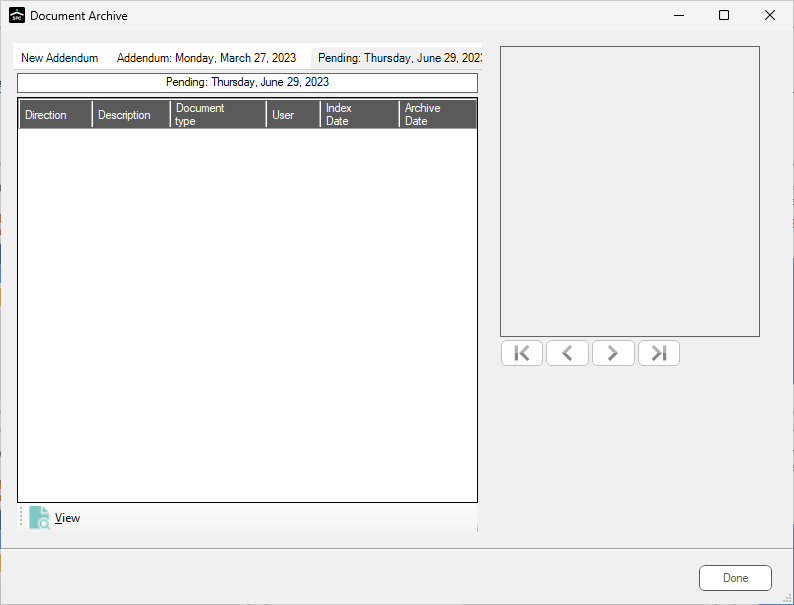
The Document Archive dialog similar to the following displays:
4.Click the New Addendum tab.
The Document Archive dialog changes to resemble the following:
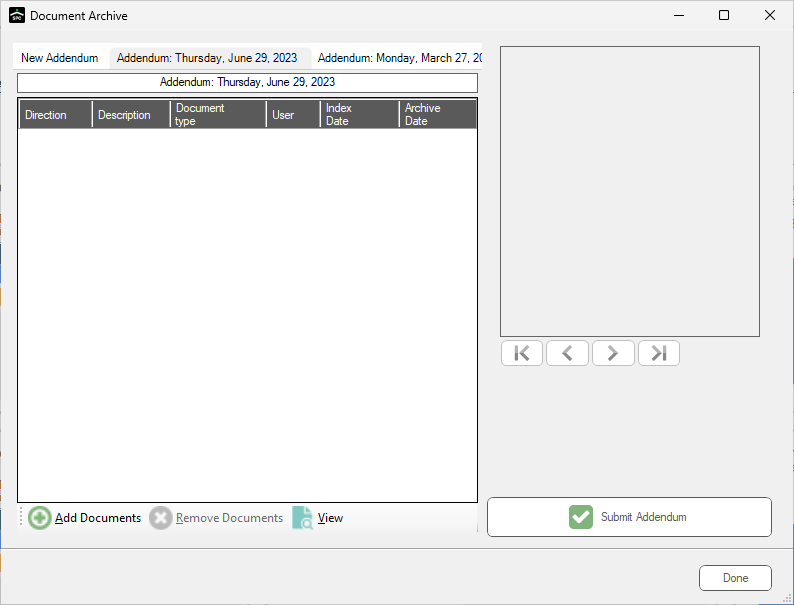
5.Click Add Documents.
The Search Utility dialog similar to the following displays:
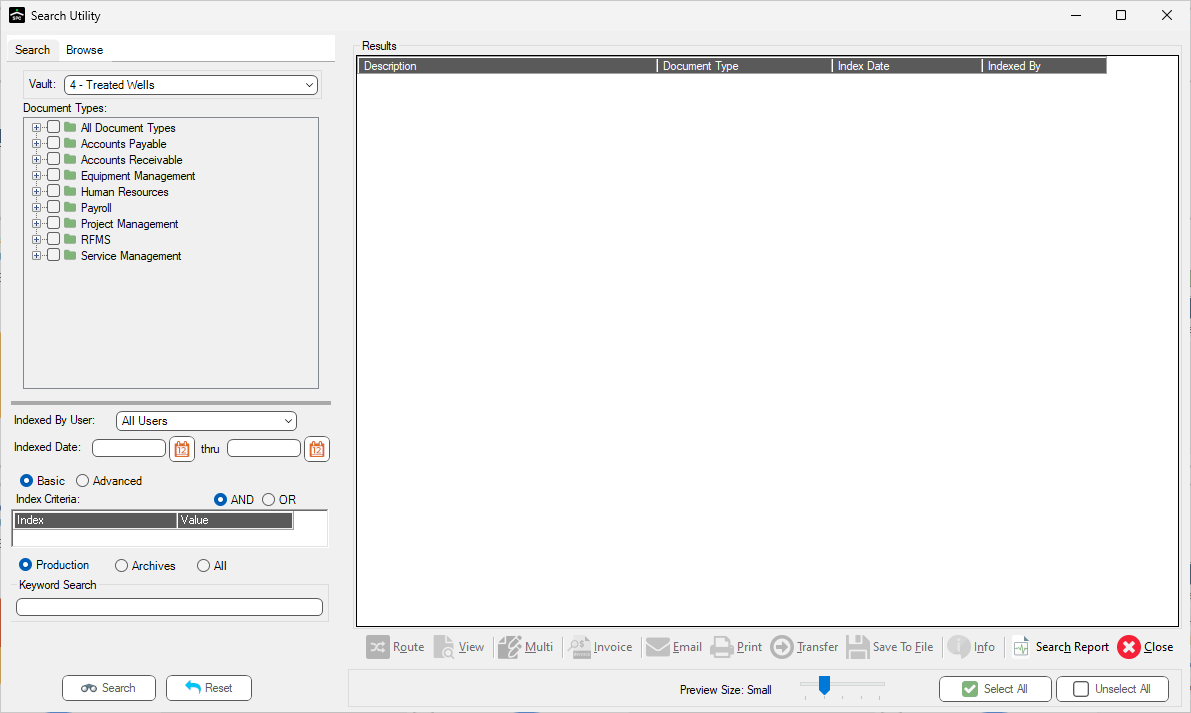
6.Search for documents suitable for archiving in the Results list.
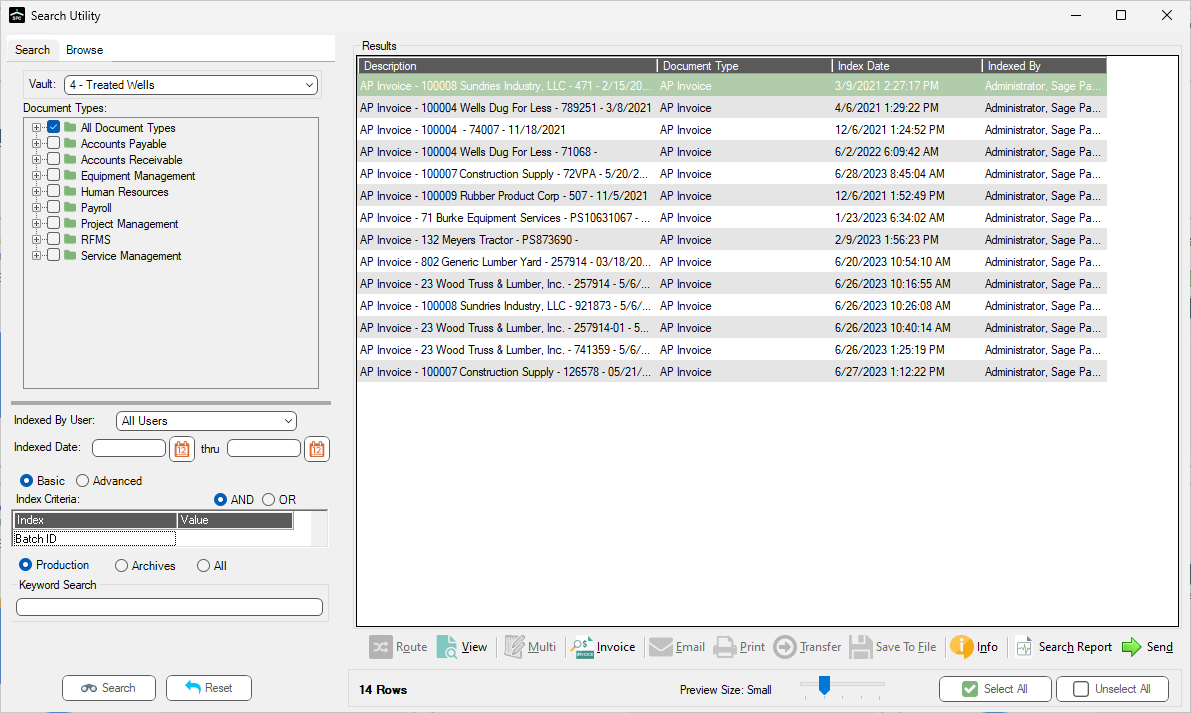
7.When finished selecting documents, click Send.
The Document Archive dialog re-displays with the Addendum tab active and the documents selected for archive listed:
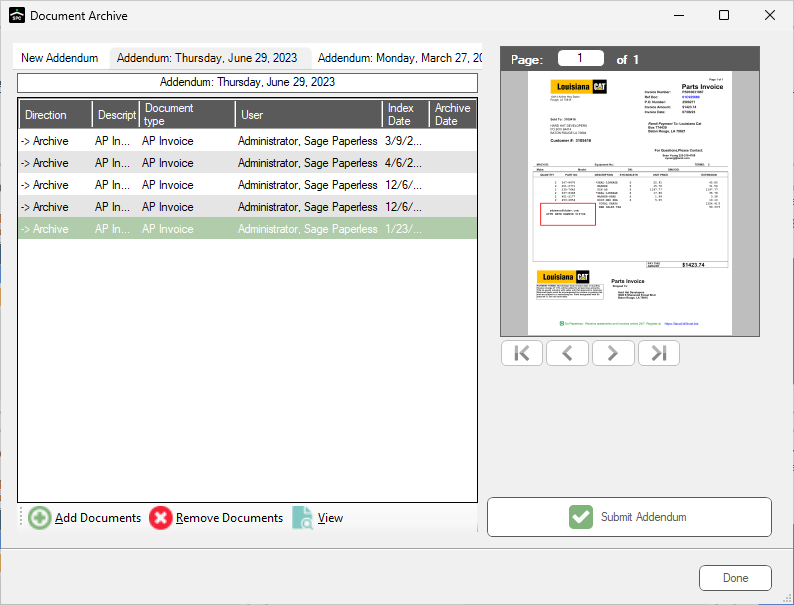
Note: More documents can be added (or removed) to the addendum by clicking either Add Documents or Remove Documents as appropriate.
8.Once the documents to be archived list is complete, click Submit Addendum.
The document list is added to the archiving job.
Canceling an Addendum
1.To cancel an addendum that was previously submitted, click the saved Addendum tab.
The Submit Addendum icon text has systematically changed to Stop Addendum, resembling the following:

2.Click the Stop Addendum icon.
The following prompt displays:
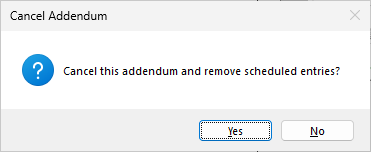
3.Click Yes to cancel the Addendum job.
Click No to keep it.