You can set up Sage Paperless Construction to use System Mailer instead of SMTP (Simple Mail Transfer Protocol). (For details on SMTP, click here.) There are email security concerns surrounding the use of SMTP. System Mailer addresses those security concerns by selecting an account that uses two-factor authentication. Any time a system email is generated through Sage Paperless Construction, the sender identified through this setting replaces whoever is configured in SMTP. Click here for details.
If the System Mailer Settings icon is not visible, complete the following: 1.Click the gear icon that displays in the upper right corner of the page. 2.In the Configure Toolbar dialog, click the Tabs tab. 3.In the Current Tab field, use the field dropdown to select Administration. 4.Click Edit Tab. 5.In the Tab Properties dialog, Available Buttons grid, scroll to locate the System Mailer Settings icon. 6.Click the blank check box to select it. 7.Use the Move Up and Move Down fields to position the icon in the toolbar. 8.Click OK to save and to close the Tab Properties dialog. 9.Click OK to close the Configure Toolbar dialog. |
1.From the ribbon toolbar, click Administration.
2.Click System Mailer Settings.
The System Mail Configuration dialog displays:
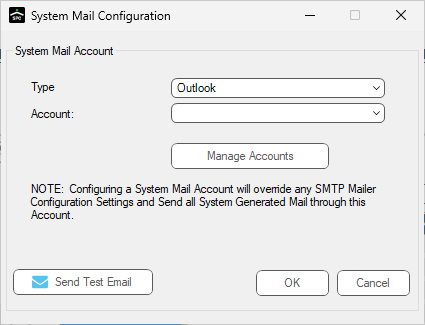
3.In the Type field, Outlook displays as the default. Use the field dropdown to select Gmail as appropriate.
4.If the Account field is blank, click Manage Accounts.
The Manage Accounts dialog displays:
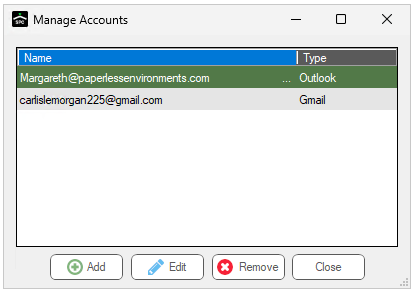
5.Click to Add.
The Add Account dialog displays.
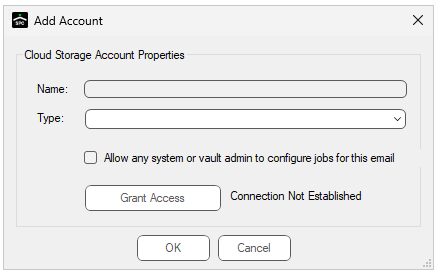
6.Click Grant Access and follow the steps to establish the connection.
When complete, the System Mail Configuration dialog should resemble the following:
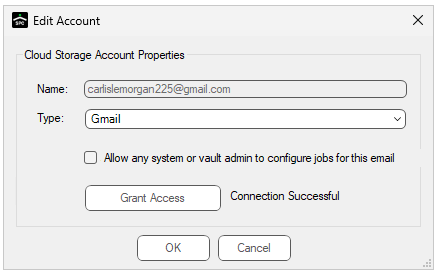
7.Click OK.
Important: To fully commit the configuration settings, you must click OK to close the dialog and then close out of the System Mailer settings. Reaccess System Mailer to send a test email.
Sending Test Email
1.Click Send Test Email.
A Send test Email dialog displays:
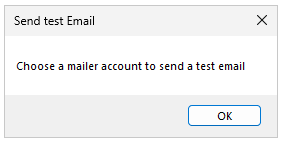
2.Click OK.
A Choose Recipient dialog displays:
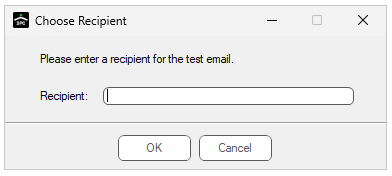
3.Enter the recipient.
4.Click OK.
A test email is generated and sent to the recipient you identified.
Note: This is the recipient who receives system emails generated through Sage Paperless Construction.