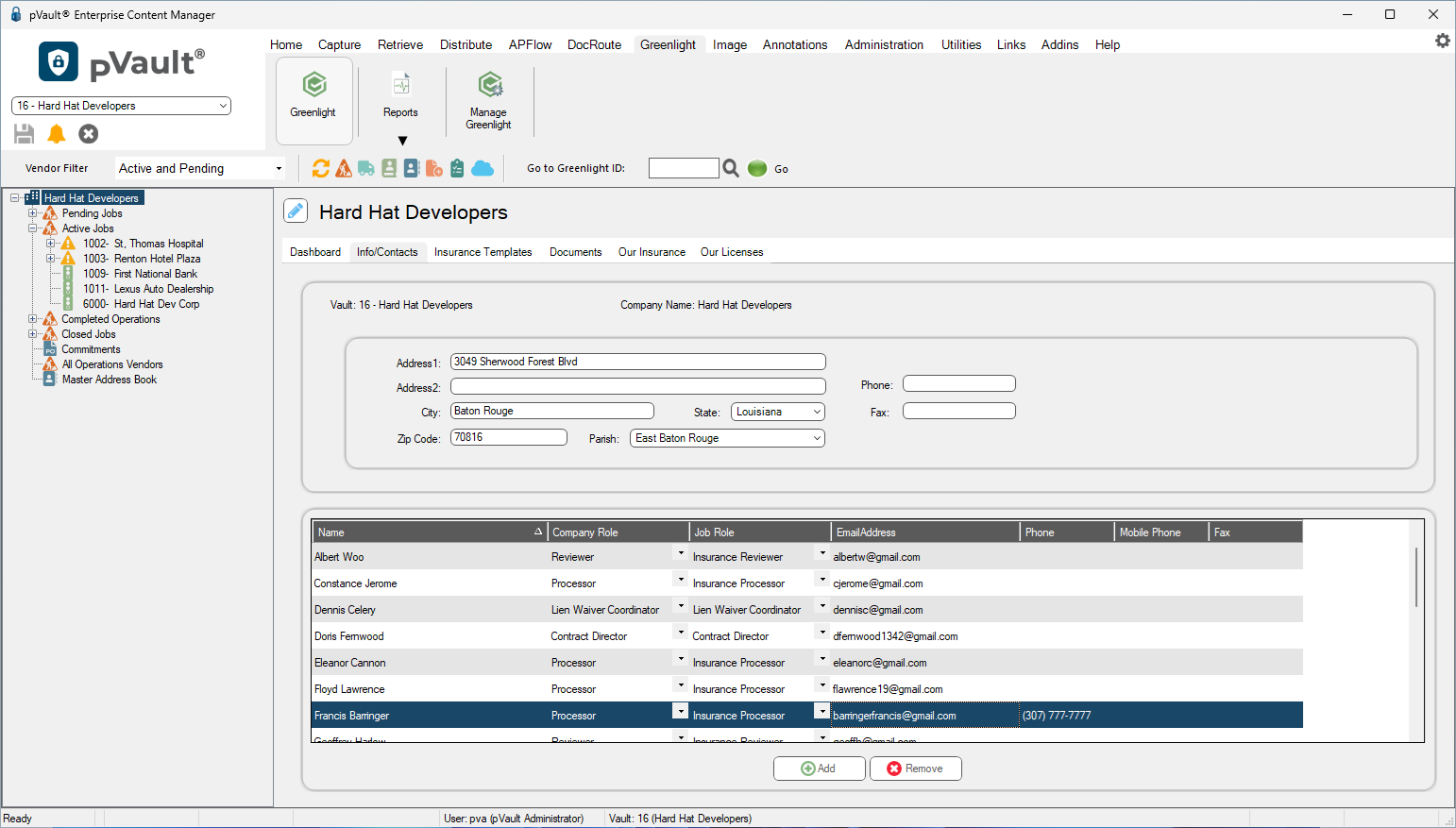
The Info/Contacts screen is where you add any company contacts that are using or receiving notifications through Greenlight CM™.
1.From the ribbon toolbar, click Greenlight.
2.Click Greenlight.
The main screen displays with the Dashboard tab active:
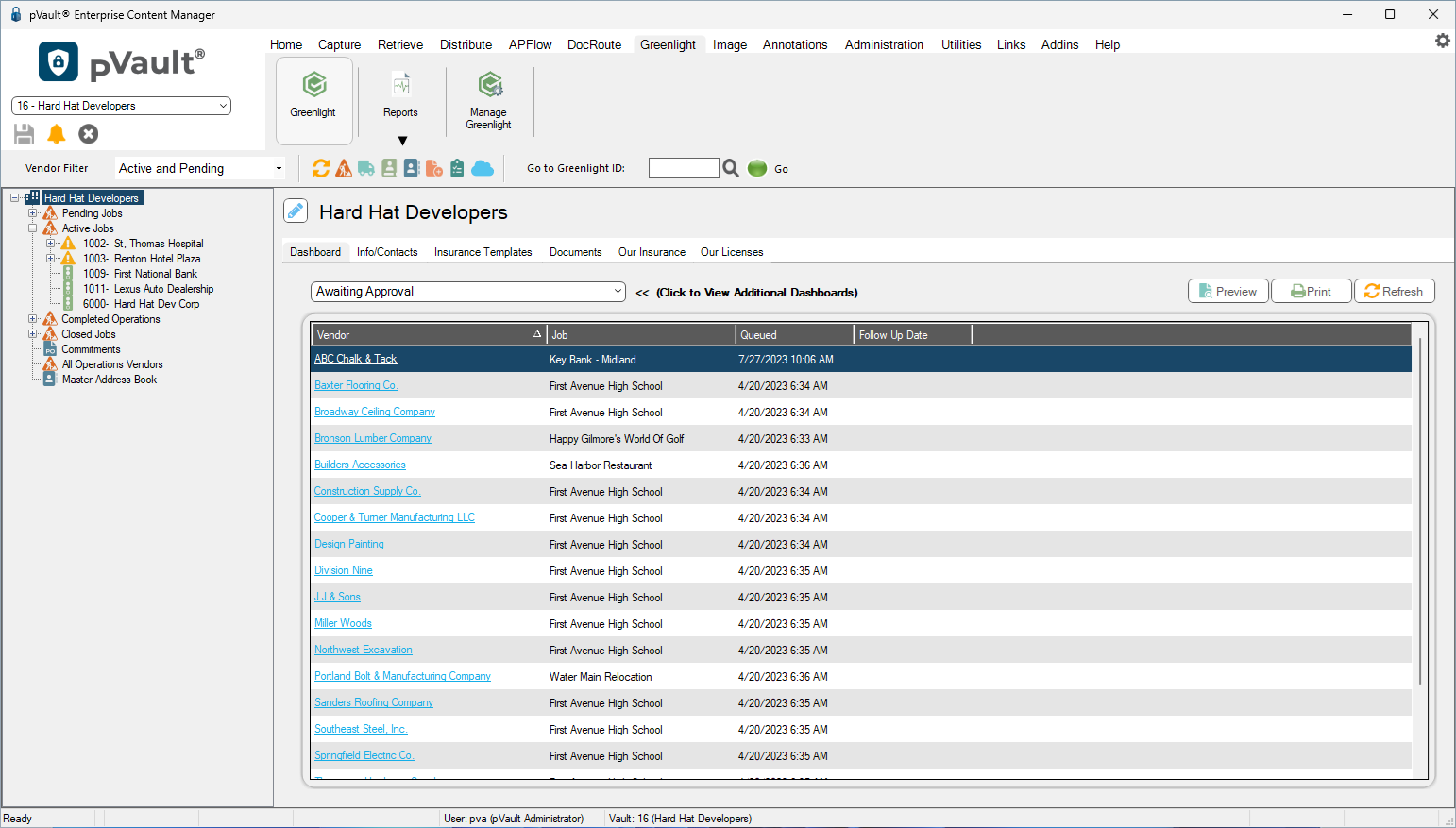
3.Click the Info/Contacts tab.
The following screen displays:
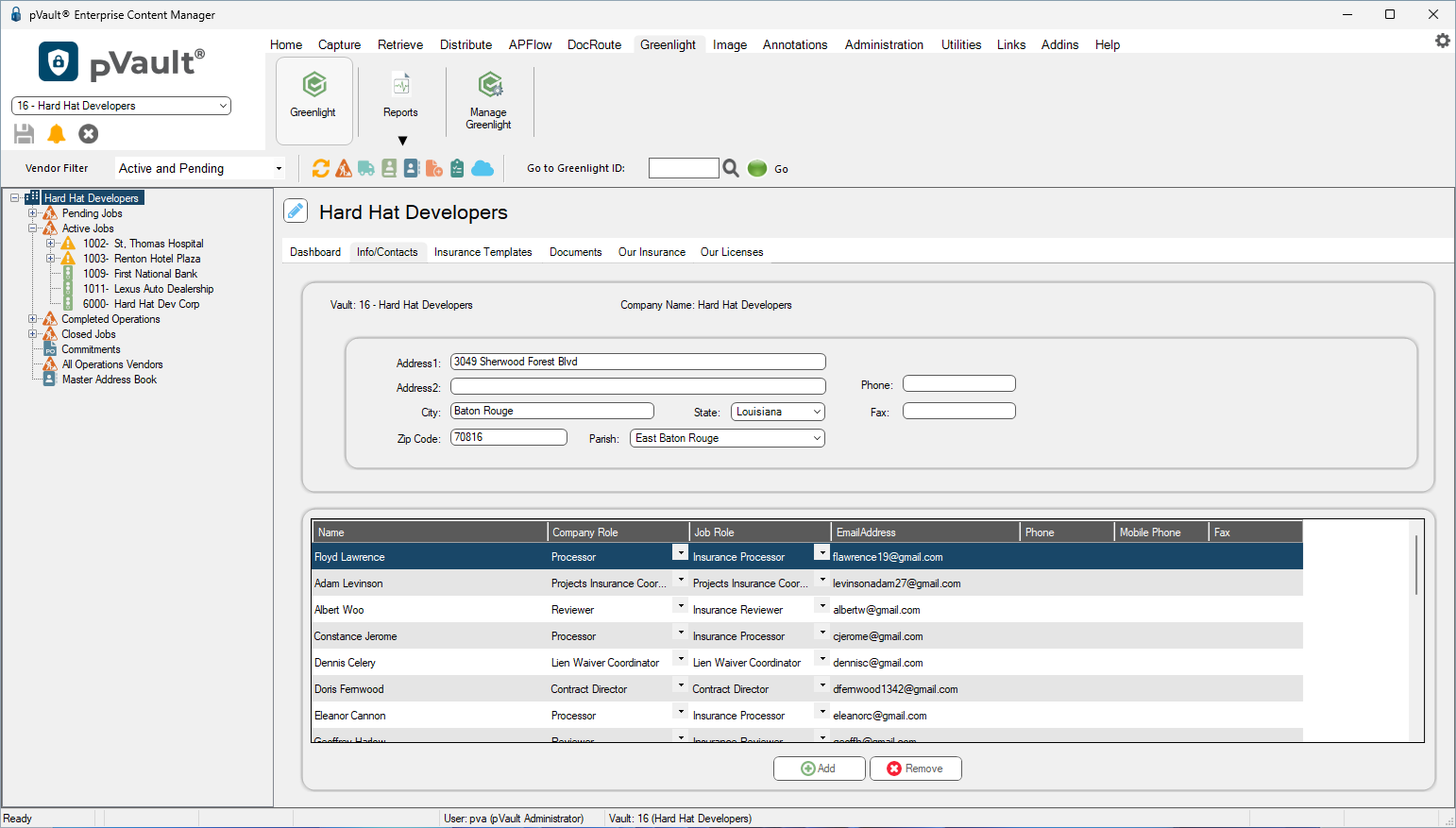
4.Click Add.
The Contacts to Company dialog displays:
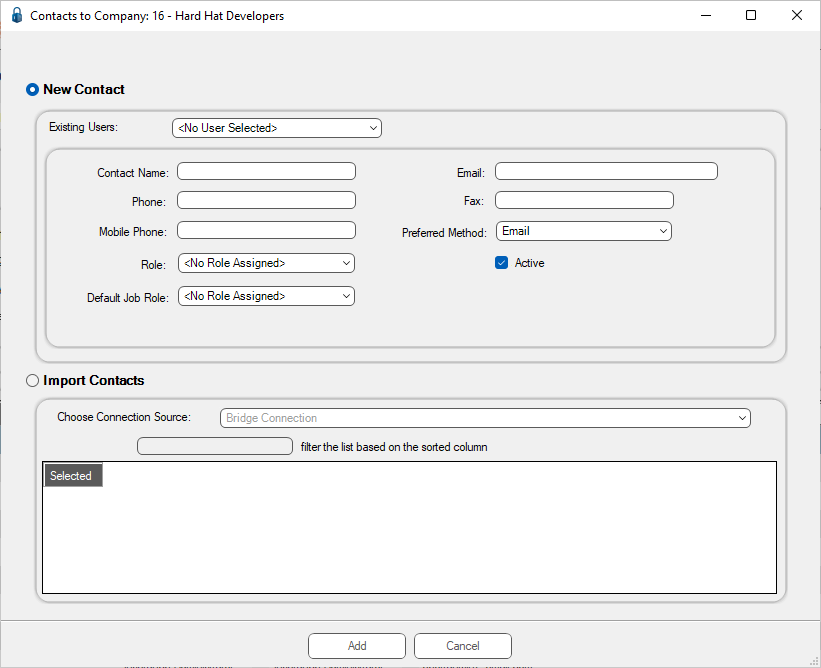
5.If the company contact is a current Greenlight CM user, select the Existing Users dropdown menu and select the contact. Click Add.
Note: The fields in the Contacts to Company dialog populates systematically.
If the company contact is not a current Greenlight CM user, enter the information in the appropriate fields:
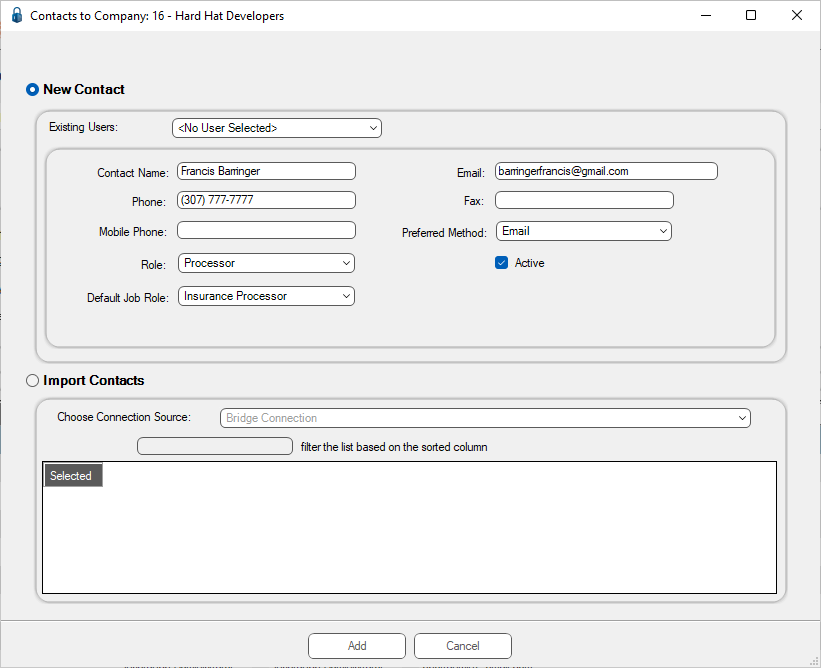
6.Be sure to click the Active check box to make this new contact active.
7.Click Add.
The completed Info/Contacts tab grid resembles the following: