The Job Contacts tab screen is where you can add any job contact that is using Greenlight CM™ or is receiving notifications and email from Greenlight CM.
Adding Company Contacts to a Job
If a job contact was added to the Company contact level, then they can be quickly added to a job. The contact's information is systematically imported from the company level, eliminating the need for a duplicate entry.
1.From the ribbon toolbar, click Greenlight.
2.Click Greenlight.
The main screen displays with the Dashboard tab active:
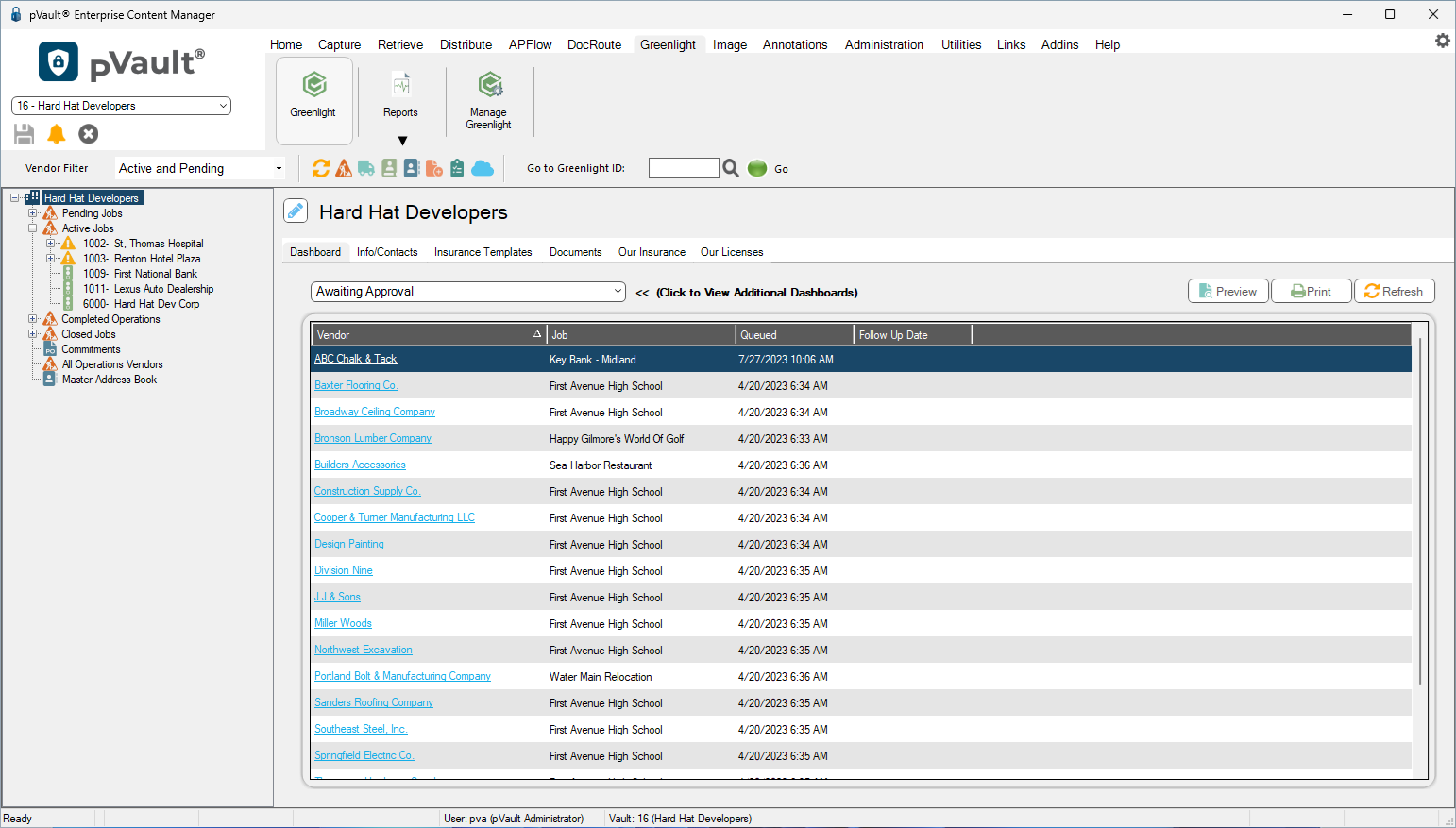
3.In the left navigation bar, click on a job.
The following screen displays with the Job Info tab active:
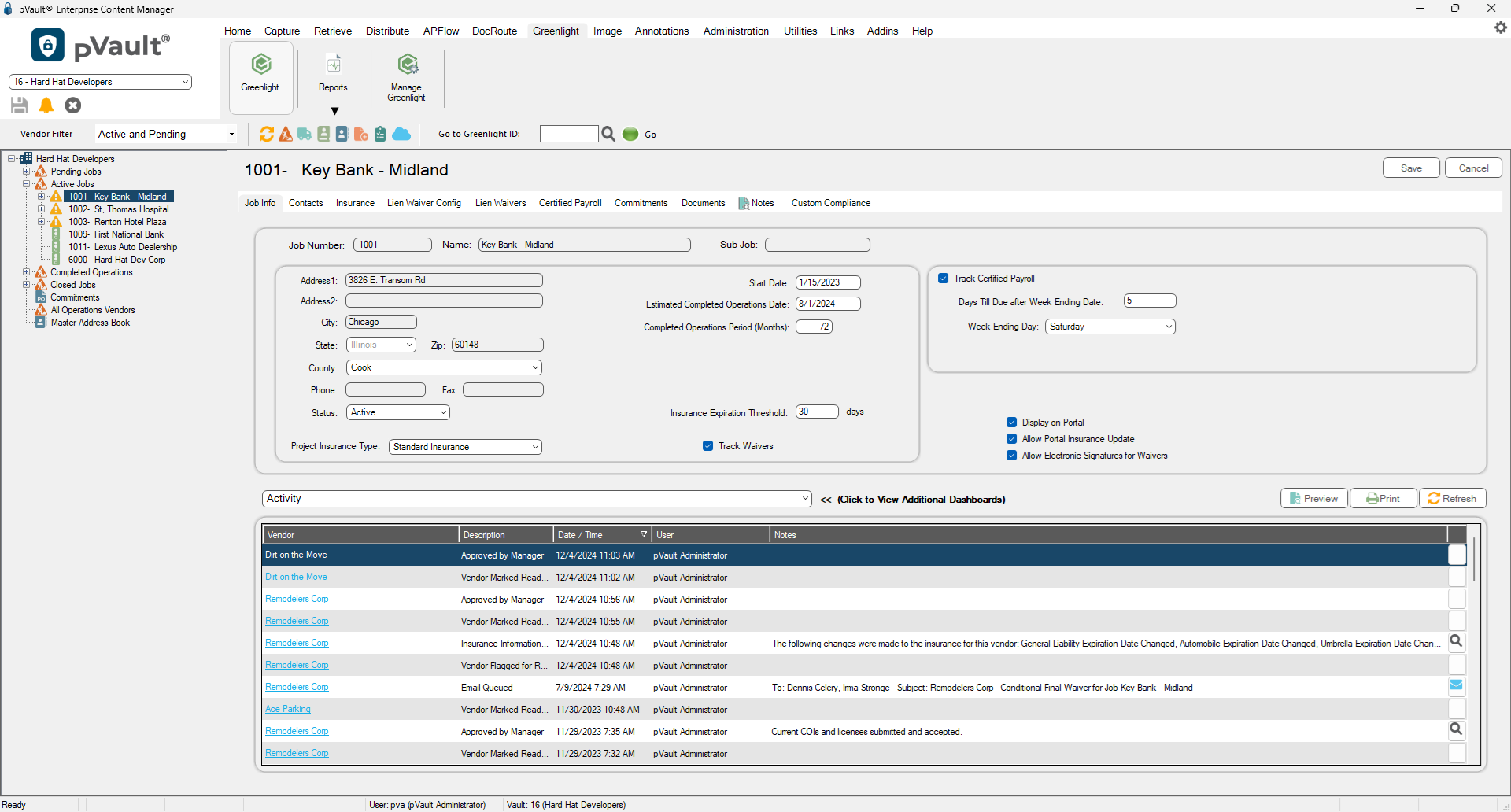
4.Click the Contacts tab.
The following screen displays:
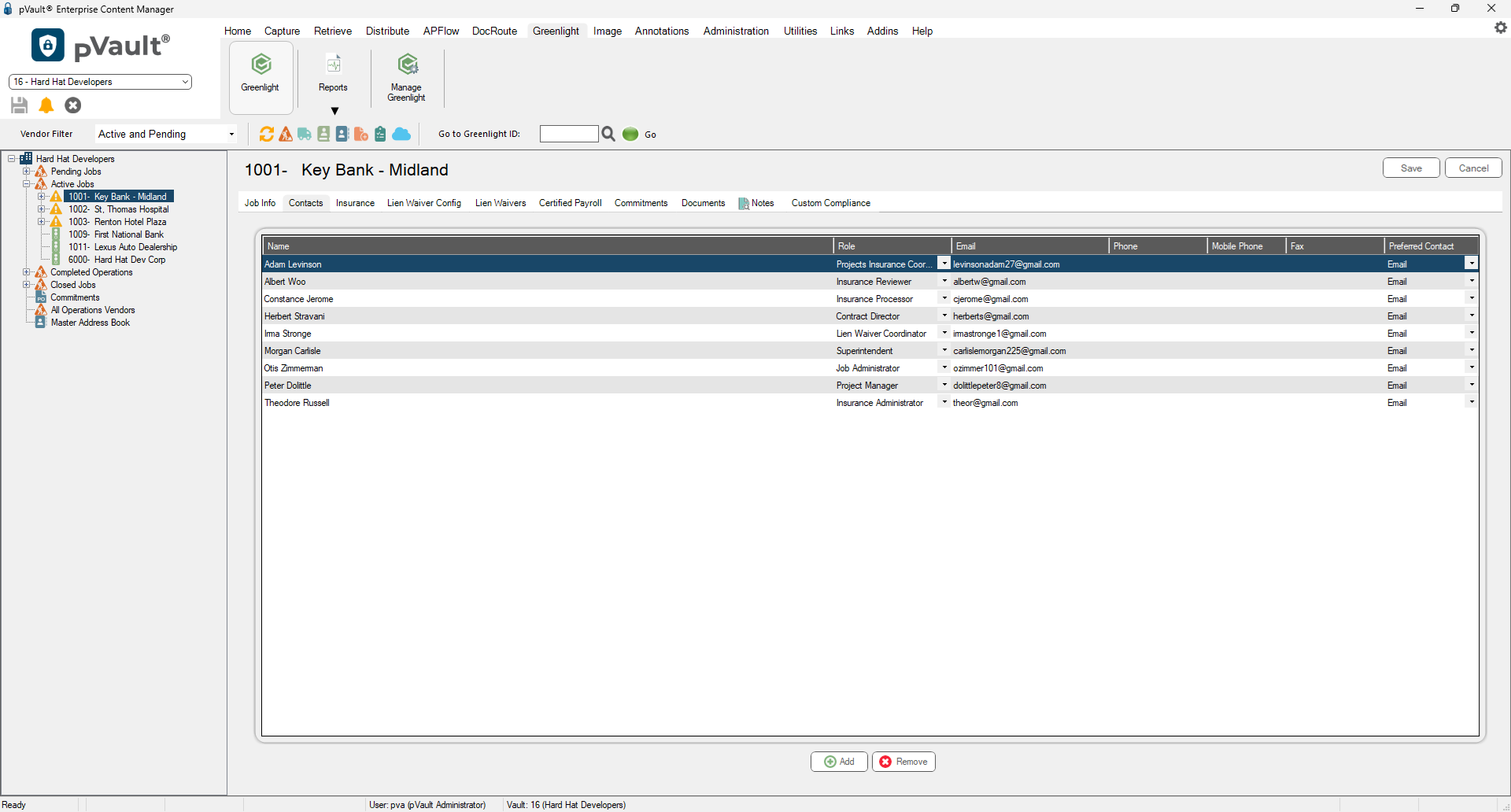
5.Click Add.
The Contacts to Job dialog similar to the following displays:
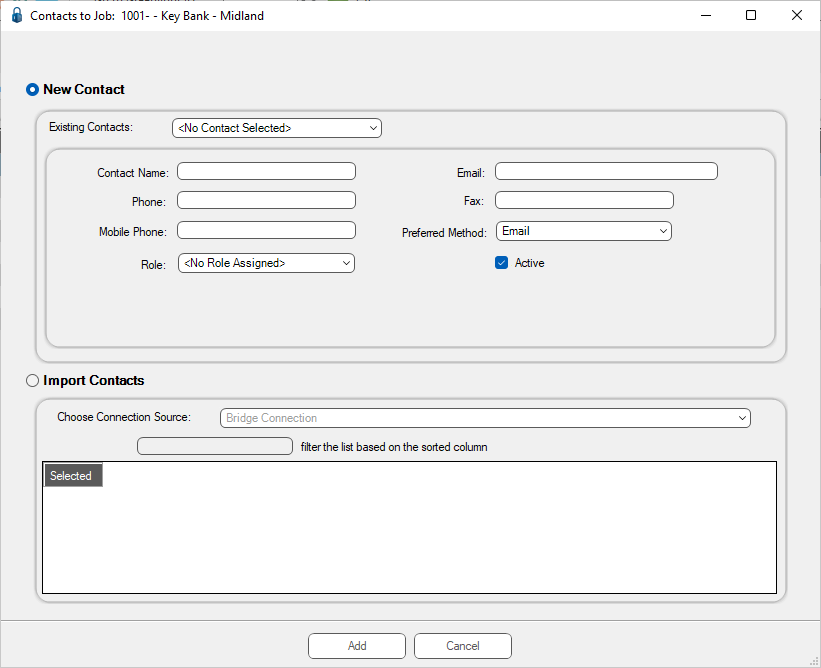
6.Use the Existing Contacts field dropdown to view company contacts.
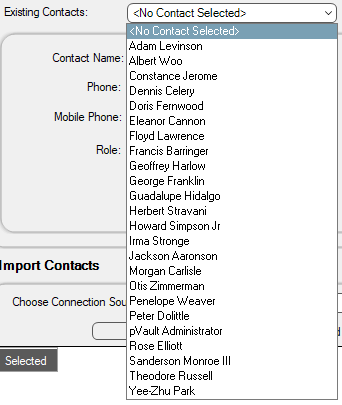
7.Select the new contact from the list.
8.Click Add.
Important: Do not fill out any contact information when adding an existing user. Greenlight CM systematically adds the contact's information that was previously entered at the company level.
•For details on adding project contacts, click here.
•For details on adding a non-company contact to a job, click here.
•For details on importing a non-company contact to a job, click here.
