1.Click the RFMS desktop icon.
The RFMS Main Navigator screen for a specific location similar to the following displays:
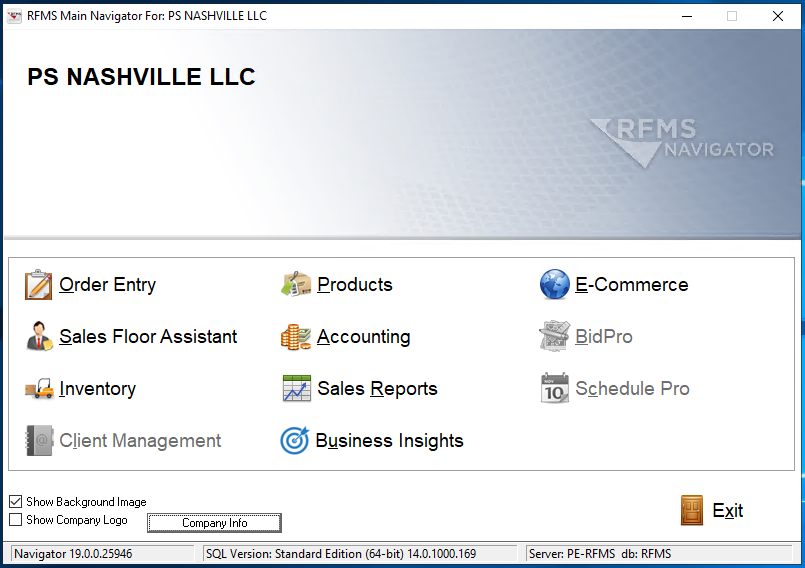
2.Click the appropriate task-related icon.
A screen, based on the task-related icon clicked on the RFMS Main Navigator screen, displays:
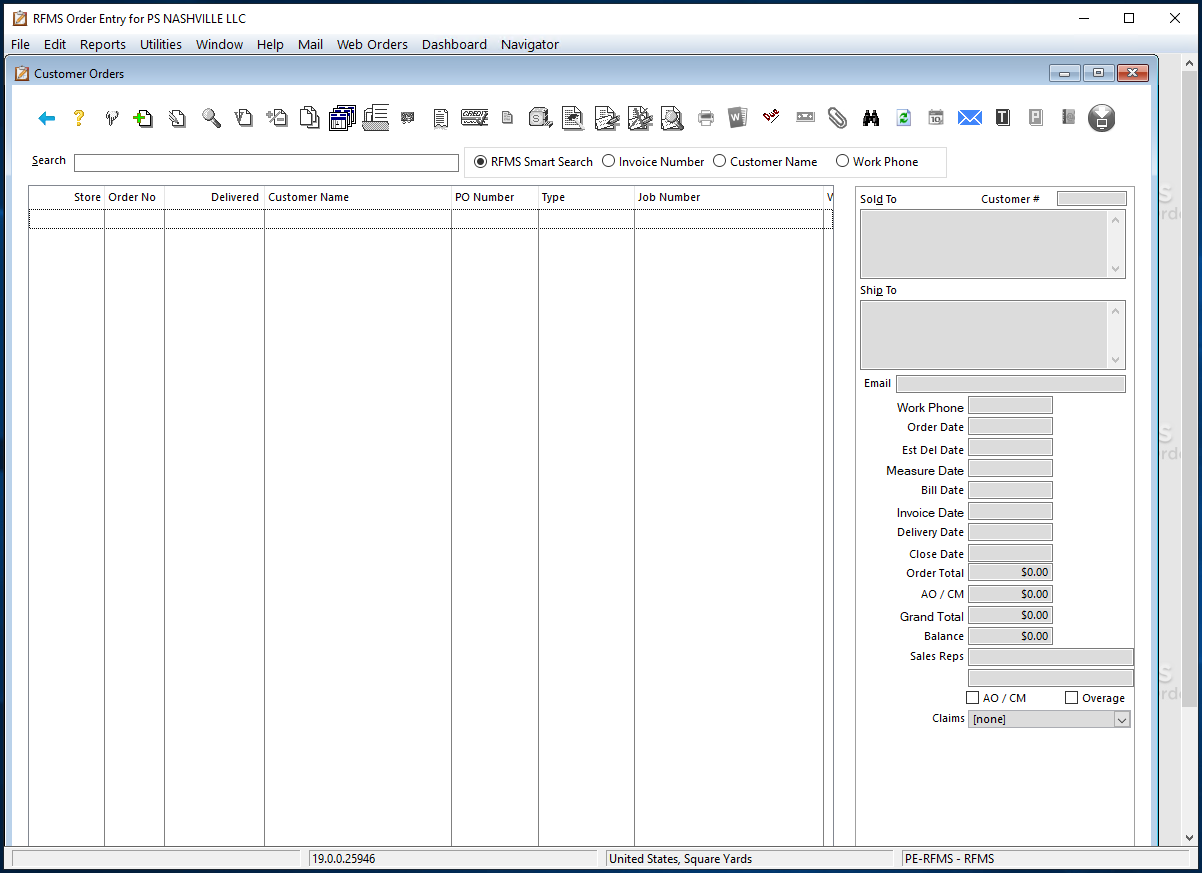
Note: This particular screen is associated with the Order Entry icon.
3.In the Search field, enter search criteria.
4.Click Enter.
The Customer Orders dialog similar to the following displays:
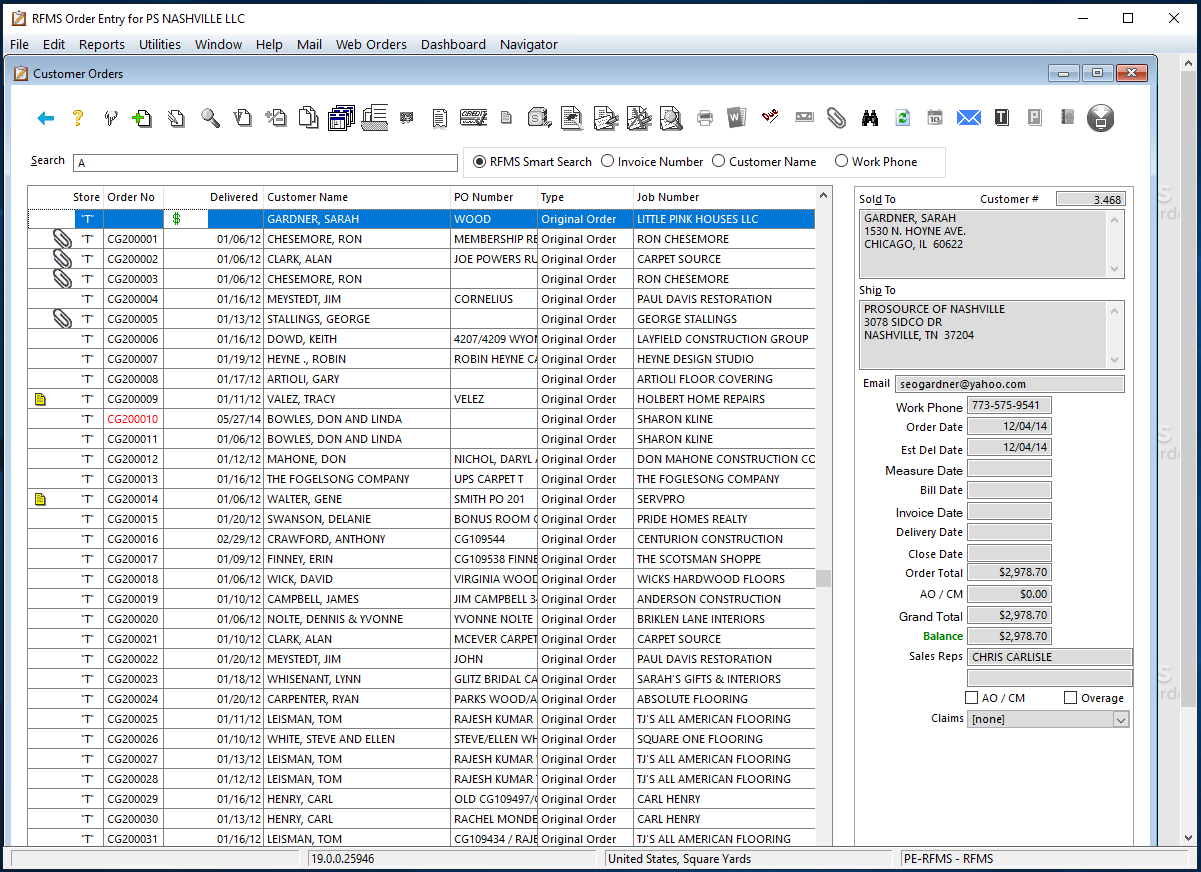
5.Select your record from the Search.
6.Click the paperclip.
The Attachments dialog similar to the following displays:
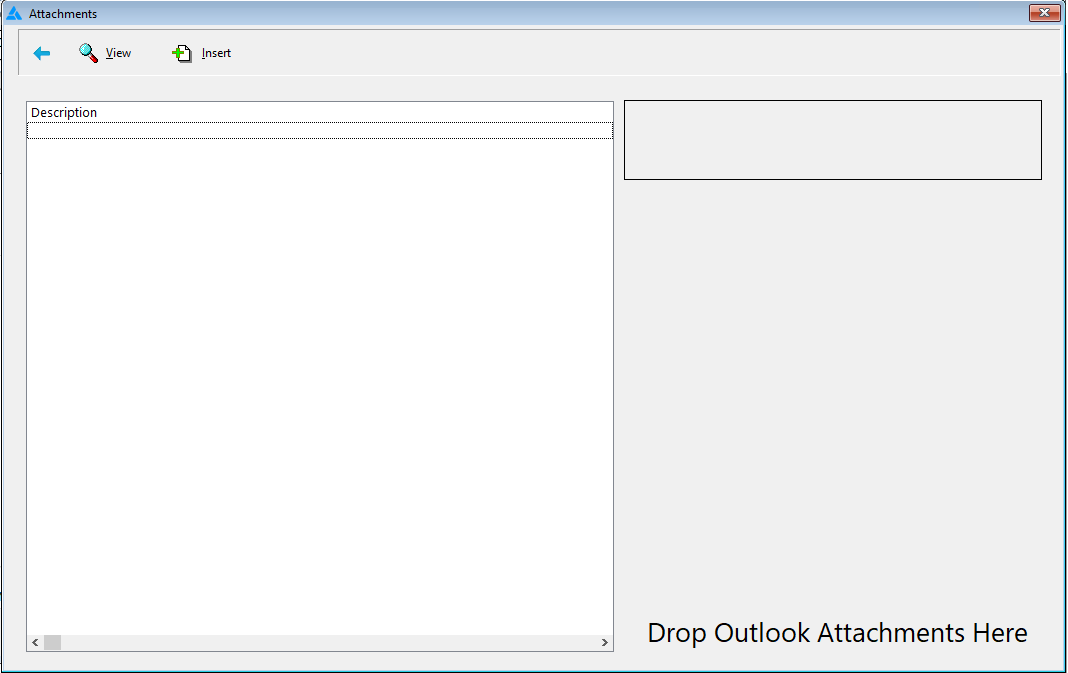
7.Click to highlight an entry in the Description pane.
8.Click View.
A document displays:
Note: If appropriate, click the Fit to Height icon so the image is more readable.
