You can create a Word document that includes a list of invoice transactions.
1.From the ribbon toolbar, click Greenlight.
2.Click Greenlight.
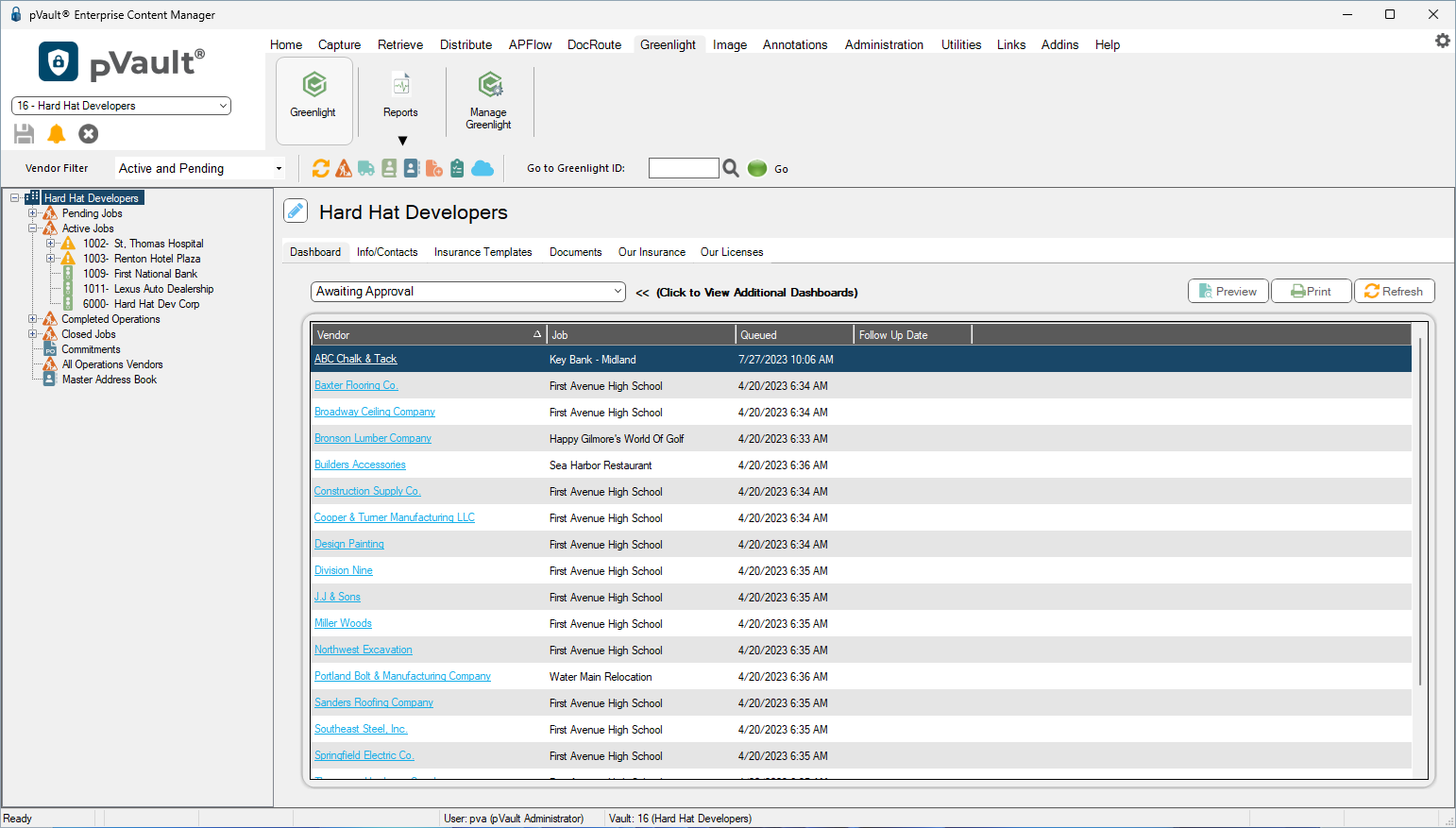
The main screen displays with the Dashboard tab active:
3.In the left navigation bar, click on a vendor.
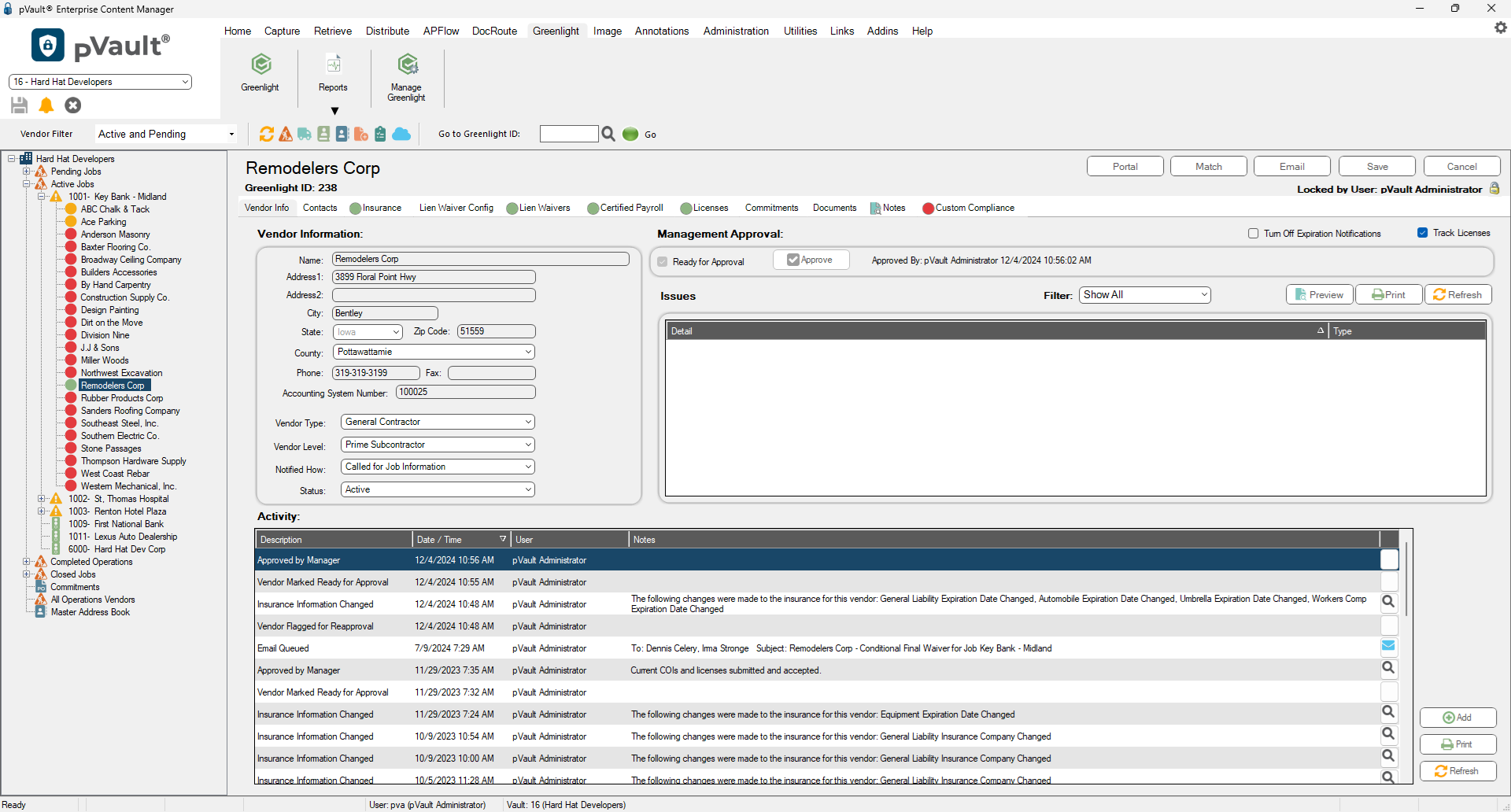
The following screen displays with the Vendor Info tab active:
4.Click the Lien Waivers tab.
The following screen displays:
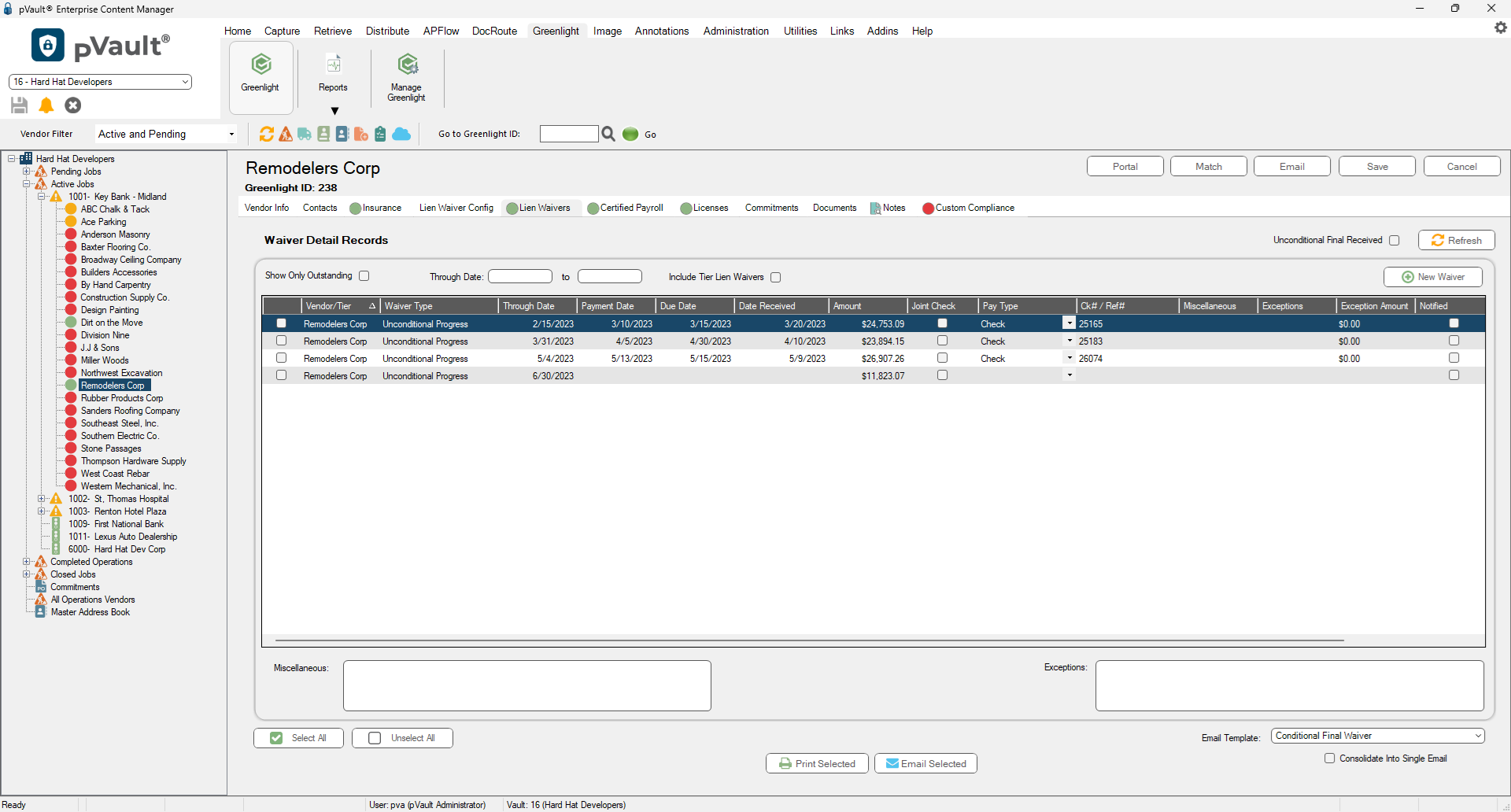
5.Click New Waiver.
The following Add New Waiver dialog displays:

6.In the Waiver Type field, use the dropdown to select the kind of waiver form to use. This field is required.
7.In the Through Date field, enter the date through which this waiver is valid. This field is required.
8.In the Due Date field, enter the date that the signed waiver is due back from the vendor. If the current date exceeds the Due Date, Greenlight flags the vendor as non-compliant and a warning is added to the Out of Compliance dashboard and also to the Outstanding Lien Waiver Reports. This field is required.
9.In the Amount field, enter the amount for the lien release. This field is required.