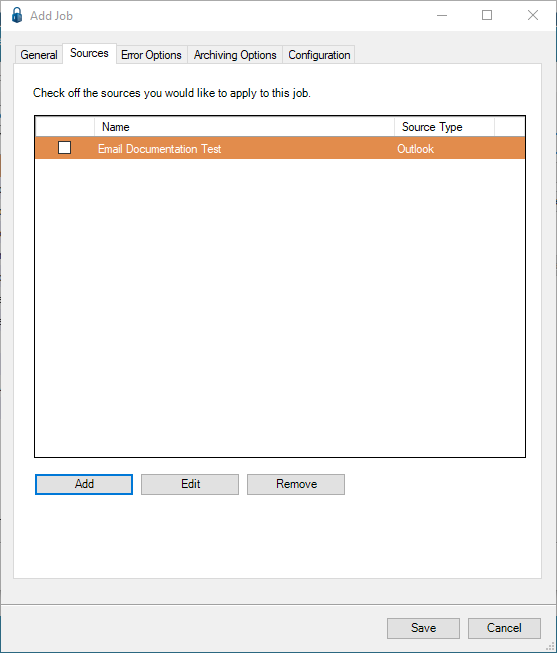
The Sources tab contains the path of the email.
Important
• Email jobs are locked down so an individual cannot access another person's email account or make changes to the Email Import job.
• Jobs set up under one account and then logged into with a different account generates a message indicating that the job cannot be viewed or edited. Only if no options were assigned to the job is editing permitted.
• Only email accounts you have configured under your account are visible to you.
• Only options in the Sources, Error Options and Archiving Options tabs assigned to your email accounts are visible to you.
• Only email options are available under the Email Job Type. No other Job Types should be able to view any of the Email Options.
• Only one email account per user per Job. For example, Source, Error and Archiving all must point to the same email account.
1.Click the Sources tab.
A dialog similar to the following displays:
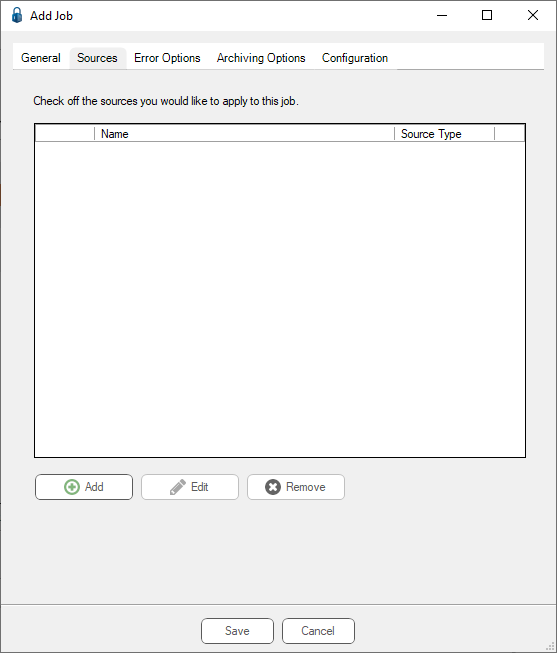
2.Click Add.
The Source Properties dialog displays:
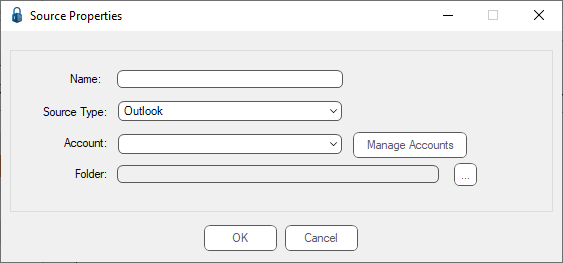
3.In the Name field, enter a meaningful name for the email source.
4.In the Source Type field, use the dropdown and click to select Outlook.
5.In the Account field, use the dropdown to select a listed entry or click Manage Accounts.
6.If Manage Accounts is clicked, the Manage Accounts dialog similar to the following displays:
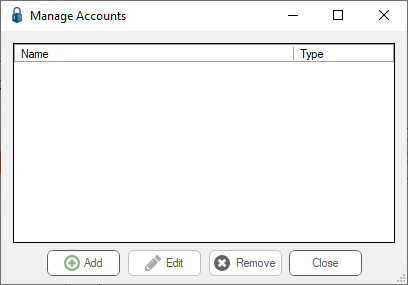
7.Click Add.
The Add Account dialog similar to the following displays with the Name field unpopulated and Connection Not Established displaying:
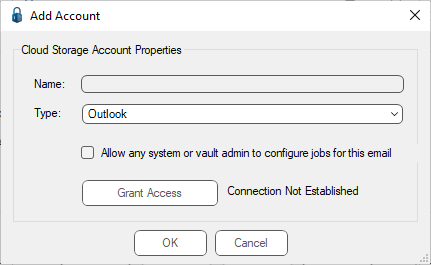
8.In the Type field, use the dropdown or keep the default.
9.Click the Allow any system or vault admin to configure jobs for this email check box to mark an email account as public. This gives System and Vault Administrators the permission to edit or configure for this email address.
10. Click Grant Access.
The Microsoft Pick an account dialog similar to the following displays:
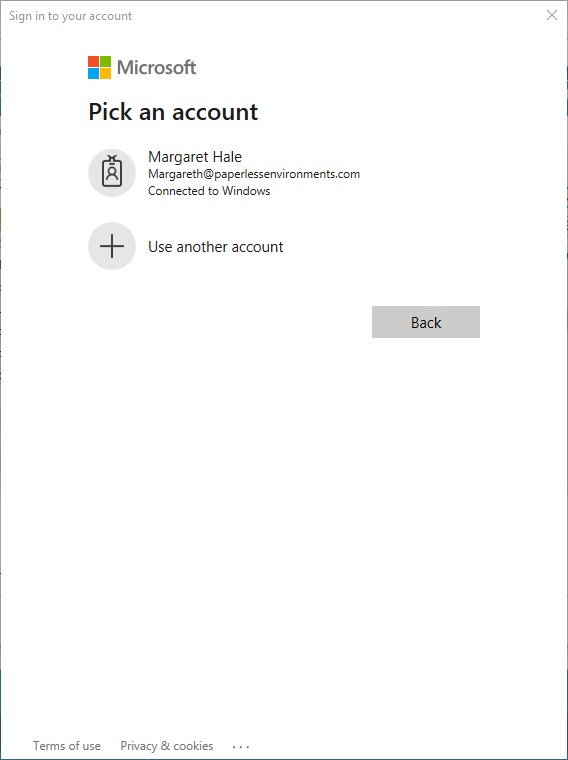
11. Double click on the account that is listed or click Use another account.
The Microsoft Permissions requested dialog similar to the following displays:
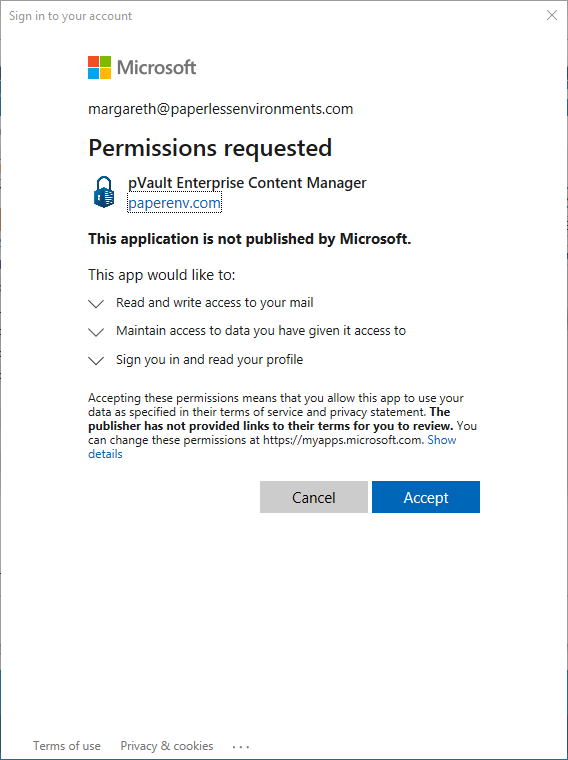
12. Click Accept.
The Add Account dialog redisplays with the Name field populated with the account name and Connection Successful displaying:
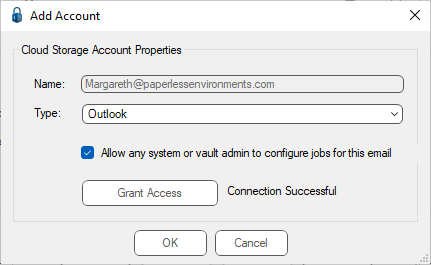
13. Click OK.
This closes the Add Account dialog and the Manage Accounts dialog redisplays with the newly created account displaying in the grid similar to the following:
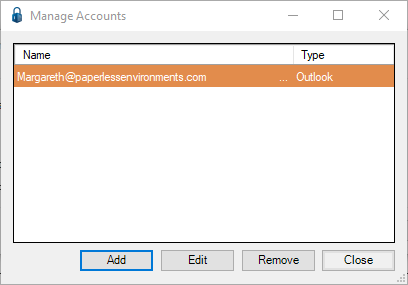
14. Click Close.
The Source Properties dialog redisplays with the Account field system populated similar to the following:
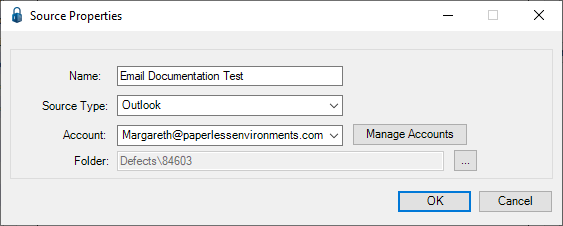
15. Click the Folder field ellipsis.
A Folders dialog similar to the following displays:
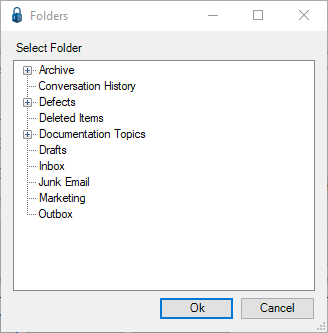
Note: If you have permissions for a shared mailbox, this Folders dialog includes that information. For details, see the Shared Mailbox Permissions section located at the bottom of this page.
16. Click to highlight the folder.
17. Click OK.
The Source Properties dialog with the Folder field populated redisplays similar to the following:
18. Click OK.
The Sources tab redisplays with the new Job added to the grid similar to the following:
19. Click the Error Options tab.
Shared Mailbox Permissions
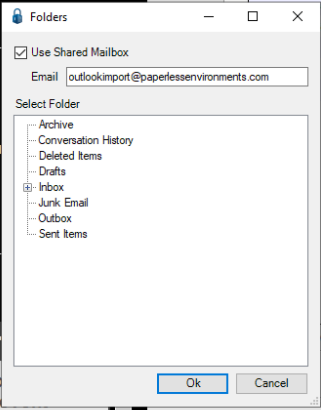
If you have Shared Mailbox permissions, and you click the ellipsis in the Source Properties dialog, the Folders dialog resembles the following:
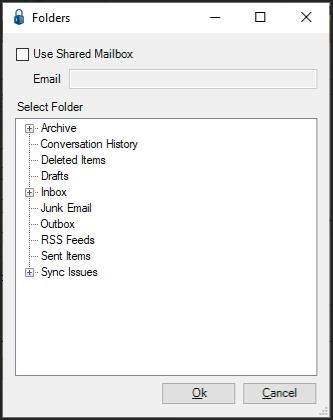
1.Click the Use Shared Mailbox check box.
The Email field becomes active.
2.Enter the Email address to which you have shared permissions.
The folders within that email address display.
The completed Folders dialog resembles the following:
3.Click Ok to close.
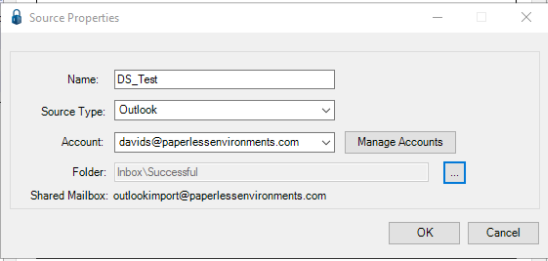
The Source Properties dialog updates to include the shared mailbox email address similar to the following:
4.Click OK.
