Templates are company-specific and typically consist of a series of steps that must be followed during the performance of scheduled or unscheduled work. These template steps can be very detailed or provide an outline. During the creation of a LOTO event, a template must be assigned.

An Administrator can create templates to add procedural steps to LOTO events.
1.In the Admin Panel, click Details in the Templates grid.
A Template List screen similar to the following displays:
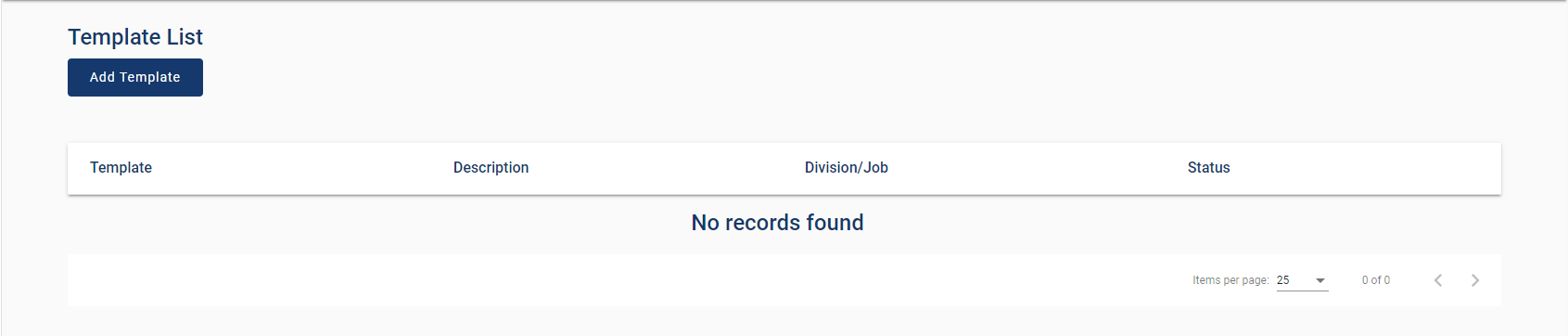
2.Click Add Template.
The following Template Info screen displays:
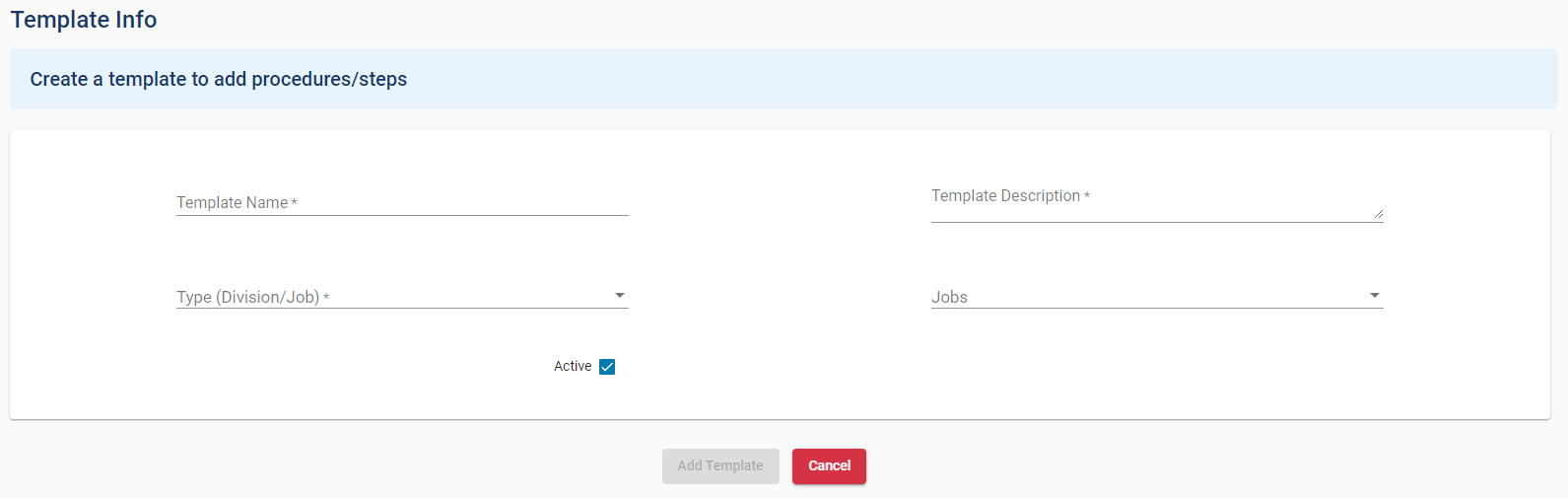
3.In the Template Name field, enter a template name. For example, Gila Dam Improvements.
4.In the Template Description field, enter a description associated with this new template. For example, Procedural steps to follow on the Gila Dam Improvements projects.
5.Use the Type field dropdown to select either Division or Job.
If Division is selected from the dropdown, the Jobs field is disabled. skip to step 7.
If Job is selected from the dropdown, continue with step 6.
6.Use the Jobs field dropdown to select one of the appropriate job. For example, Gila928 - Gila Dam Improvements.
7.Click Add Template.
The Template Info screen similar to the following displays:
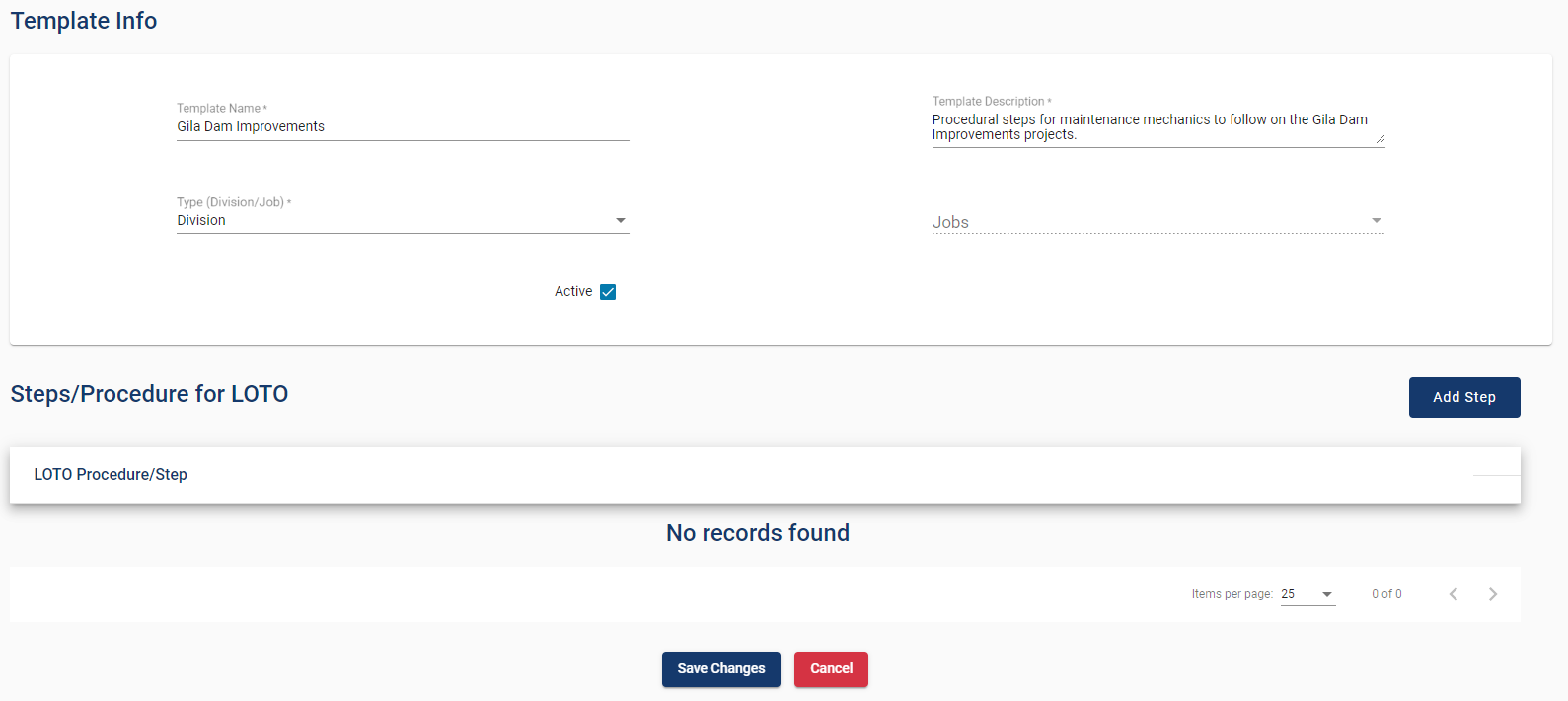
8.Click Add Step.
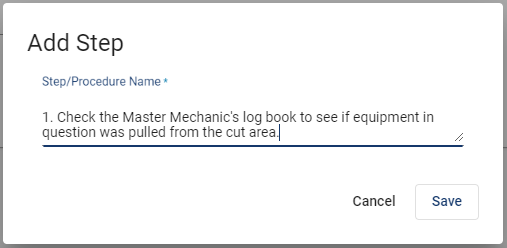
The following Add Step dialog displays:
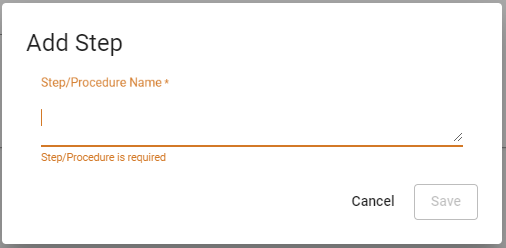
9.In the Step/Procedure Name field, enter a procedural step similar to the following:
10. Click Save.
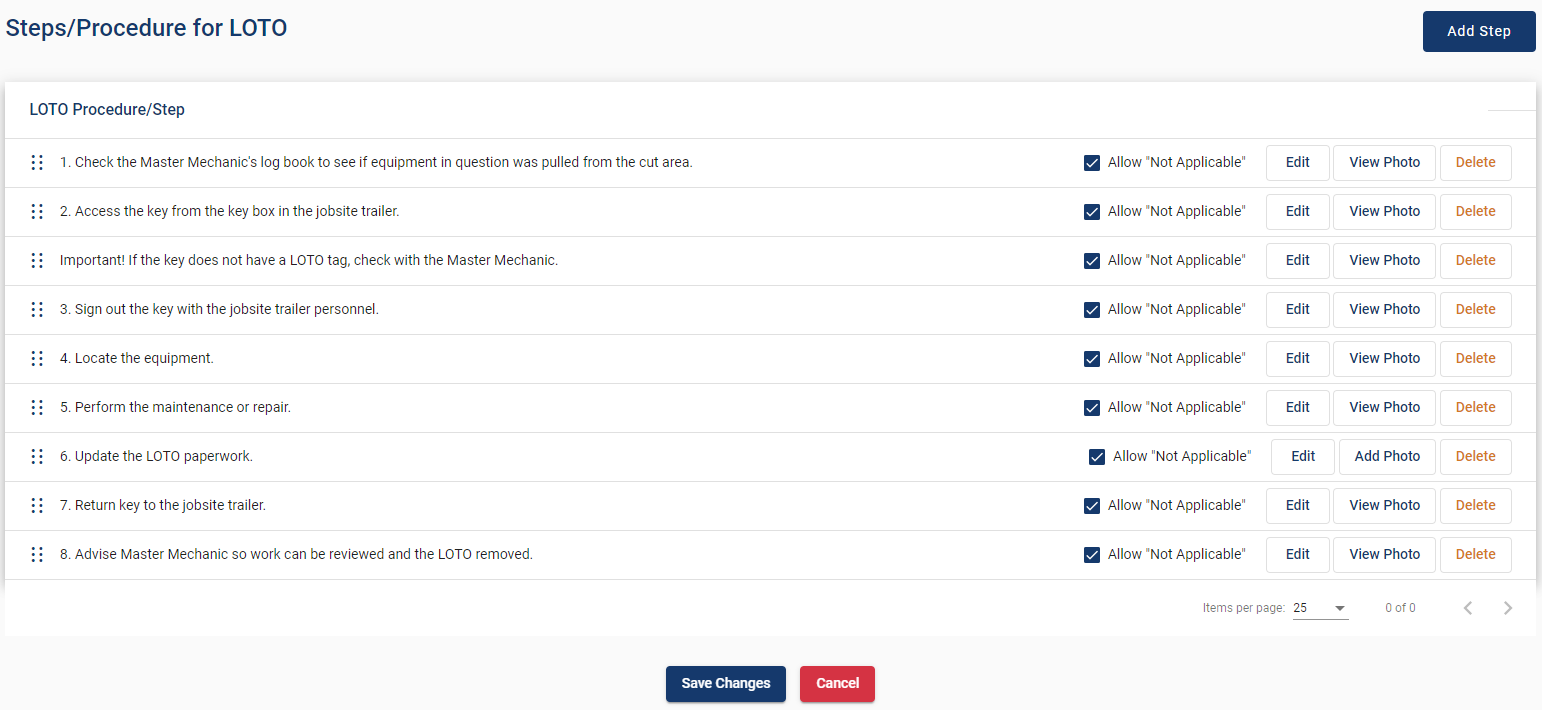
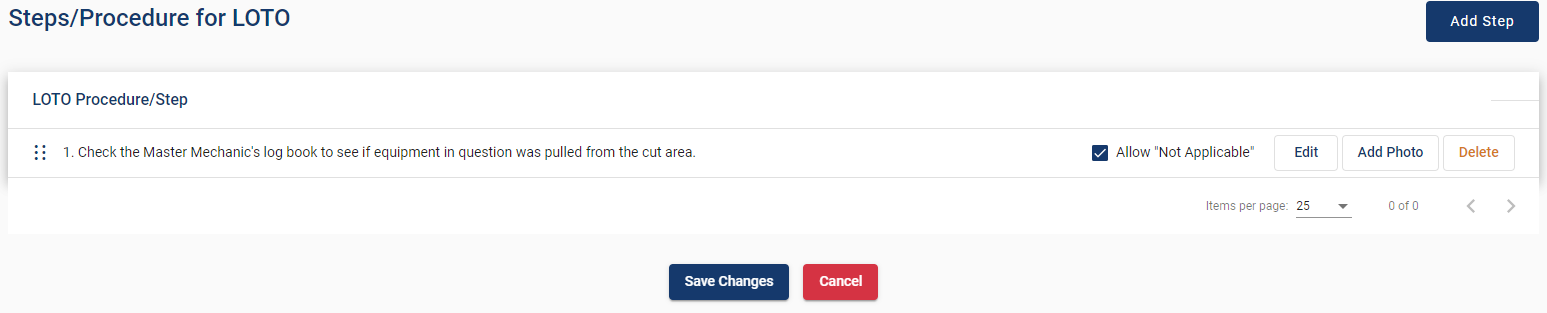
The Procedural step displays similar to the following:
|
Hover your cursor over this icon to initiate a move of the associated procedural step to a different order. |
|
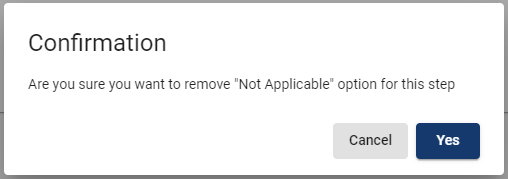
If a procedural step may not be applicable in every instance, keep the default to allow the user to mark "Not Applicable".
Click Yes and the checkmark is systematically removed. |
|
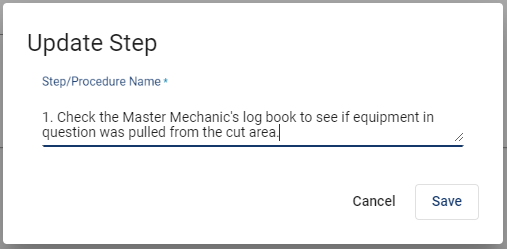
1.Click this button to bring up an editable dialog similar to the following: 2.Make your changes. 3.Click Save. |
|
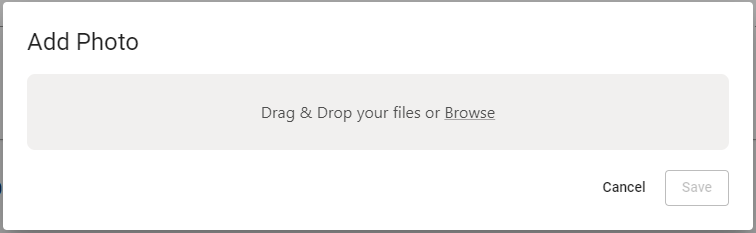
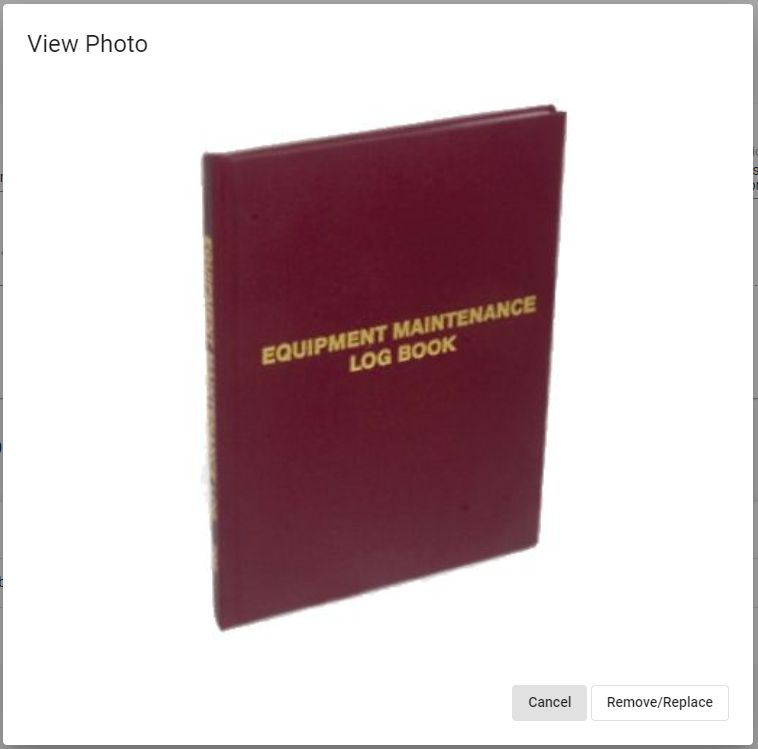
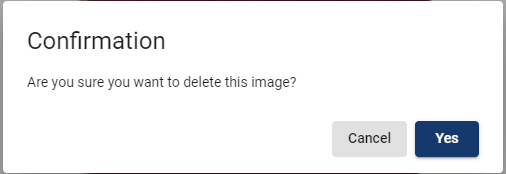
1.Click this button to bring up the Add Photo dialog:. 2.Drag and drop an image or click Browse to locate an image in a folder. 3.Click View Photo. 4.You may remove or replace the image by clicking the Remove/Replace button. 5.Click Yes to complete the Remove/Replace image process. |
|
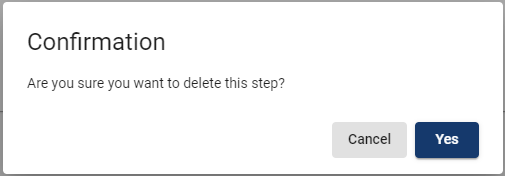
To delete a step, click Delete. A Confirmation dialog similar to the following displays:
|