1.From the ribbon toolbar, click Administration.
2.Click the Users dropdown.
3.Click Users.

The User Accounts dialog similar to the following displays:
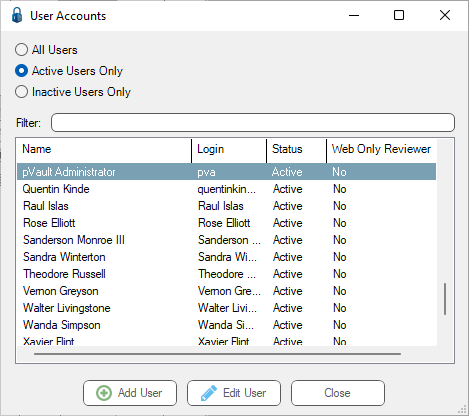
Note that there is a Filter text field where you can start to enter a user to narrow the list.
4.Start typing in the Filter field to narrow the list similar to the following:
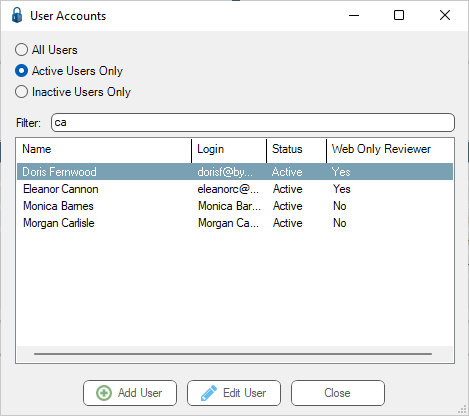
Not only can you filter on the Name column entries, but you can also filter on the Login column.
5.Click Add User.
The first Add User Wizard dialog displays:
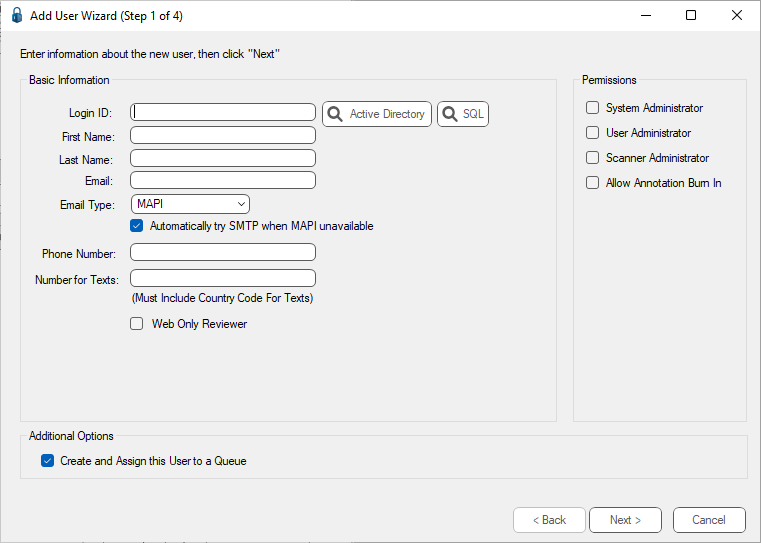
There are 2 types of pVault® system Login IDs:
• Windows Authenticated users
Uses the normal Windows domain user information for password authentication. This is the recommended user type. The Windows Authenticated user, currently logged into Windows on the PC, is the user who logs into pVault. Passwords are controlled by the company’s domain, so a separate password for pVault is not required. Document viewers (i.e. pVault Tiff Printer Driver) automatically log in with the current user's Window’s credentials without needing to log into pVault every time.
• SQL Server Authenticated users
Uses the password setup in the pVault® SQL server for authentication. Passwords are maintained on the SQL server and can be changed through the pVault® system. Users who use external document viewers (i.e. pVault Tiff Printer Driver) is required to log into pVault every time the viewer is loaded.
A Web Only Reviewer can be added as either a Windows Authenticated or SQL Server Authenticated user.
For details on setting up a Windows Authenticated web user, click here.
For details on setting up a SQL Server Authenticated web user, click here.
6.Check the Web Only Reviewer check box.
