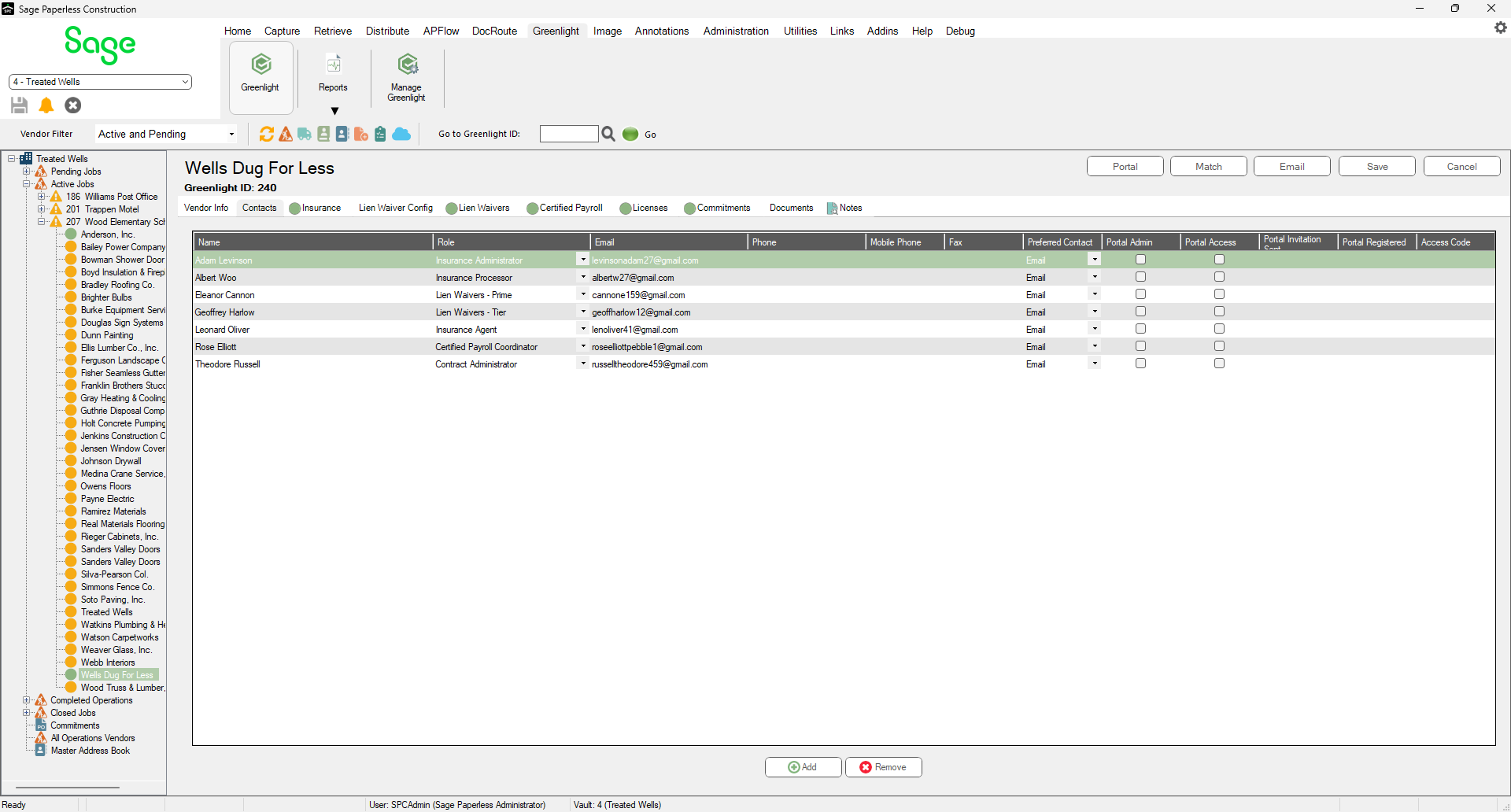
Vendor contacts added through the Master Address Book or added to a previous job can be imported to a new job without having to input the contact information.
1.From the ribbon toolbar, click Greenlight CM™.
2.Click Greenlight.
The main screen displays with the Dashboard tab active:
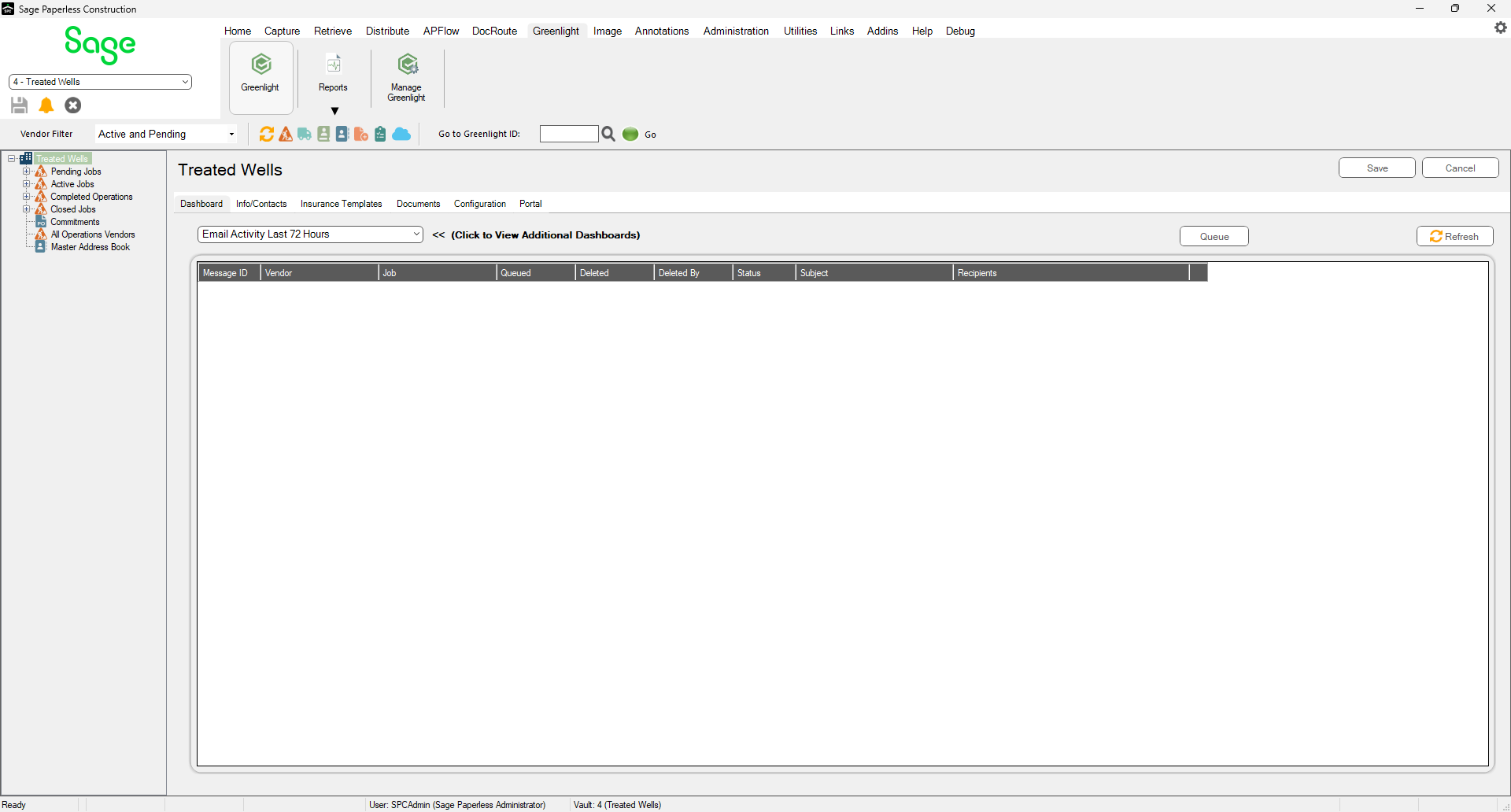
3.In the left navigation bar, click on a vendor.
The following screen displays with the Vendor Info tab active:
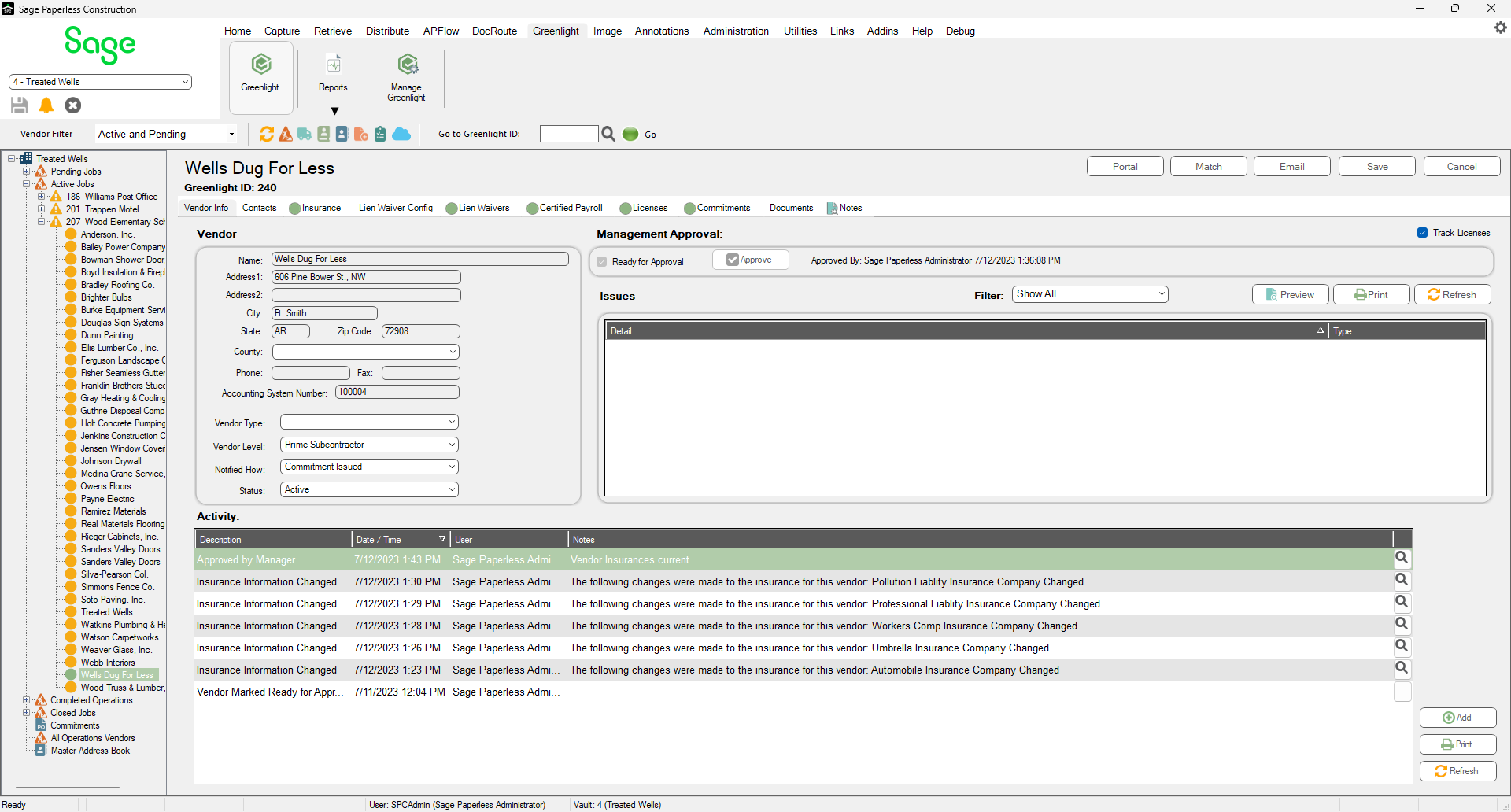
4.Click the Contacts tab.
The following screen displays:

5.Click the Add.
A Contacts to Vendor dialog displays:

You do not need to fill out the contact information. Greenlight imports the information from the Master Address Book.
6.Select the contact from the Existing Contacts field dropdown list.
An updated Contacts tab resembles the following: