If the Tier Vendor already exists in the accounting system, use the import function.
1.From the ribbon toolbar, click Greenlight.
2.Click Greenlight.
The main screen displays with the Dashboard tab active:
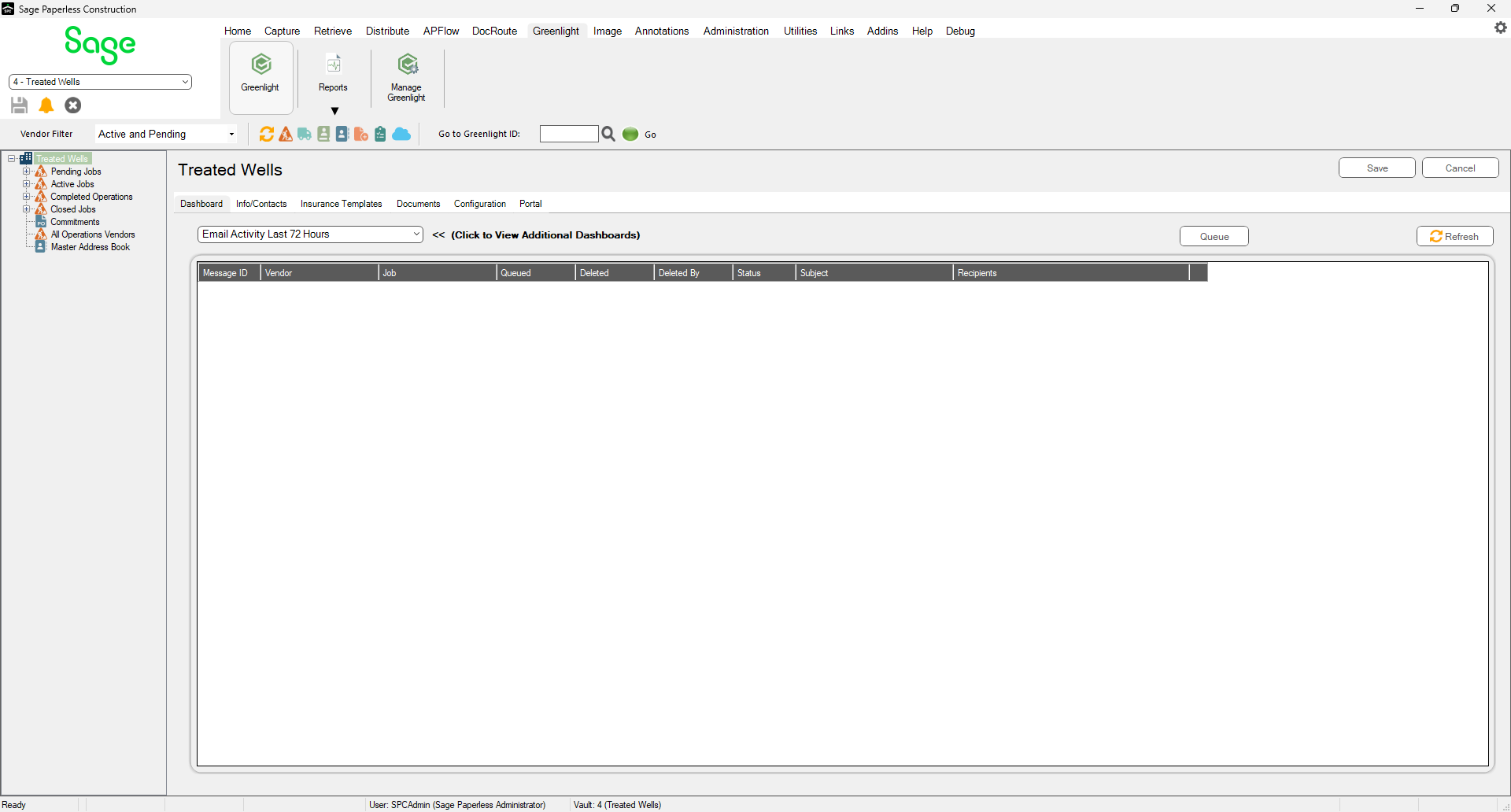
3.From the vendor sub menu that displays in the left navigation bar, locate a vendor to which a tier or secondary vendor needs to be added and right click Add Tier Vendor.
A blank Create New Vendor screen displays with the New Vendor radio button selected.
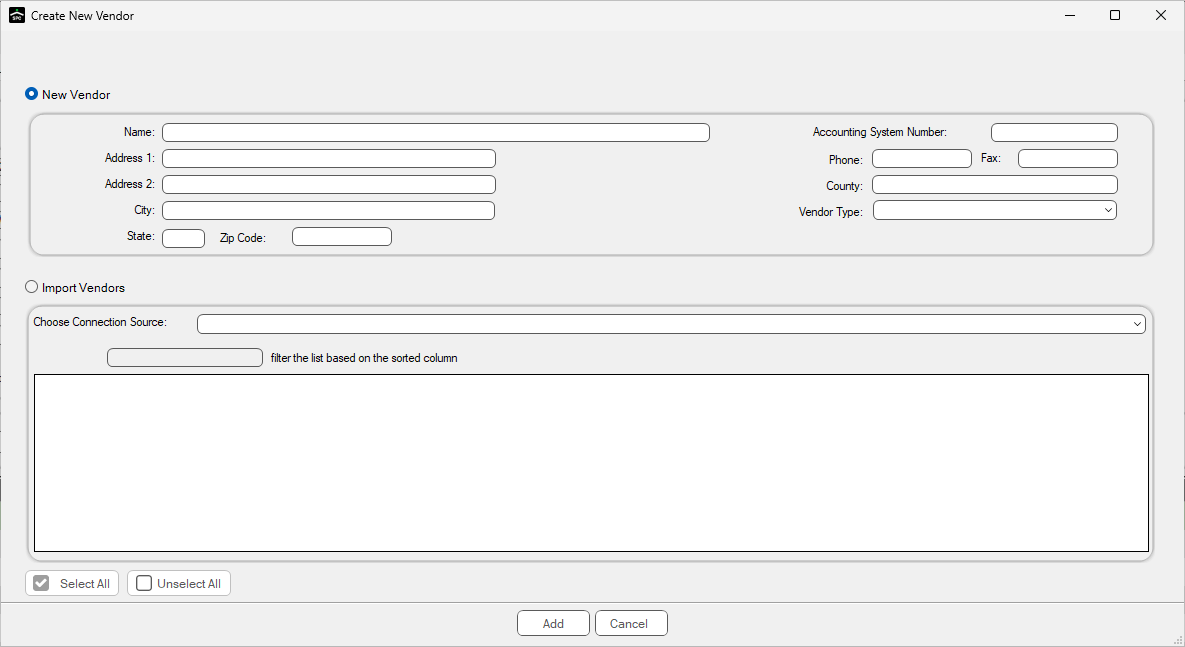
4.Click the Import Vendors radio button.
The Create New Vendor screen updates to resemble the following:
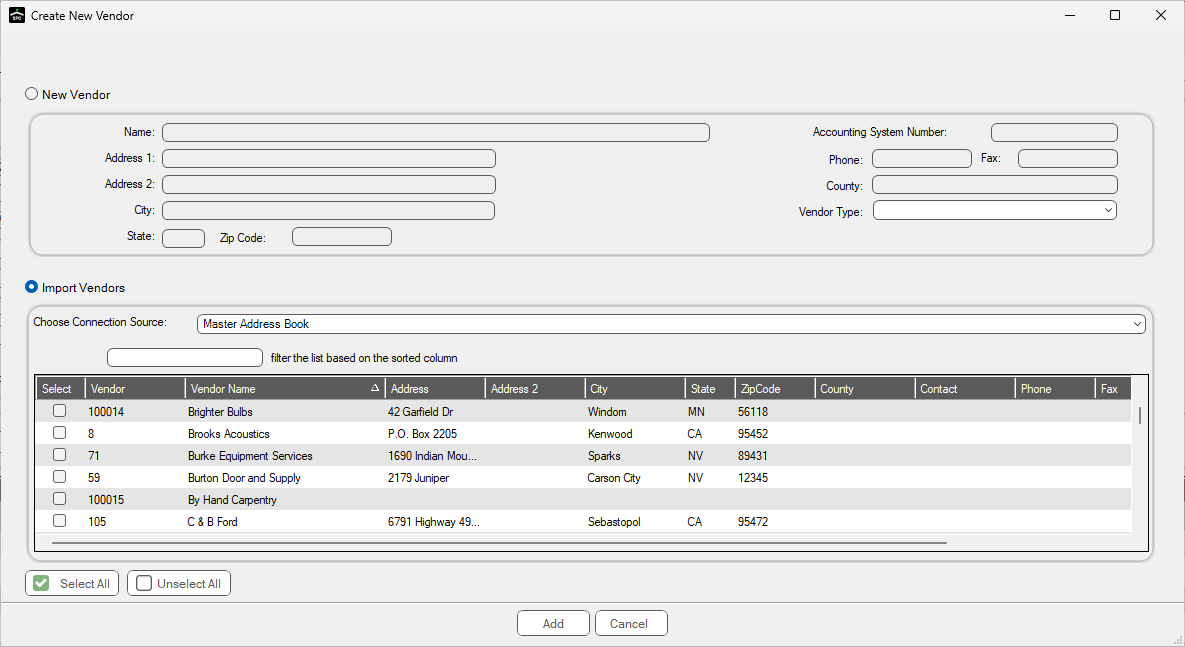
5.Use the filter field to search for the appropriate vendor.
6.Click the check box in the associated Select column.
7.Click Add.