Custom Compliance allows you to define your company's own business requirements you want to track (for example W-9 forms, SOC or NIST Compliance levels, bonding requirements, performance review requirements) and use this custom functionality to confirm compliance. These are company specific.
Important: You must be a Greenlight Administrator or have Company Edit permissions within your assigned security role.
1.From the ribbon toolbar, click Greenlight CM™.
2.Click Manage Greenlight.
The main screen displays with the Users tab active:
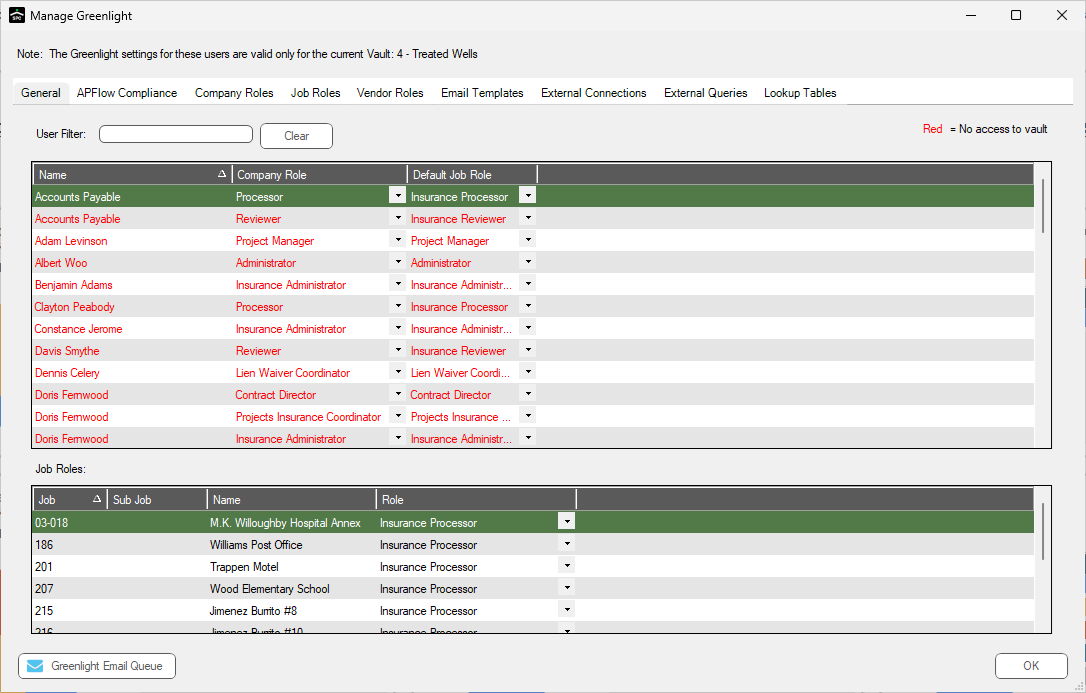
3.Click the Custom Compliance tab.
The following screen displays:
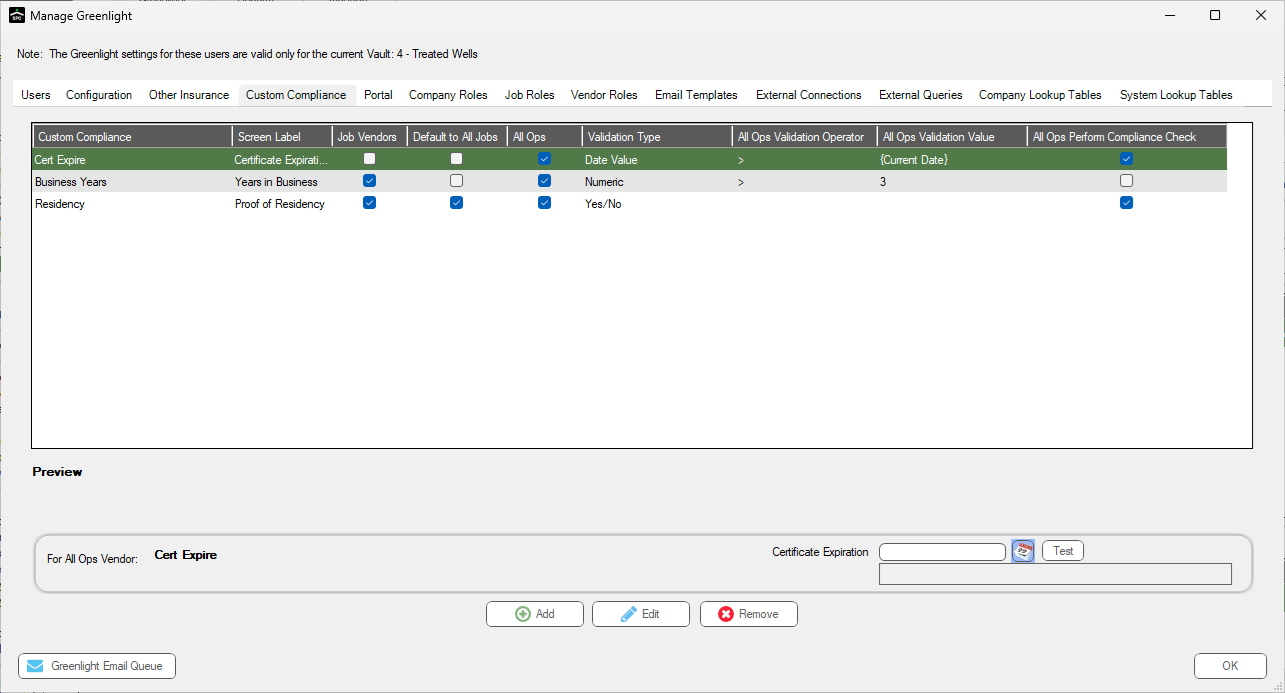
4.Click Add.
The Add Custom Compliance dialog displays:
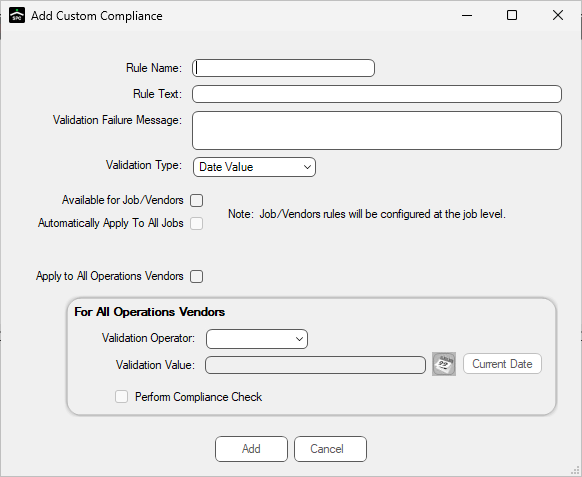
5.In the Rule Name field, enter name. This name displays next to the rule in the Job and Vendor Compliance screens.
6.In the Rule Text field, enter appropriate text. This is the label next to the data entry control, asking for the information to be tracked.
7.In the Validation Failure Message text box, enter a customized error message for when this rule is out of compliance. If this text box is left blank, a default message displays.
8.Use the Validation Type field dropdown to select one of the following:
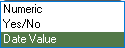
•Using a Date Value Validation Type, click here for details.
•Using a Numeric Validation Type, click here for details.
•Using a Yes/No Validation Type, click here for details.
•Using a Ranked List Validation Type, click here for details.