User and security settings for the APFlow™ module are maintained on the Manage APFlow™ screen.
The Manage APFlow™ screen is accessible from the following areas within Sage Paperless Construction:
➢ On the ribbon toolbar, click the APFlow™ tab and then click the Manage APFlow™ icon,  .
.
➢ From the Invoice Manager screen, click Manage APFlow™. Read more about the Invoice Manager by clicking here.
The Manage APFlow screen similar to the following displays with the General tab active:
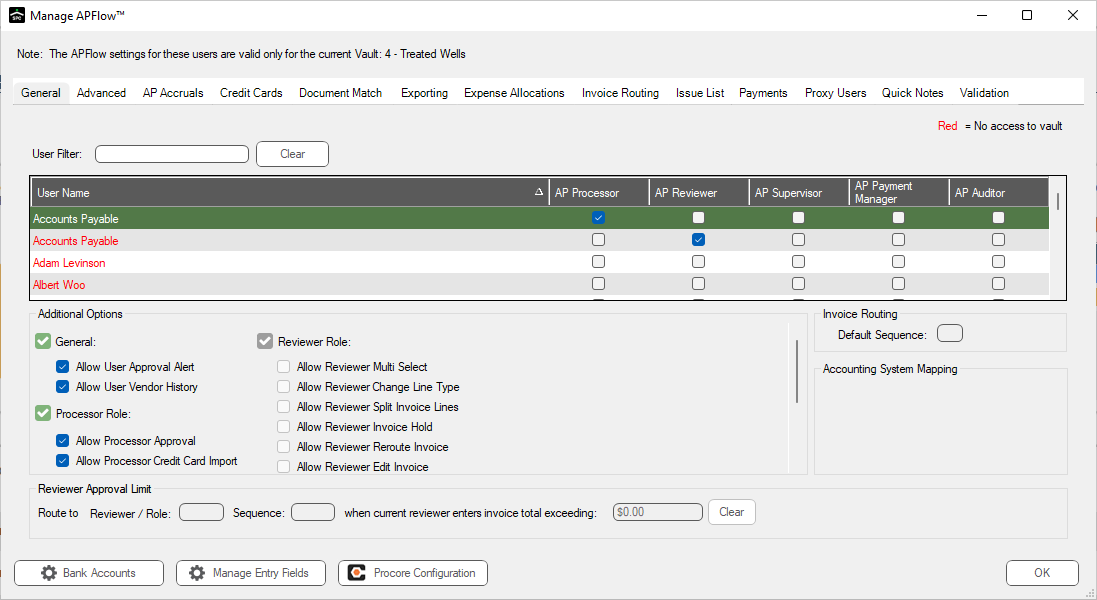
•For more information on the AP Processor, AP Reviewer, AP Supervisor, AP Payment Manager and AP Auditor roles and permissions, see General Tab.
•For more information on the Advanced tab and advanced bridge settings see Advanced Tab.
•For more information on the Compliance tab, see Compliance Tab.
•For more information on the AP Accruals tab, expense lines and job-related lines, see AP Accruals Tab.
•For more information on the Credit Cards tab and how to create credit card templates, see Credit Cards Tab.
•For more information on the Document Match tab, document types and one time attachments, see Document Match Tab.
•For more information on the Exporting tab, see Exporting Tab.
•For more information on the Expense Allocations tab, see Expense Allocations Tab.
•For more information on the Invoice Routing tab, routing groups, rules and descriptions, see Invoice Routing Tab.
•For more information on the Issue List tab, issue names and resolution, see Issue List Tab.
•For more information on the Proxy Users tab, see Proxy Users Tab.
•For more information on the Quick Notes tab, see Quick Notes Tab.
•For more information on Bank Accounts, see Bank Accounts.
•For more information on the Manage Entry Fields, see Configure Invoice Entry Fields.
•For more information on Procore, see Procore.