•Users can save their own "personal" Quick Notes (in User Settings) to use when entering notes in the various Sage Paperless Construction modules.
•If the user is also an Administrator, "public" company Quick Notes can be set up here.
•Quick Notes are useful when lengthy, repetitive notes are needed on a regular basis.
1.From the ribbon toolbar, click Home.
2.Click User Settings.
The following User Settings dialog displays with the General tab active:
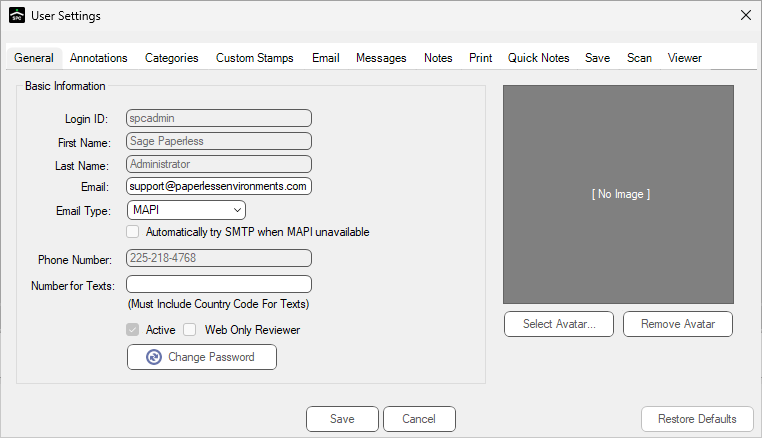
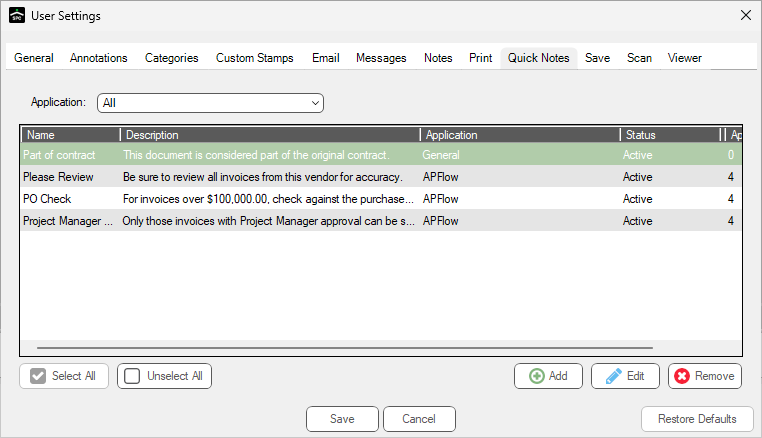
3.Click the Quick Notes tab.
The following dialog displays:
Adding a Quick Note
1.In the Quick Notes tab, click Add.
The following Add Quick Note dialog displays:
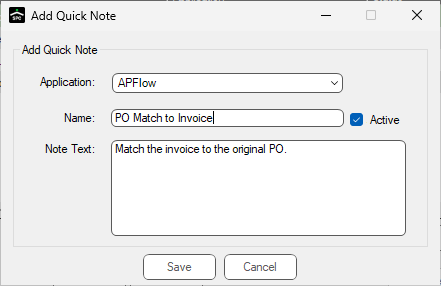
2.In the Application field, use the dropdown to select where in the Sage Paperless Construction application this quick note is available:
•General - available throughout the Sage Paperless Construction system
•APFlow™ - available within the APFlow module
•AutoBatch - available within the AutoBatch module
•Document Routing - available within the DocRoute™ module
•CDPlus - available within the CDPlus utility
3.In the Name field, type the name of the Quick Note.
4.In the Note Text field, type the Quick Note text to display.
5.Click the Active check box.
6.Click Save.
Using a Quick Note
Prerequisite: An active document is open in Sage Paperless Construction.
1.From the ribbon toolbar, click Utilities.
2.Click Document Info,  .
.
A dialog similar to the following displays with the Document tab active:
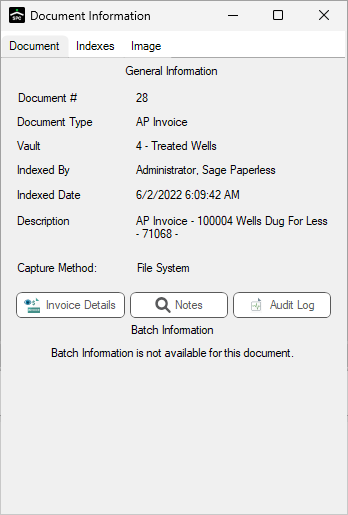
3.Click Notes.
A dialog similar to the following displays:
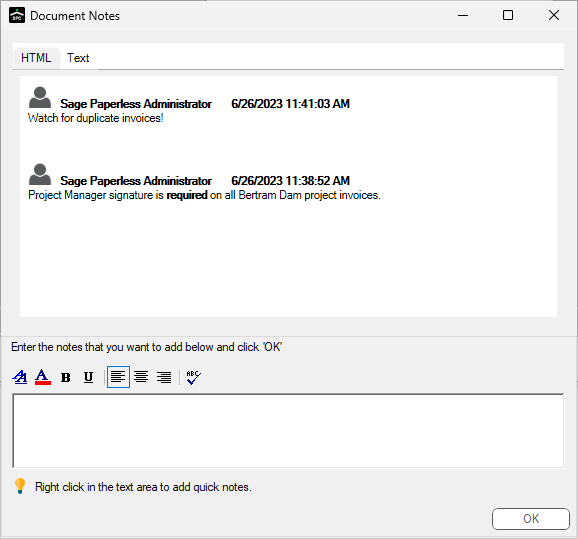
Any previous notes display in the top pane.
4.In the bottom pane, right click to display a dropdown list.
5.Left click the appropriate existing Quick Note to select.
The available Quick Notes display first by category.
Select a category to reveal the various quick notes associated with that category.
6.Click OK.
Using a Quick Note in the Doc Info Tray
Similar to the Document Information dialog, you can also enter quick notes on the Notes tab in the Doc Info Tray.
Click here for more information.