Important: You must have a document open for the Doc Info tray to display.
The supported Doc Info dialog is visible on the main viewers of the program.
This is the same information detailed on the Document Information dialog accessible when you click Utilities in the ribbon toolbar and then click Document Info. Click here for more information.
Navigation
You can widen the Doc Info tray or make it more narrow by placing your cursor on the top line of the Doc Info tray and dragging the line up or down.
Note: The system remembers the settings of the Doc Info tray (open, closed, specific height).
To close the Doc Info tray, click the close arrow icon that displays in the upper right of the tray.
The Doc Info tray resembles the following:

To open the Doc Info tray, click the link,  .
.
This functionality is visible throughout the Sage Paperless Construction application.
In addition to the Main Viewer, look for it in standalone viewer dialogs such as Document Match and Queues (Retrieve).
In Invoice Entry, the Doc Info tray is visible when the APFlow™ sidebar Unprocessed tab or Work in process tab is active. Click here for more details.
Document tab
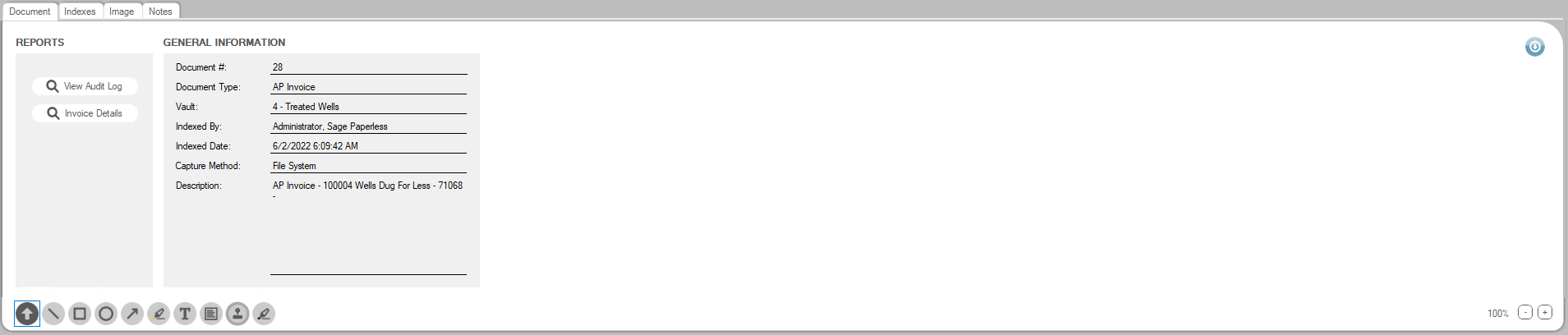
The Doc Info tray displays with the Document tab active.
The Document tab contains information about the document visible in the Viewer dialog. This includes routing information such as to whom and by whom the document was routed--and when. You can also view two reports: View Audit Log and Invoice Details.
Indexes tab
Click the Indexes tab.
The Doc Info tray similar to the following displays:
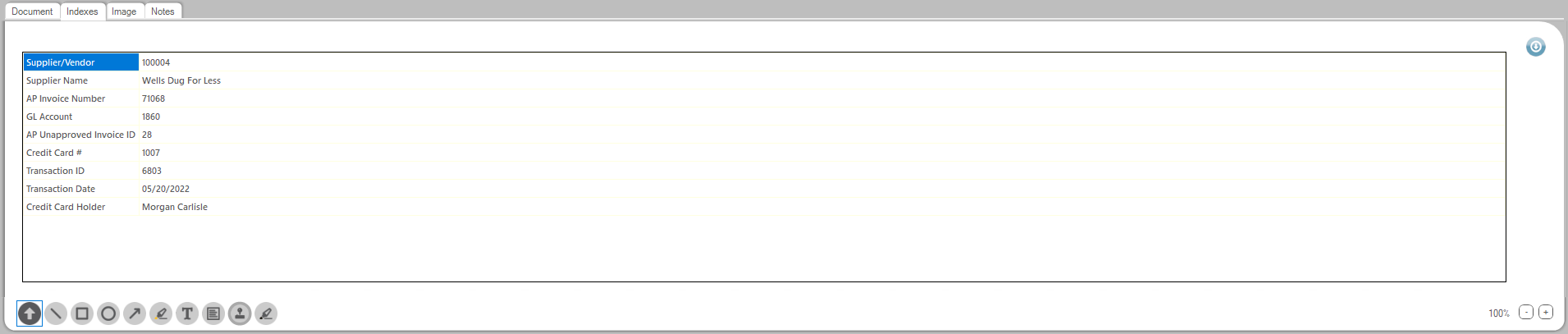
The Indexes tab contains information about the document visible in the Viewer dialog. The information that displays is based on what was entered when the document was indexed.
Image tab
Click the Image tab.
The Doc Info tray similar to the following displays:
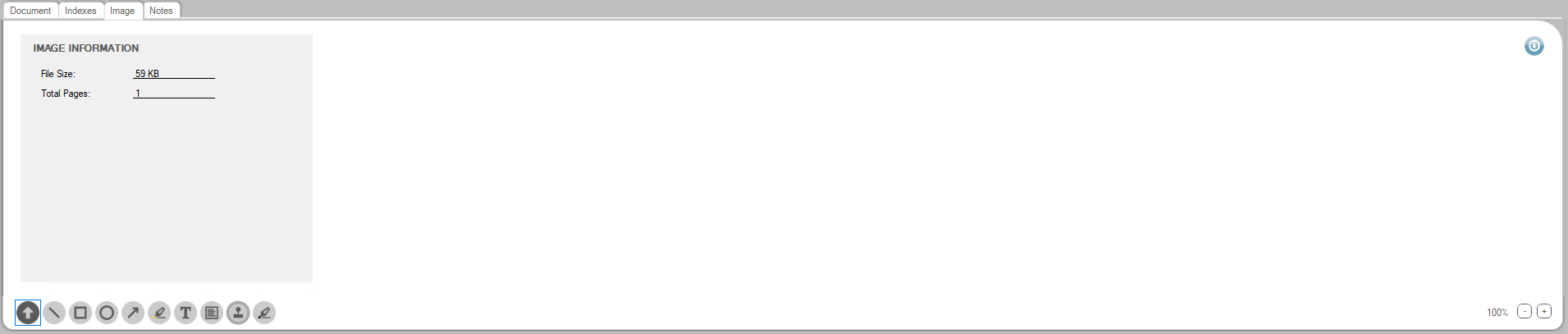
The Image tab contains information specific to the document visible in the Viewer dialog. This information concerns the document file size and the number of pages.
Notes tab
Click the Notes tab.
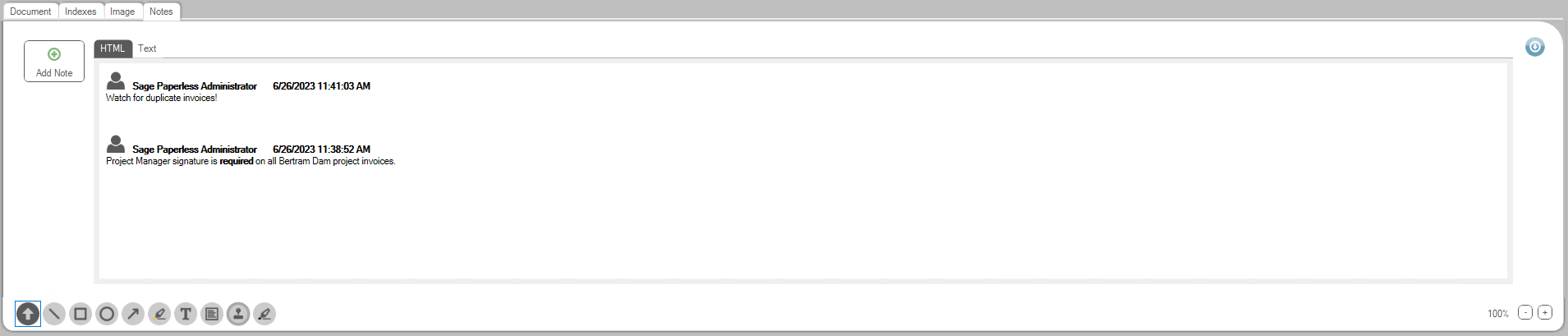
The Doc Info tray similar to the following displays:
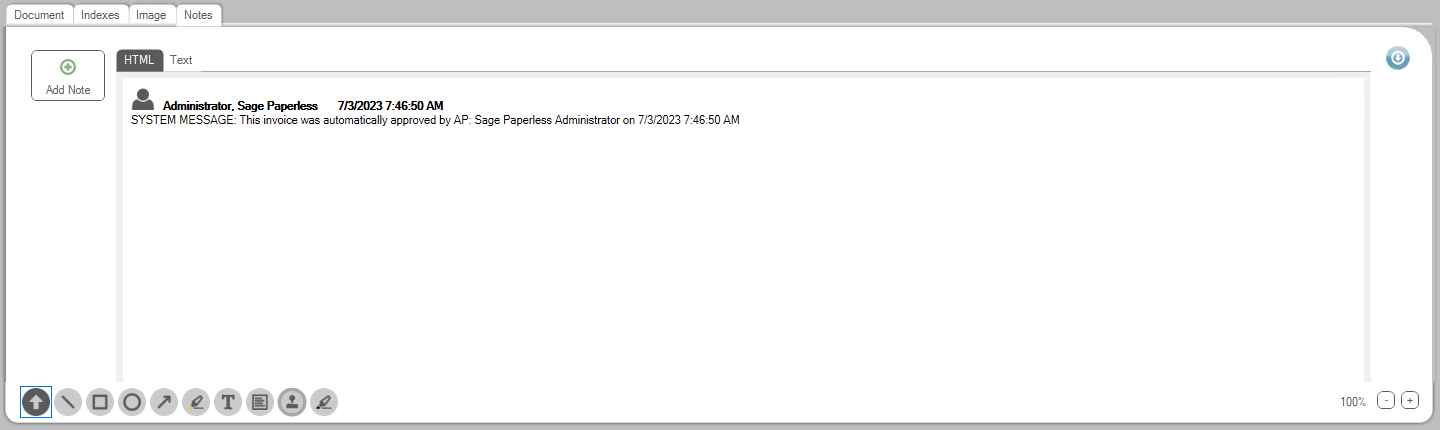
The Notes tab contains all the notes associated with the document visible in the Viewer dialog.
To add a new note, click Add Note.
The following Document Notes dialog displays:
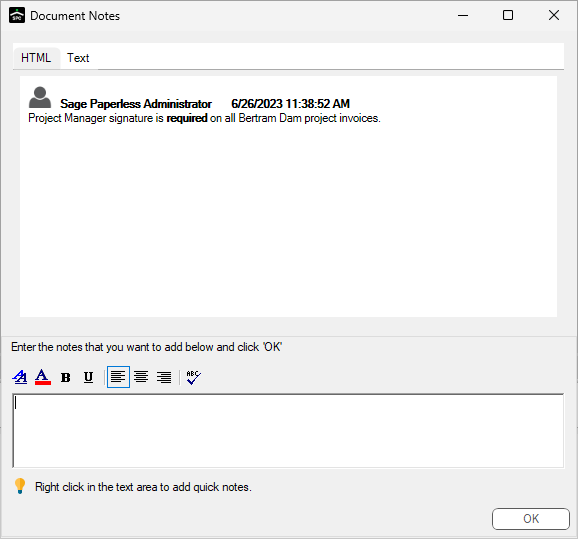
In the text box, add a note. Then click OK.
The Notes tab redisplays with the newly added note displaying as the first entry: