Click the Review tab to review forms that are complete.
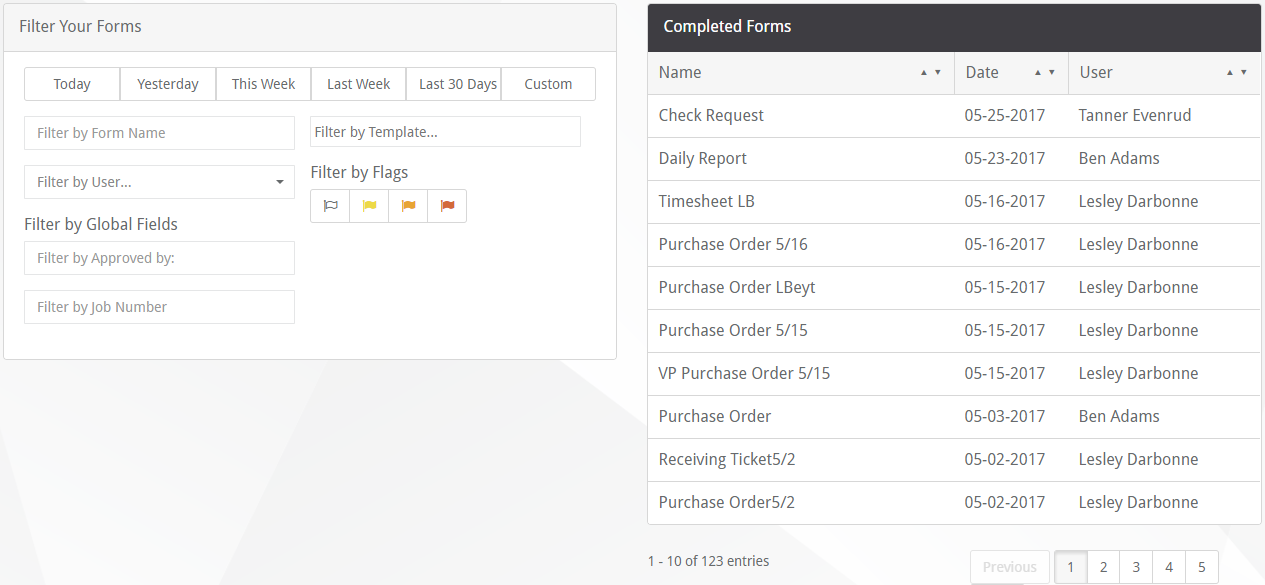
The Review Screen has three sections:
•Filter Your Forms – Allows the Administrator to select the completed forms by various attributes.
oToday, Yesterday, This Week, Last Week, Last 30 Days, Custom – Click one of these options to select the report with a submission date equal to the option. Choosing Custom allows additional details for filtering.
(See Custom Filter, below.)
oFilter by Form Name – Type in the title or name of the form to filter by. While typing, the Completed Forms section filters out the forms to match the letters being typed.
oFilter by User – Pick the Submitted by User to view those reports.
oFilter by Global Fields – With Global Fields setup, each global field is listed. Type in the answer value to see how the Completed Forms are filtered.
oFilter by Template – Choose the template type to filter the list by.
oFilter by Flags – Select the flag color to filter the forms by. Any form with that flag color associated with an answer remains in the list.
oCustom Filter – Provides the following additional fields to filter by:
▪After this Date – Filter the list based upon a submission date being after the date entered.
▪Before this Date – Filter the list based upon a submission date being before the date entered.
oArchived - An archive job runs during the overnight that archives forms older than 90 days.
•Completed Forms – Lists all of the submitted forms, filtered by the Filter Your Forms section.
•Form Details – Displays the categories, answers and flags for the form currently selected in the Completed Forms section.
oFilter by Category – By default, all categories of the form are displayed. Pick a particular category from the dropdown list to filter out all of the other categories.
oFilter by Answer Type – Choose an answer type from the dropdown list to only display answers of the selected type.
o - Download JSON – Click to download the form data into a JSON format.
o - Generate Report – Click to produce the PDF Report that gets downloaded to Sage Paperless Construction.