For Custom APFlow™ vaults only.
If you are in a Custom APFlow vault, the Add Field field allows you to add a custom field (click here for more details) or a standard field. Standard fields are available only in a Custom APFlow vault.
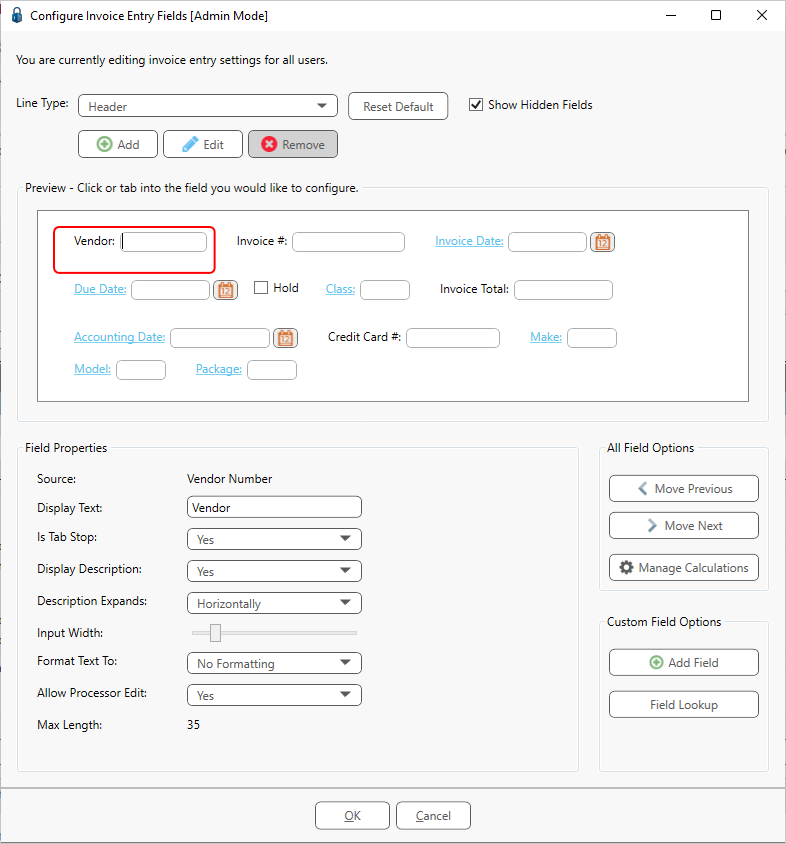
1.Click Add Field.
The following Add Field dialog displays:
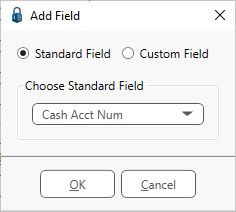
Note: The Standard Field radio button is selected by default.
2.From the Choose Standard Field dropdown list, select a standard field for your invoice header.
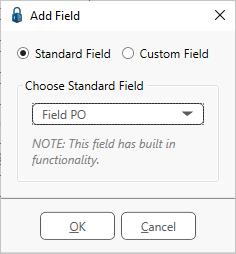
There are two standard fields are pre-configured because they have special functionality built into the system:
AP Match Code
Field PO
If you select either of these, the Add Field dialog resembles the following:
3.Click OK.
The Configure Invoice Entry Fields screen for a standard field resembles the following:
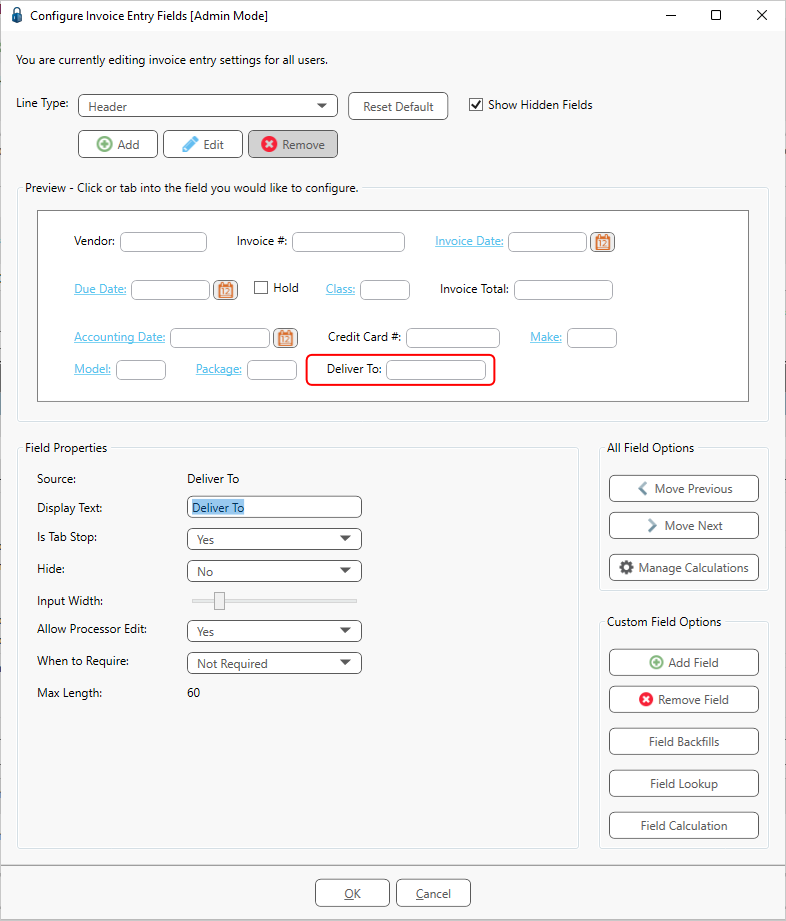
The Configure Invoice Entry Fields screen for a pre-configured standard field resembles the following:
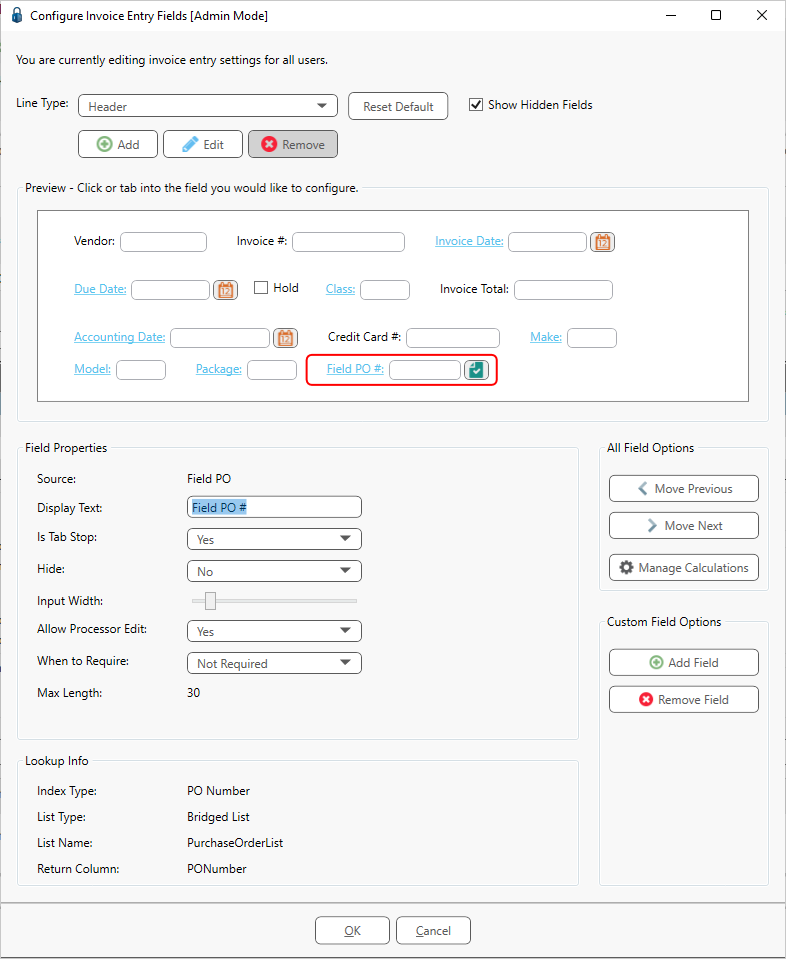
4.For a newly added standard field, assign Field Properties and set up Field Backfills, Field Lookups and Field Calculations as you would a custom field.
For a newly added pre-configured standard field, assign Field Properties. Notice that your Field Lookup Info is already configured. The Field Backfill and Field Calculations field options are not available.
5.Click OK.