You must be a pVault® administrator to configure the attachment point.
1.From the Attachments dialog toolbar, click View.
The following dialog displays:
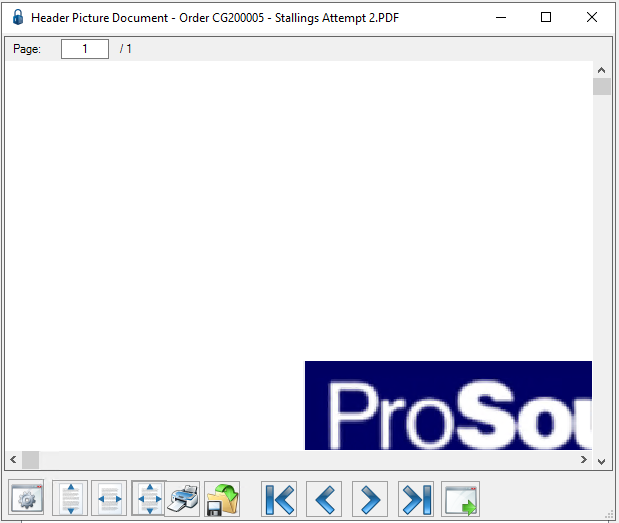
2.Click the Configure RFMS API icon in the toolbar.
The Configure Table dialog similar to the following displays with the Document Categories tab active:
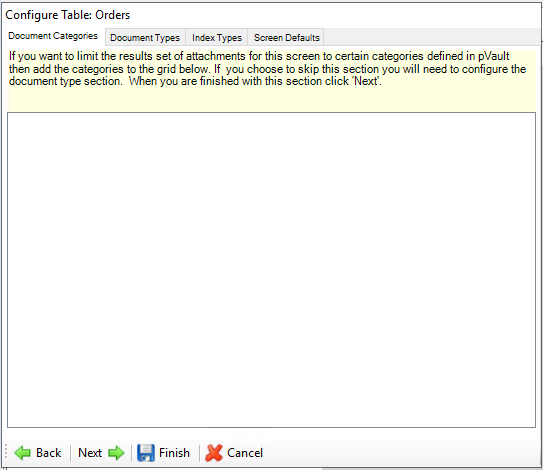
3.Check the radio button defining the categories you want to view on this screen.
When configuring a table, you must identify which document type(s) can be retrieved or attached here.
There are two choices.
•You can select an entire category (which is done on the Document Category tab).
•You can select specific document types (which is done on the Document Types tab).
For example, you can select the Accounts Payable documents category allowing all document types categorized as such to be configured here. To only allow AP Invoices, access the Document Types tab and select AP Invoice. Or, you can choose to use a combination of both. You may select a category and also specific document types. The ability to retrieve or attach the specified types of documents configured here is dependent upon your security group permissions in pVault.
To narrow the filter to specific categories set up in pVault, add the document categories in the text box.
If no specific categories need to be added, move to the next tab and leave the text box blank.
4.Click Next to move to the Document Types tab.
A dialog similar to the following displays:
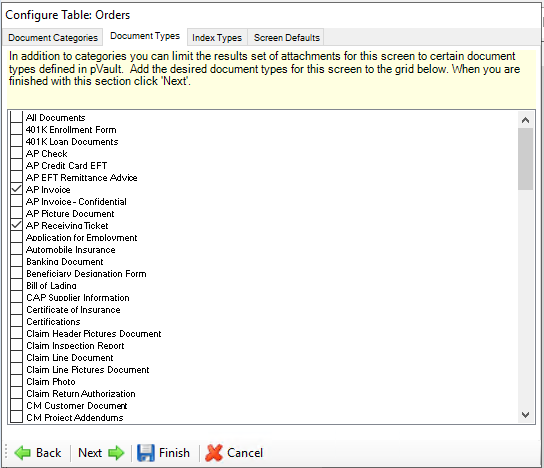
The checked document types indicate the currently configured selections. Click to select more, if necessary, or accept selections and move to the next tab.
Note: At least one document type must be selected only if no category is selected in the previous tab.
5.Click Next to move to the Index Types tab.
A dialog similar to the following displays:
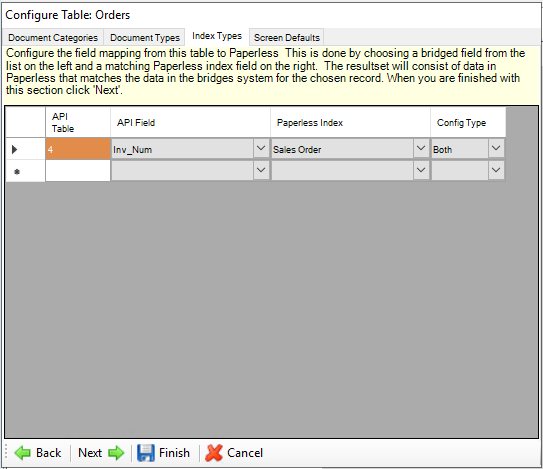
The pVault index dropdown lists all indexes within pVault. Whatever you enter on this Index Types tab must exist as a document type identified on the Document Types tab or be one of the categories identified on the Document Categories tab.
6.Map the data values entered in RFMS with index values configured in pVault. Use the field dropdowns to make the appropriate selections.
The left two columns display the table and column name of all RFMS data fields on the current form. The right two columns are used to map these data fields to index values set up in pVault. In addition, the Config Type column is a key factor in determining if pVault should be searched based on the submitted value (Search), if the document should be indexed with the submitted value (Index), or both (Both).
When pVault receives a search request from RFMS, such as when the paperclip is clicked on a form, it looks at the configuration values for that form and performs a search for all index fields set to Search or Both.
Important: This is an all or nothing type of search. All values set to those index fields must be present.
If a document is sent to pVault for indexing, the index values are filled in with data from the RFMS form for every index field set to Index or Both.
7.Click Next.
A dialog similar to the following displays:
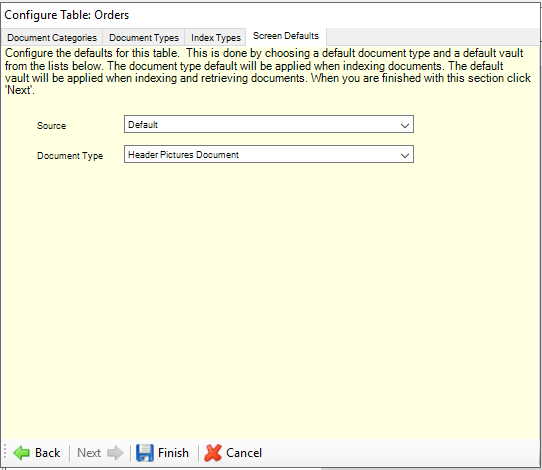
Important: Completing this dialog is optional. Go here if setting a default document type for a specific form such as Job Photo.
8.In the Source field, keep Default, which is the RFMS program and is based on the RFMS application. Other sources available from the dropdown are MOE (Mobile Order Entry), Customer API or Measure.
9.In the Document Type field, the default is based on the Source field. Use the dropdown to choose a document type to display on the pVault indexing screen when sending a document to pVault for indexing, or keep the default document type.
10. Click Finish.
Warning: If dragging and dropping a document type other than the document default, the defaults are overridden.
The Attachments View dialog similar to the following redisplays:
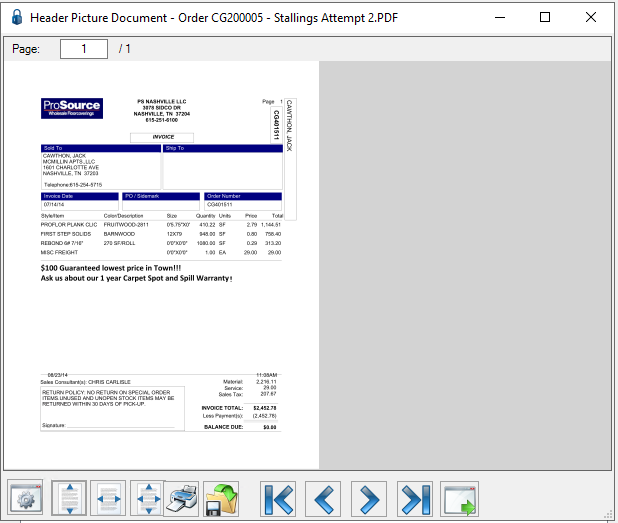
11. Click the Send to Paperless Application icon, Send To pVault.
Note: If all required indexes are not systematically backfilled based on the configuration, the document opens in pVault with the Index Document form active allowing information to be entered in the missing required fields.
The pVault login dialog displays.
12. Log into pVault.
The ribbon toolbar displays with the Home tab active.
13. Click the Indexer icon.
The Index Document dialog similar to the following displays:
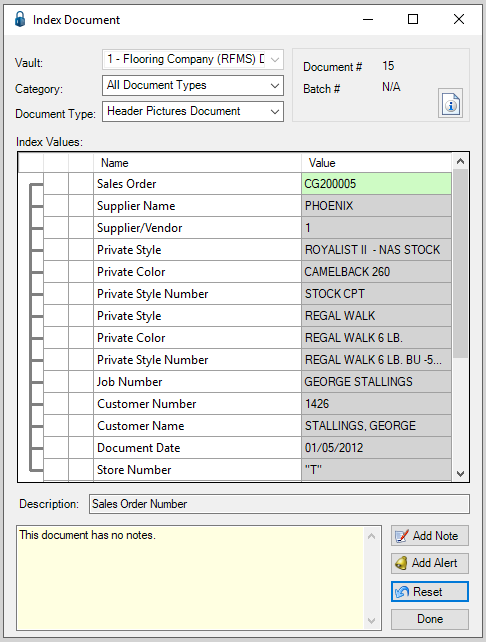
Notice that Index Values are backfilled.
Note: For additional information, click here.
14. After completing any missing required index values, click Done.
15. Click Save to index the document.
This document is now accessible from within pVault and the attachment viewer in RFMS where configured.
