If an invoice needs to be placed on a vendor hold, the associated hold codes are created in Vista Viewpoint.
In Vista
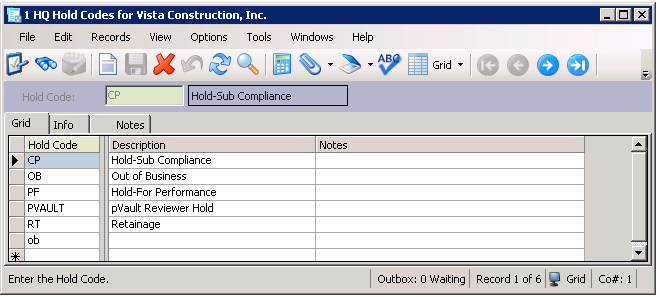
This is where the hold codes are listed.
1.From the Main Menu navigation screen, click Headquarters in the left navigation bar.
2.Click Programs.
3.In the Forms listing, double click HQ Hold Codes.
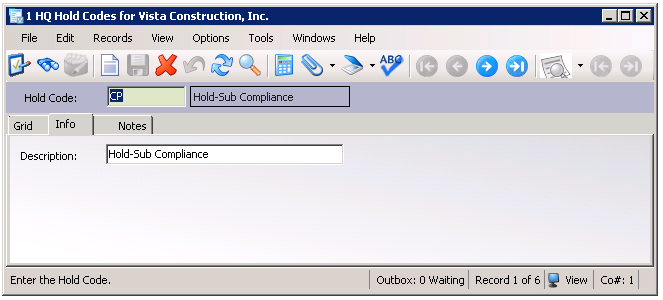
The HQ Hold Codes dialog similar to the following displays with the Info tab active:
4.Click the Grid tab.
The dialog similar to the following displays:
In pVault®
1.From the ribbon toolbar, click APFlow™.
2.Click Invoice Entry.
3.From the APFlow sidebar, click New Invoice.
The Invoice Entry screen similar to the following displays:
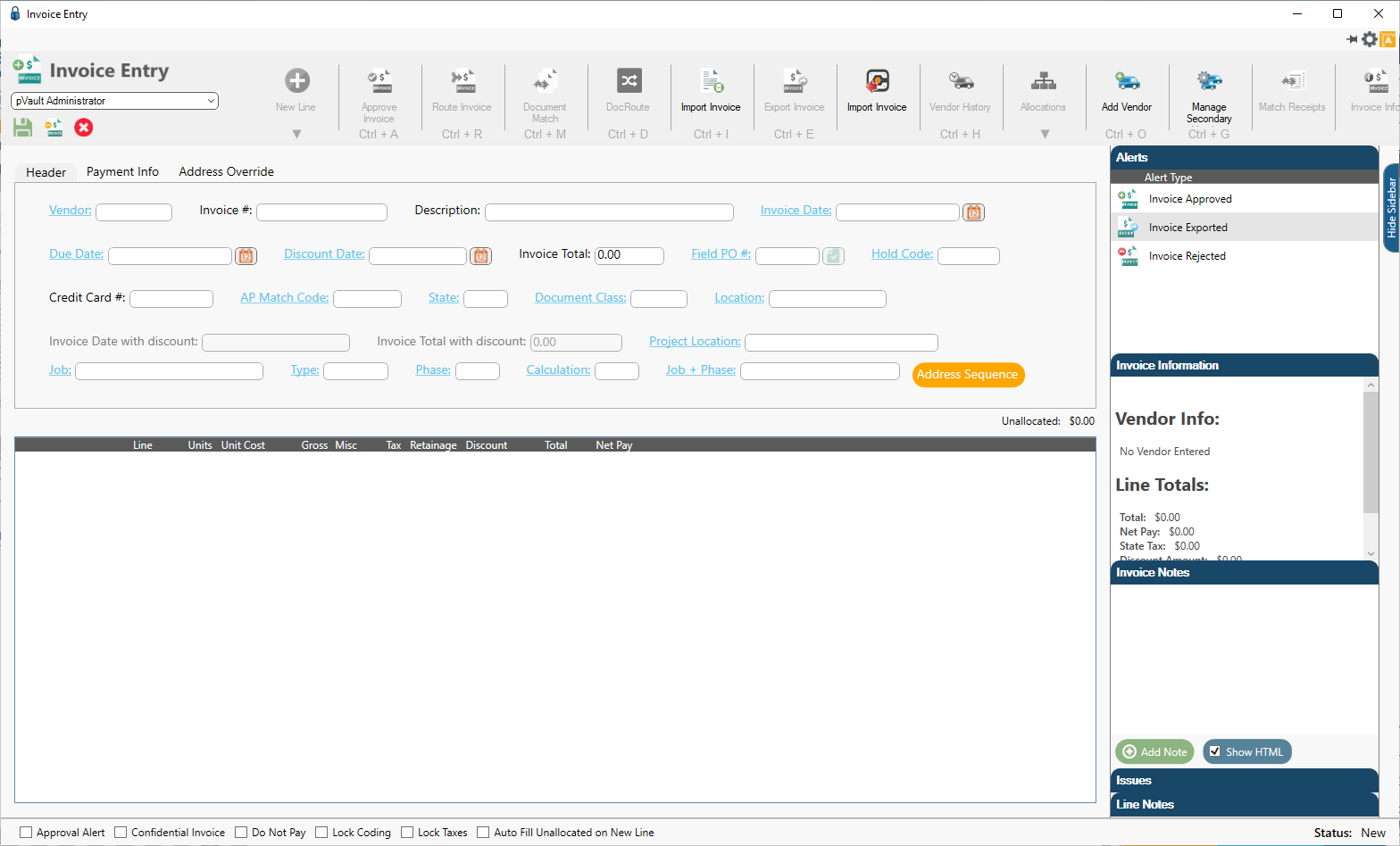
4.Click the Hold Code field label to access the Hold Code lookup dialog similar to the following:
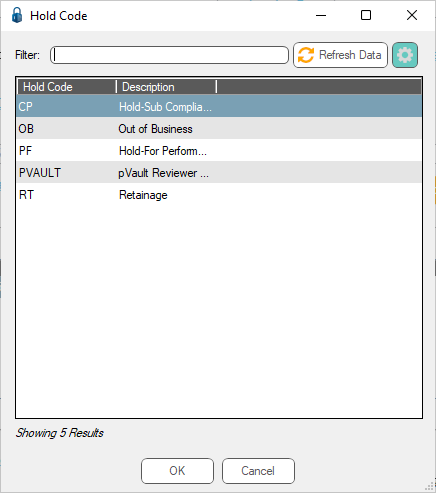
5.Click to highlight the appropriate Hold Code entry.
6.Click OK.
Advanced Bridge Settings
Advanced Bridge Setting |
Value |
Description |
Export "On Hold" Invoices |
True |
Invoices with this Hold Code display in red on the Export tab for visibility but can be exported. |
False |
Invoices with this Hold Code are not eligible for export. |
|
Require Invoice On Hold Notes |
True |
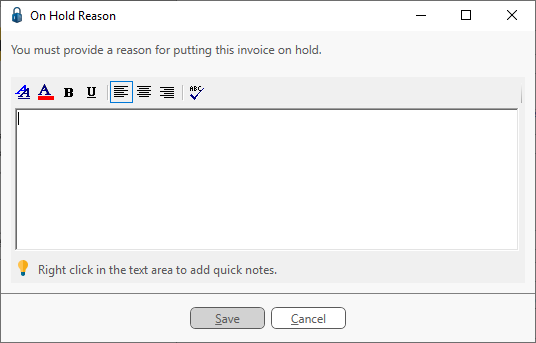
A reason for placing the invoice on hold is required, and an On Hold Reason dialog similar to the following displays: |
False |
No On Hold Reason is required and no dialog displays. |