The Advanced Bridge Settings (Advanced tab) houses settings that allow certain aspects of the APFlow™ workflow to be customized.
There are universal settings available for all vault bridge types as well as unique settings specific to the bridged accounting systems.
Universal Settings
Allow $0 Invoices |
Select True if you should be allowed to enter, route, approve or export an invoice with zero in the Invoice Total field.
Select False if you should not be allowed to enter, route, approve or export an invoice with zero in the Invoice Total field. |
Allow Change Processor on Exported |
Usually, no changes are made to invoices that are exported. This setting allows you to change only the name of the Processor associated with a specific exported invoice.
Select True if the name of the Processor associated with a specific exported invoice may be modified.
Select False if the name of the Processor associated with a specific exported invoice cannot be modified. |
Allow Invoice Save with No Vendor |
If set to True, allow the user to save an invoice without a vendor number. This is typically a workaround for a new vendor to be added later.
If set to False, an invoice without a vendor number cannot be saved. |
AP Export Detail Sort |
Select the AP Export Details sort order. Choose from Vendor (this is the default), Invoice or Invoice ID. This enables you to group invoices when exporting. This is an audit report that can be sorted by vendor (alphabetical) or invoice number or invoice ID (numeric). |
Approve Invoices Allow Multi-Status |
This option is across the vault, but it can be assigned to an individual.
If True, route to Reviewer and allow Reviewer to multi-select and re-status invoices.
If False, Reviewer may not multi-select and change invoice statuses. |
Auto-Fill Unallocated on New Line |
If True, systematically populate the gross amount with the unallocated amount when entering a new line.
If False, do not populate the gross amount with the unallocated amount. |
Disable Custom Invoice Validation |
Important: This is an all or nothing setting.
If you select True, the custom invoice validation rules that you set up in Manage APFlow, Validation tab are disabled and none of these validation rules run.
If you select False, the custom invoice validation rules you set up in Manage APFlow, Validation tab run as expected. |
Disable Invoice Allocation Rules |
Important: This is an all or nothing setting.
If you select True, invoice allocation rules functionality is disabled in APFlow. Note: Normal allocations are not affected.
If you select False, invoice allocation rules are enabled and work as expected. |
Document Match - Show Unattached POs by Job Number |
If set to True, only purchase orders that match the active job exactly are systematically retrieved.
If set to False, all POs for the job displays. |
Enable Line Notes |
If set to True, the Line Notes sidebar panel within Invoice Entry and Approve Invoices displays.
If set to False, the Line Notes sidebar panel within Invoice Entry and Approve Invoices does not display.
Note: This is a universal setting, but only for those accounting systems that are not header only. |
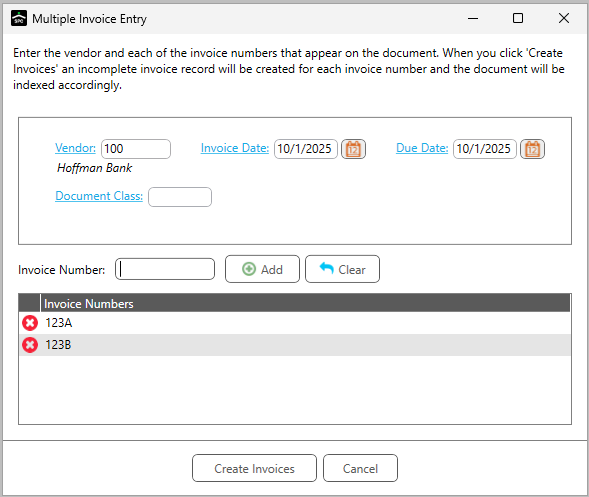
Enable Multiple Invoice Function |
If set to True, New Invoice becomes multi-functional and a dropdown on the New Invoice button is enabled where you can select Multiple Invoice. The Multiple Entry function allows you to use a single invoice image and separate it into multiple invoices. If you have multiple invoices on a single page, for example a statement, you can use this functionality to create individual invoices without having to scan the invoice image into pVault® multiple times. From the APFlow sidebar within Invoice Entry, click the New Invoice dropdown and click Multiple Entry.
Important: pVault remembers that you selected Multiple Entry. The next time you access Invoice Entry, Multiple Entry displays as the field label instead of New Invoice.
If set to False, the Multiple Entry function is not active. ____________________________________________
|
Export "On Hold" Invoices |
Allow invoices in an On Hold status to export.
If True, invoices in an On Hold status displays in the Export tab of the APFlow sidebar and the Approved view in Invoice Manager.
If False, invoices in an On Hold status cannot be exported. |
Require Invoice Approval Alert Notes |
If set to True, a note dialog displays requiring the individual who marked the invoice with an Approval Alert to explain why. This is primarily for audit purposes.
If set to False, no note dialog displays. |
Require Invoice "Do Not Pay" Notes |
If set to True, a note dialog displays requiring the individual who marked the invoice as Do Not Pay to explain why. This is primarily for audit purposes.
If set to False, no note dialog displays. |
Require Invoice On Hold Notes |
If set to True, a note dialog displays requiring the individual who marked the invoice On Hold to explain why. This is primarily for audit purposes.
If set to False, no note dialog displays. |
Require Invoice Reject Notes |
If set to True, a note dialog displays requiring the individual who marked the invoice as Rejected to explain why. This is primarily for audit purposes.
If set to False, no note dialog displays. |
Require Invoice Reset to Pending Notes |
If set to True, a note dialog displays requiring the individual who marked the invoice as Reset to Pending to explain why. This is primarily for audit purposes.
If set to False, no note dialog displays. |
Reviewer Auto Load Other Vendor Documents |
If set to True, configured Other documents are automatically loaded when viewing Document Match in Reviewer mode.
If set to False, Reviewers must manually click Refresh to view these documents. |
Reviewer Sequence Threshold |
Select the Sequence level at which the Reviewer in Approve Invoices must fully code the item being approved. 0 is the default. |