You can waive insurance requirements on a given policy. Once all the data is entered, if there are minor compliance issues that can be waived, click the Waive button.
1.From the ribbon toolbar, click Greenlight CM™.
2.Click Greenlight.
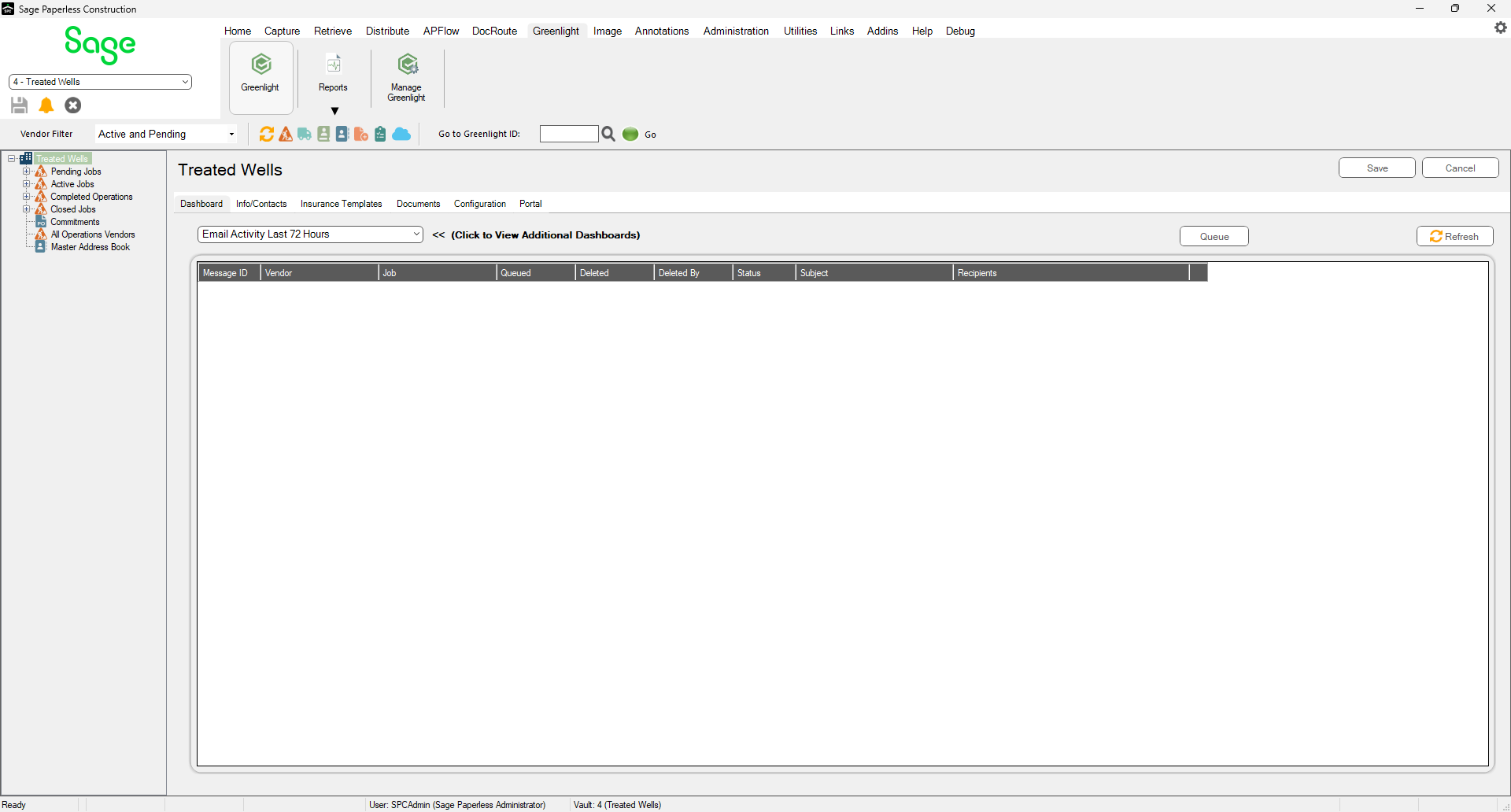
The main screen displays with the Dashboard tab active:
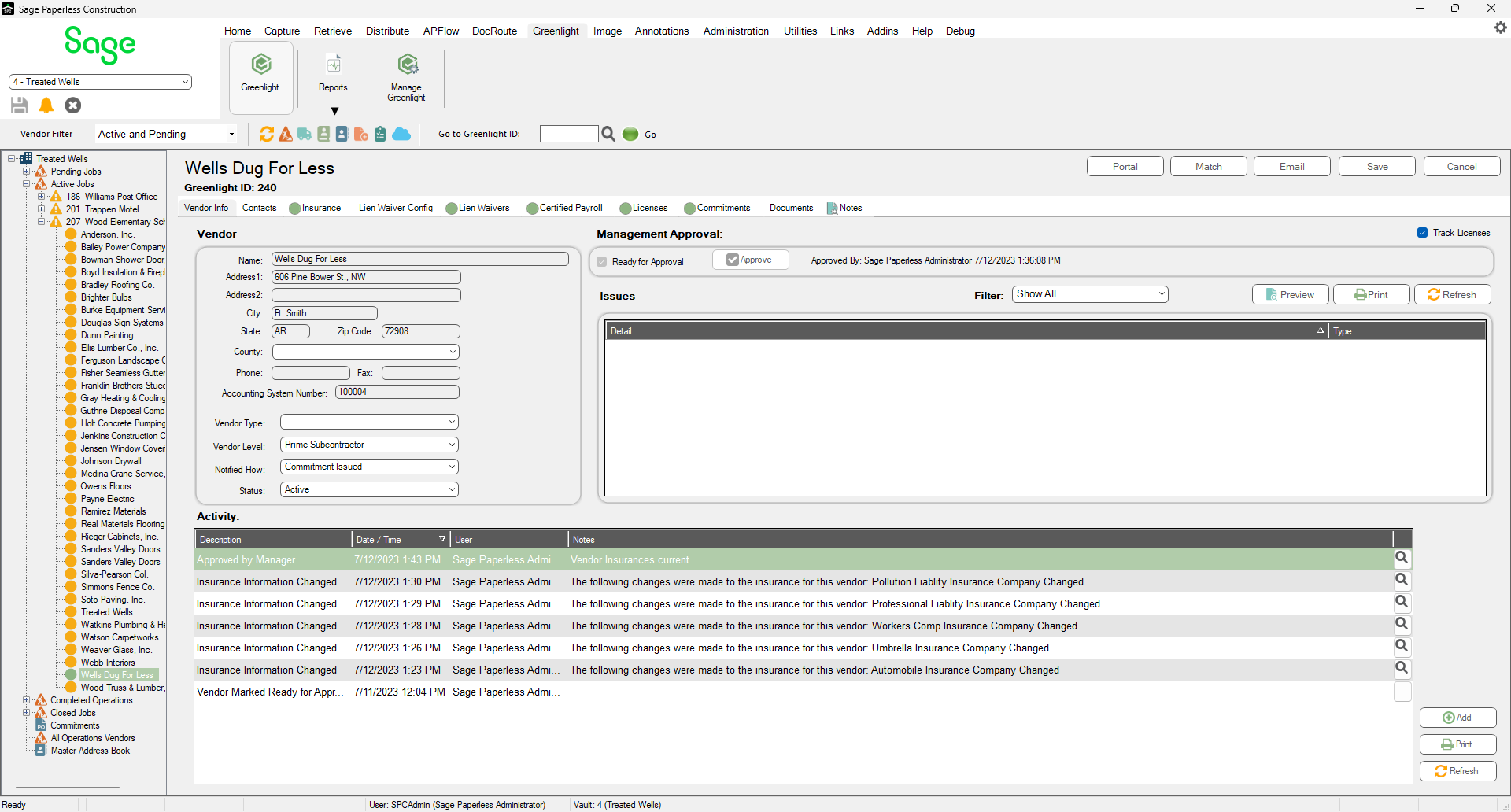
3.In the left navigation bar, click on a vendor.
The following screen displays with the Vendor Info tab active:
4.Click on the Insurance tab.
The following screen displays:
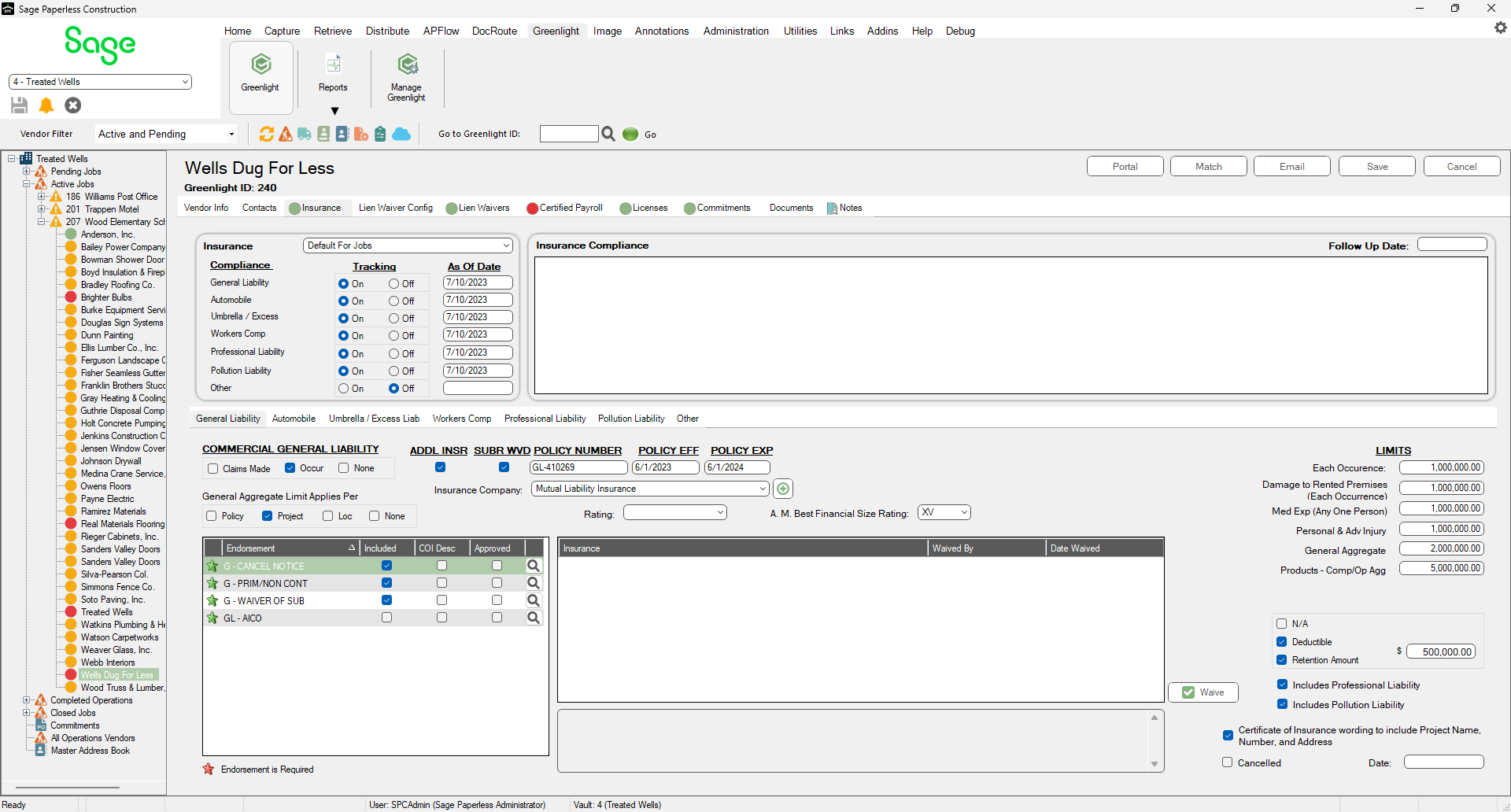
5.After all the insurance is entered, to waive all non-compliant insurance issues for a specific policy, click the Waive button.
The Waive Insurance dialog displays:

6.Click the appropriate check box in the Waive column.
7.Enter a note in the Notes text box to explain why you waived an insurance requirement. This is a required field.
The system then logs the waiver in the Activity Log.