Greenlight CM™ runs the Greenlight Accounting Refresh Job Poll job on a regular schedule, importing new commitments and updating data from your accounting system. You can manually import commitments before Greenlight CM runs this job poll job. If a vendor was already added, you can add a vendor to a job if there is a vendor commitment.
Important Even if a vendor was added to the job, it is essential to match the commitment to the vendor so Greenlight CM can keep track of the subcontract amounts and changes. If any changes occur to a match contract in the accounting system, Greenlight CM updates the changes. This information may be used on lien waiver reports and lien waiver forms. |
1.From the ribbon toolbar, click Greenlight.
2.Click Greenlight.
The main screen displays with the Dashboard tab active:
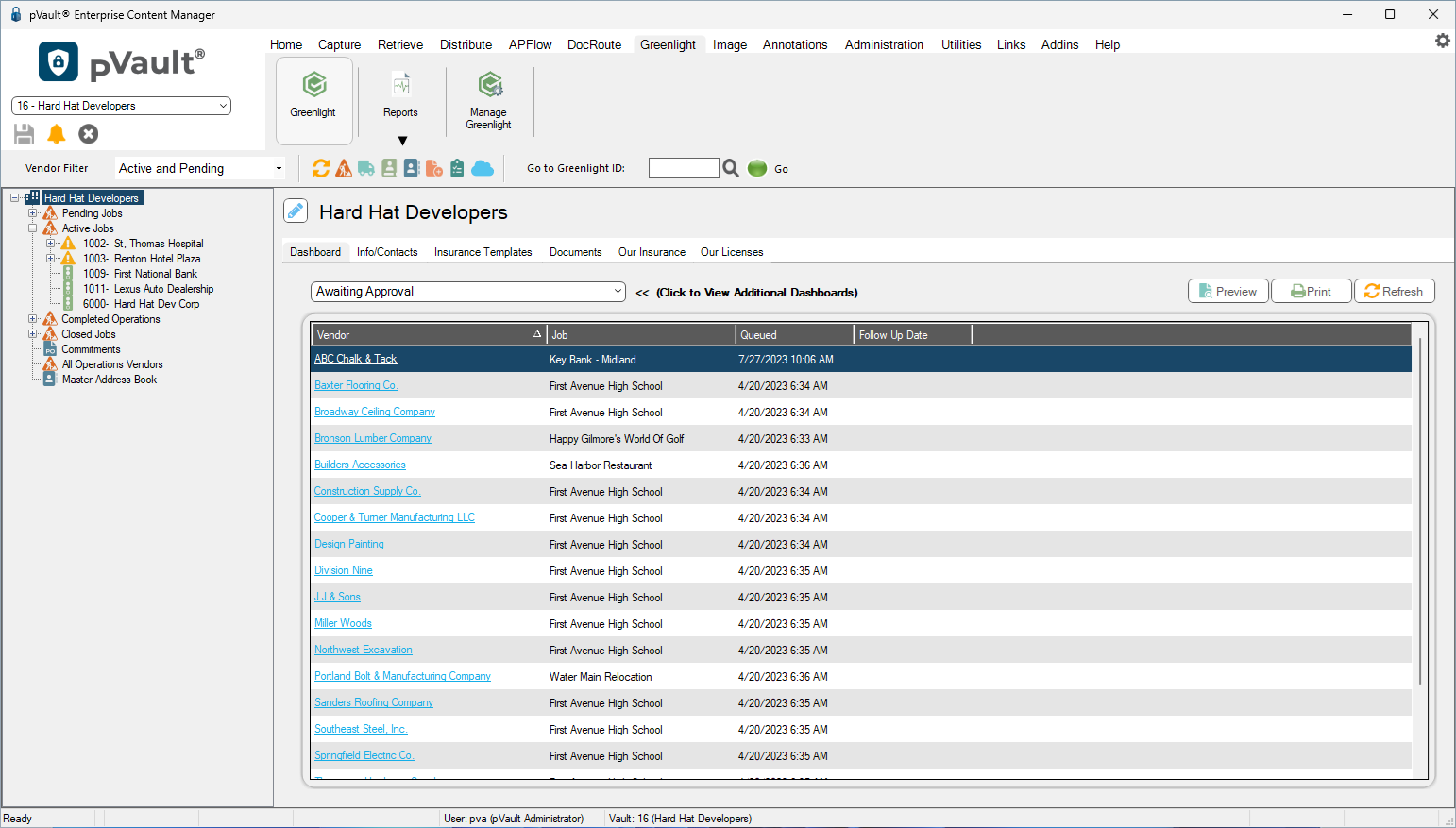
3.In the left navigation bar, click Commitments.
The following screen displays:
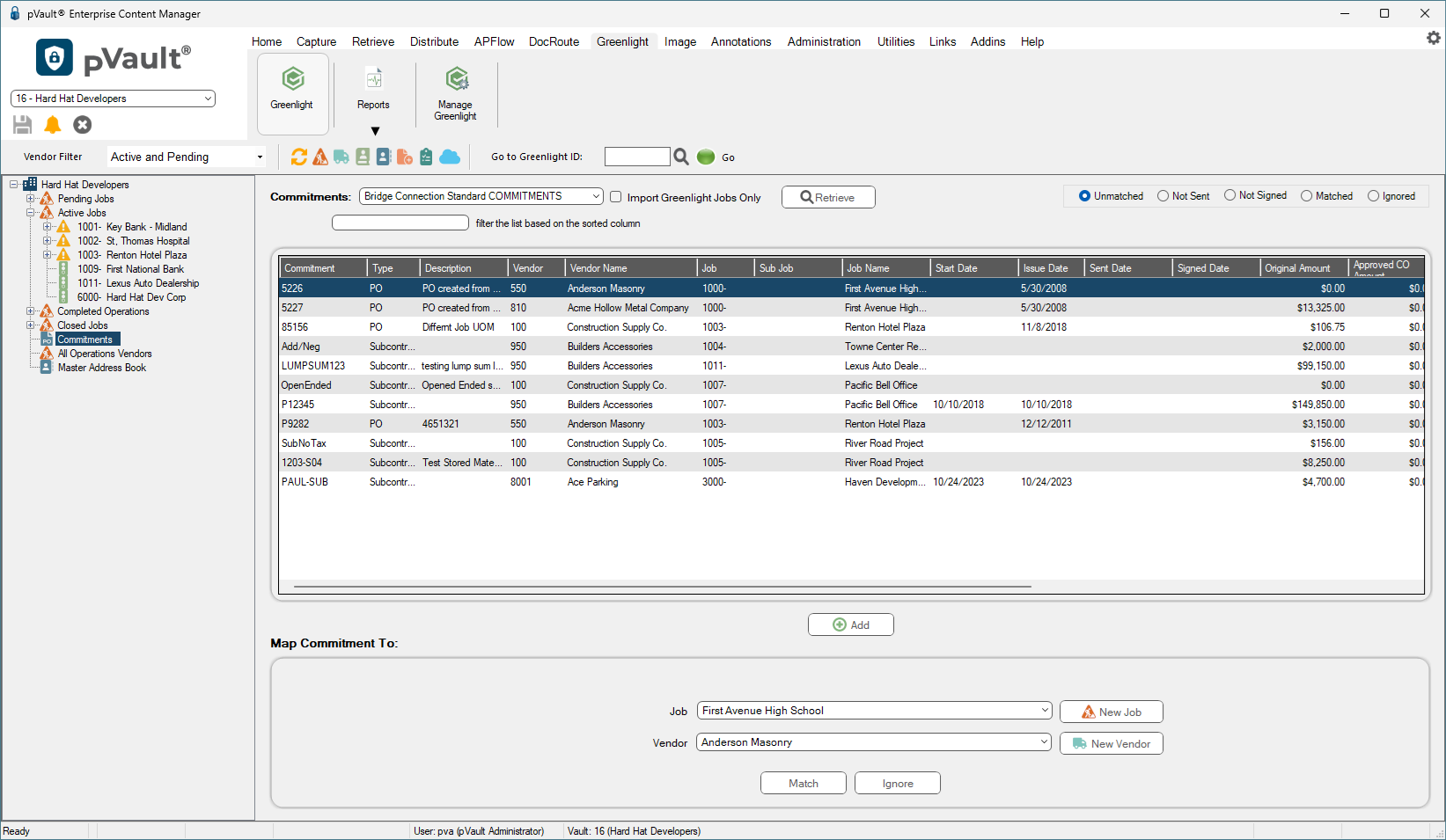
4.Click the Import Greenlight Jobs Only check box.
5.Click Retrieve.
6.Locate the commitment from the grid.
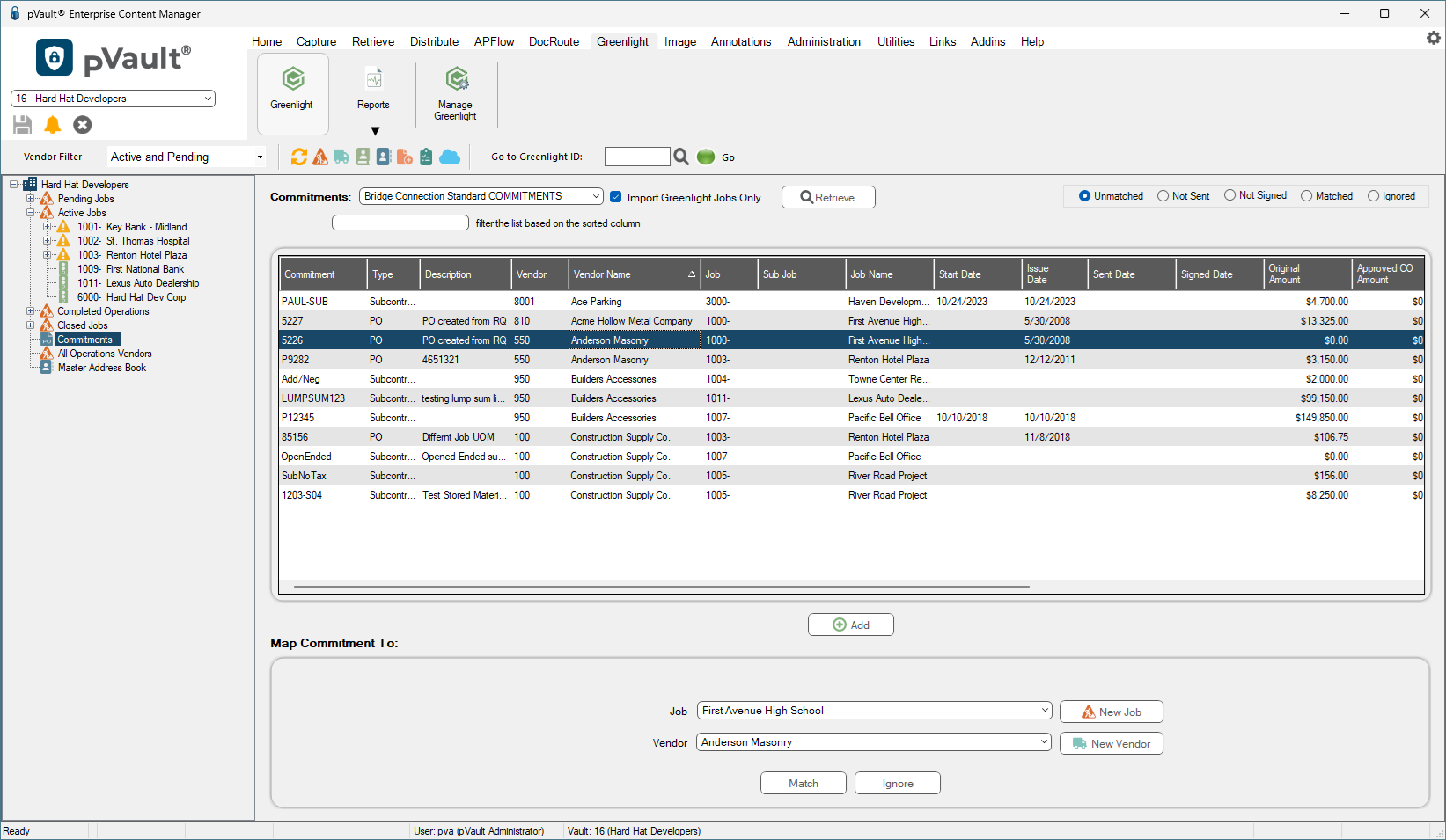
Note: If you are using the Commitment Matching feature to add vendor records and commitment data to job records, you can ignore or remove commitments that you do not want to track by clicking Ignore.
7.If the vendor and job are imported into Greenlight CM, click Match.
The Commitment Matches Found dialog similar to the following displays:
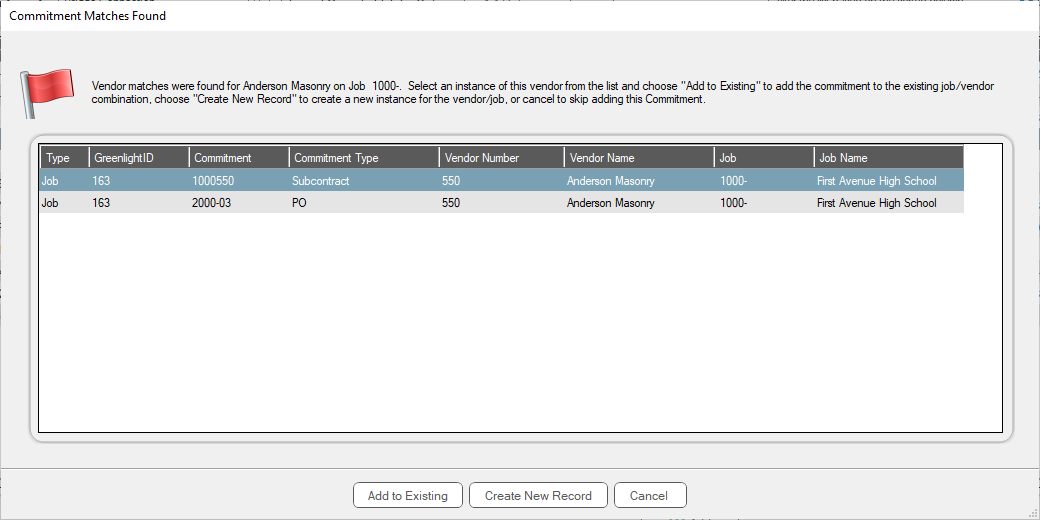
8.If you want to add the commitment to the existing job/vendor combination, click Add to Existing. The Commitment Matches Found dialog closes and the vendor is added under the job in the left navigation bar.
If you want to create a new instance for this job/vendor combination, click Create New Record. The Vendor Matches Found dialog now displays:
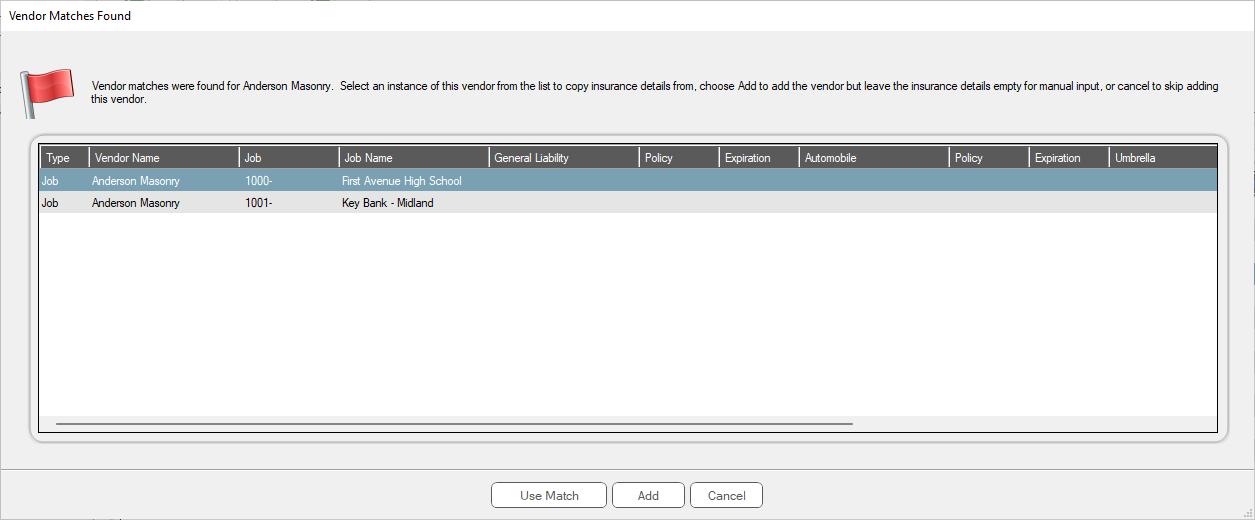
9.Click Use Match to copy insurance details.
Click Add to add the vendor but not the insurance details.
The dialog no longer displays.
10. Click New Job to add a new job. The Create New Job to Company dialog displays where you can add it.
11. Click New Vendor to add a new vendor. The Create New Vendor dialog displays where you can add it.
