Defaults can be set up in pVault® to generate accrual entries in the bridged accounting system.
Access the AP Accruals tab to set defaults for the Offset GL Account, as well as GL Expense line coding and Job line coding defaults.
1.From the ribbon toolbar, click APFlow™.
2.Click Manage APFlow.
A Manage APFlow screen similar to the following displays with the General tab active:
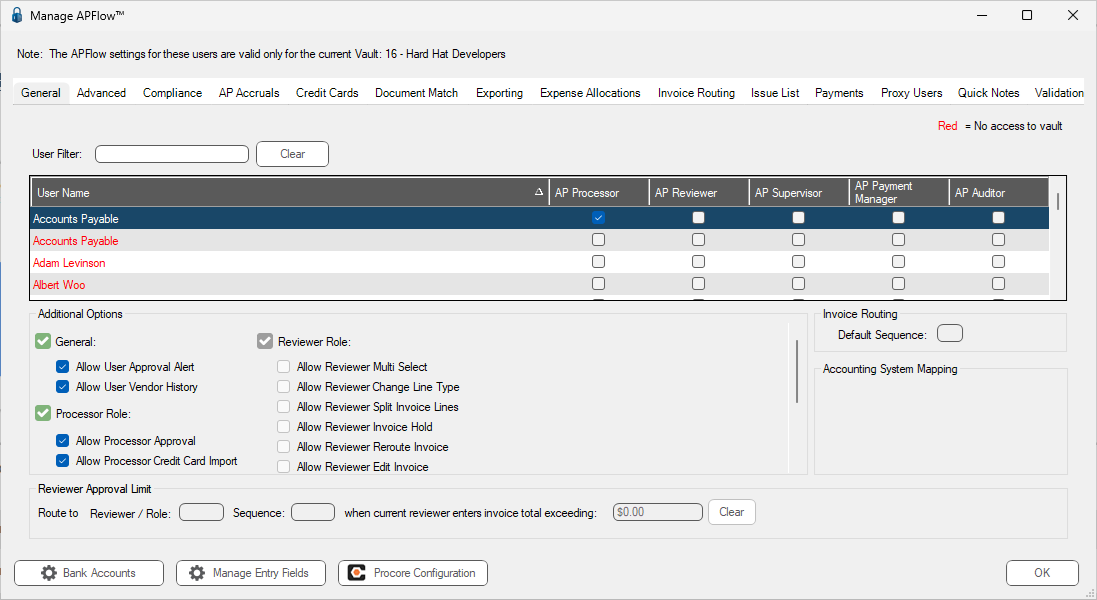
3.Click the AP Accruals tab.
A dialog similar to the following displays:
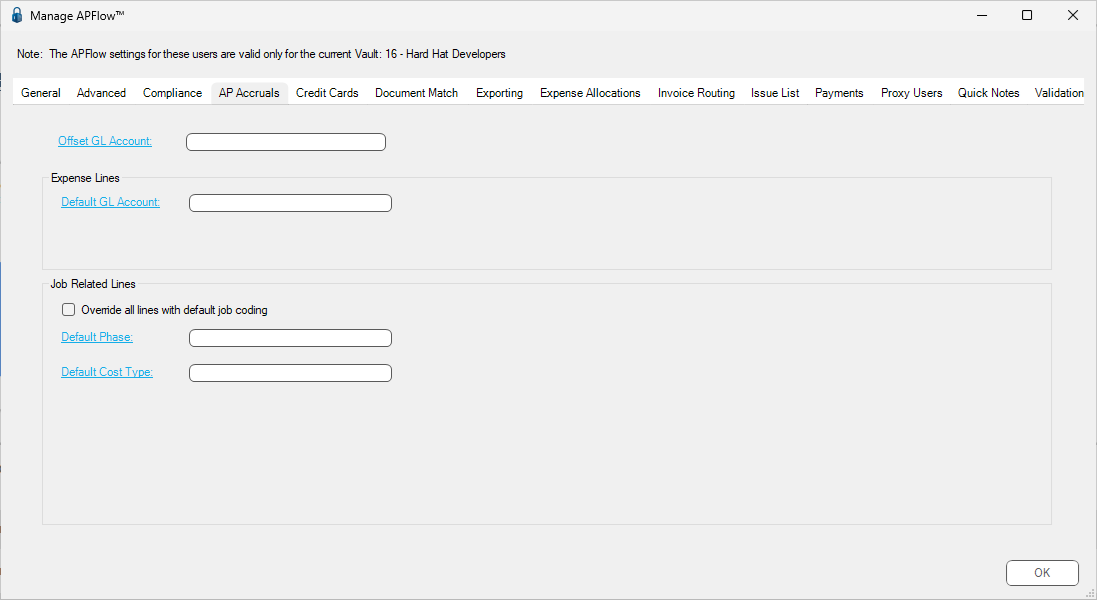
Offset GL Account |
In this field, enter the GL account where the credit for all accrual entries is posted. Note: Click the field name to access a GL Account lookup dialog. |
Expense Line Defaults |
In this section, enter the defaults for any expense lines that do not have these values already assigned. Note: Click the field name to access a lookup dialog. |
Job Line Defaults |
Click the Override all lines with default job coding check box to populate all generated accruals with the job coding defined here. The underlying invoice is unaffected and all accruals are posted to the defaults provided here. |
In this section, enter the defaults for any job lines that do not have these values already assigned. Warning: For this to work correctly in Sage 300 CRE, the cost code/category must already be set up on the job, or the advanced setting, Sage 300 CRE - Cost Codes on the Fly, must be set to True. If this setting is set to True, pVault adds the cost code and/or category to the job before posting the accrual entry. Note: Click the field name to access a lookup dialog. |
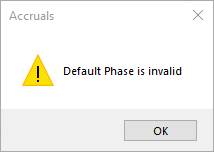
4.Click OK.
Once accrual defaults are set up and it is time to record accruals, click here to read more about reviewing invoice line entries, verifying coding information and exporting journal entries in to the bridged accounting system.
