1.From My Paperless Page, click Global Settings.
2.In the Global Settings navigation bar, click Users.
The following page displays:
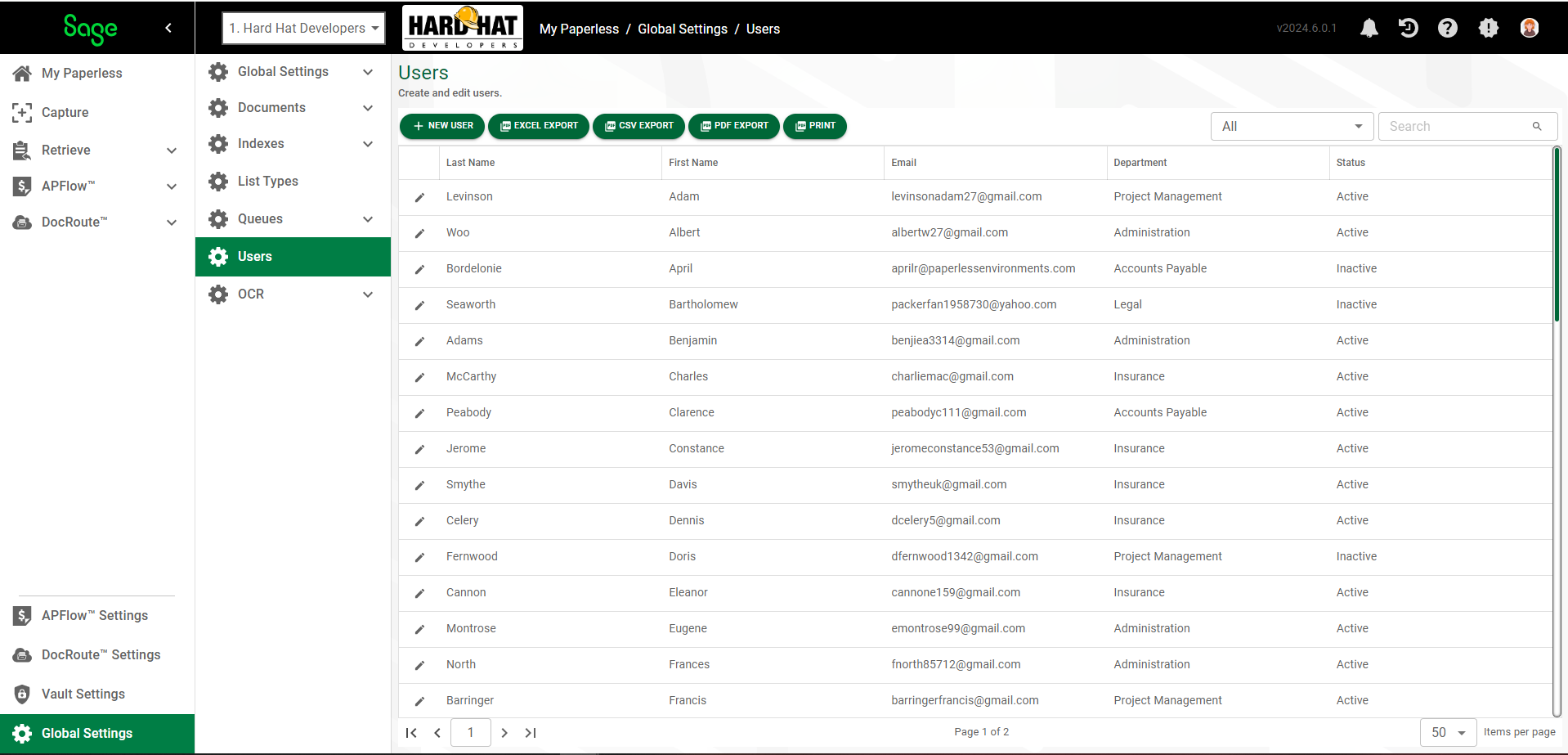
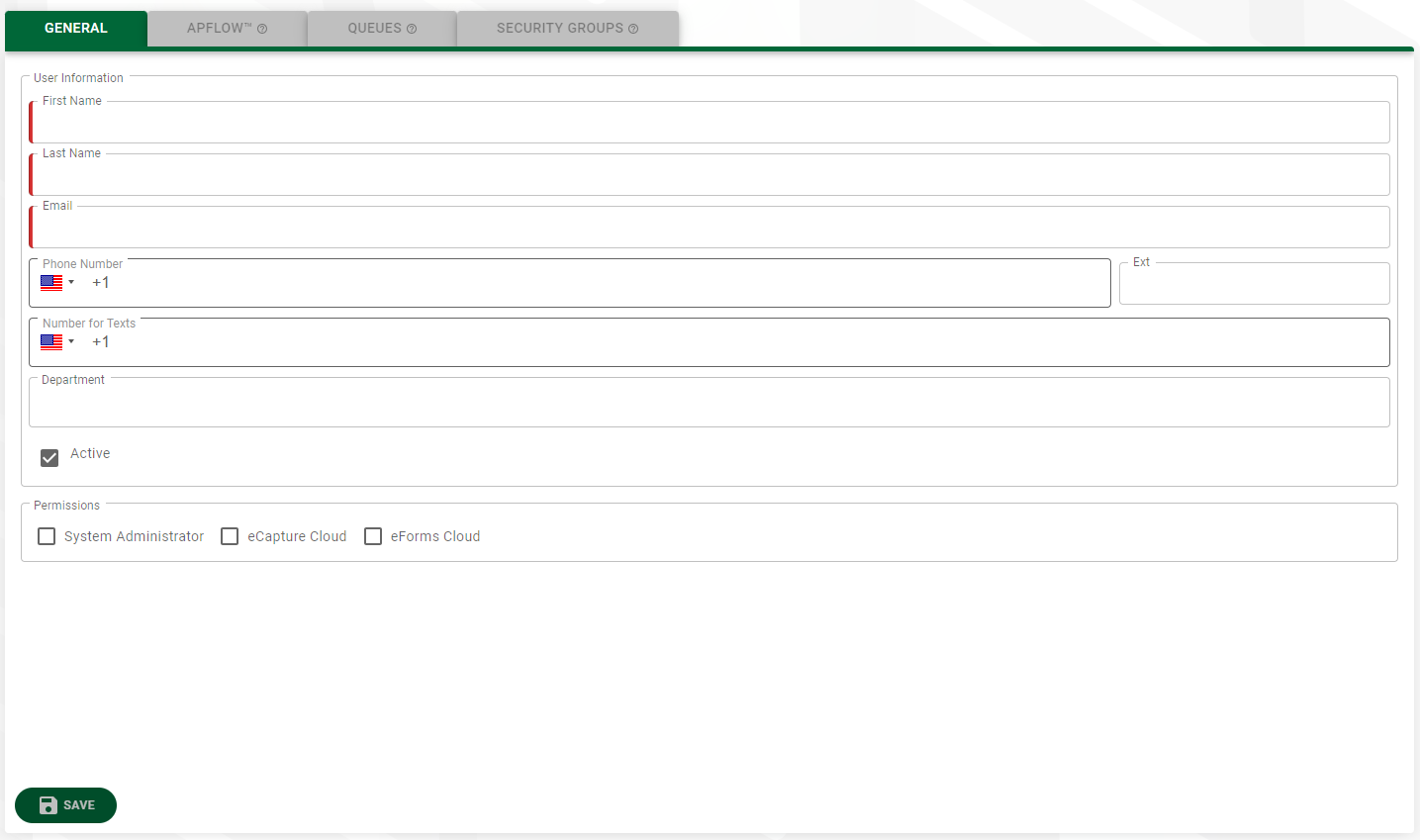
3.Click the edit icon of an existing user.
The following page displays with the GENERAL tab active:
4.Click the APFLOW™ tab.
This is where you assign the user to one or more roles and set associated permissions--per vault.
A page similar to the following displays:
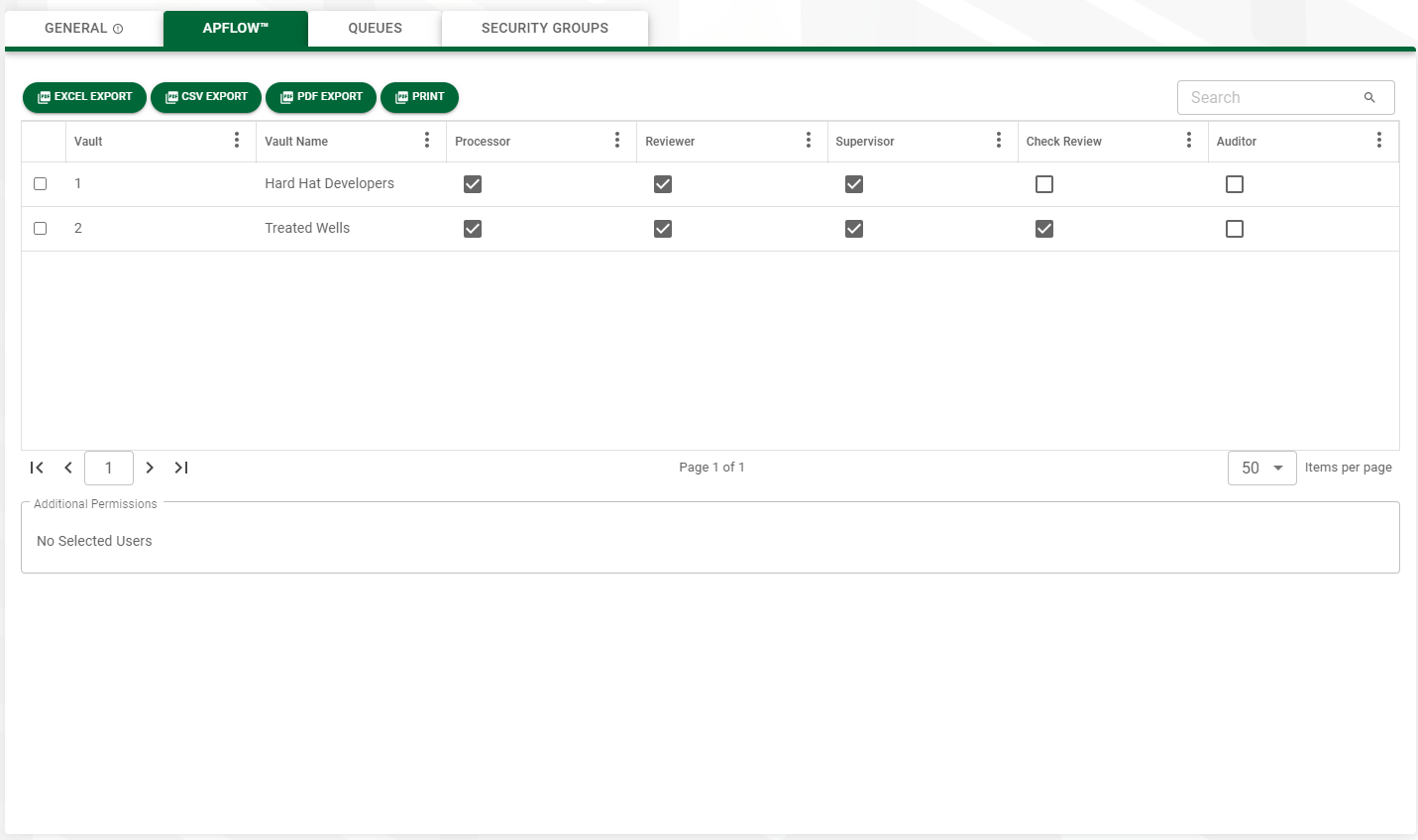
5.When you click to select a specific vault, that user's role(s) and the permissions associated with those role(s) will display in the Additional Permissions grid.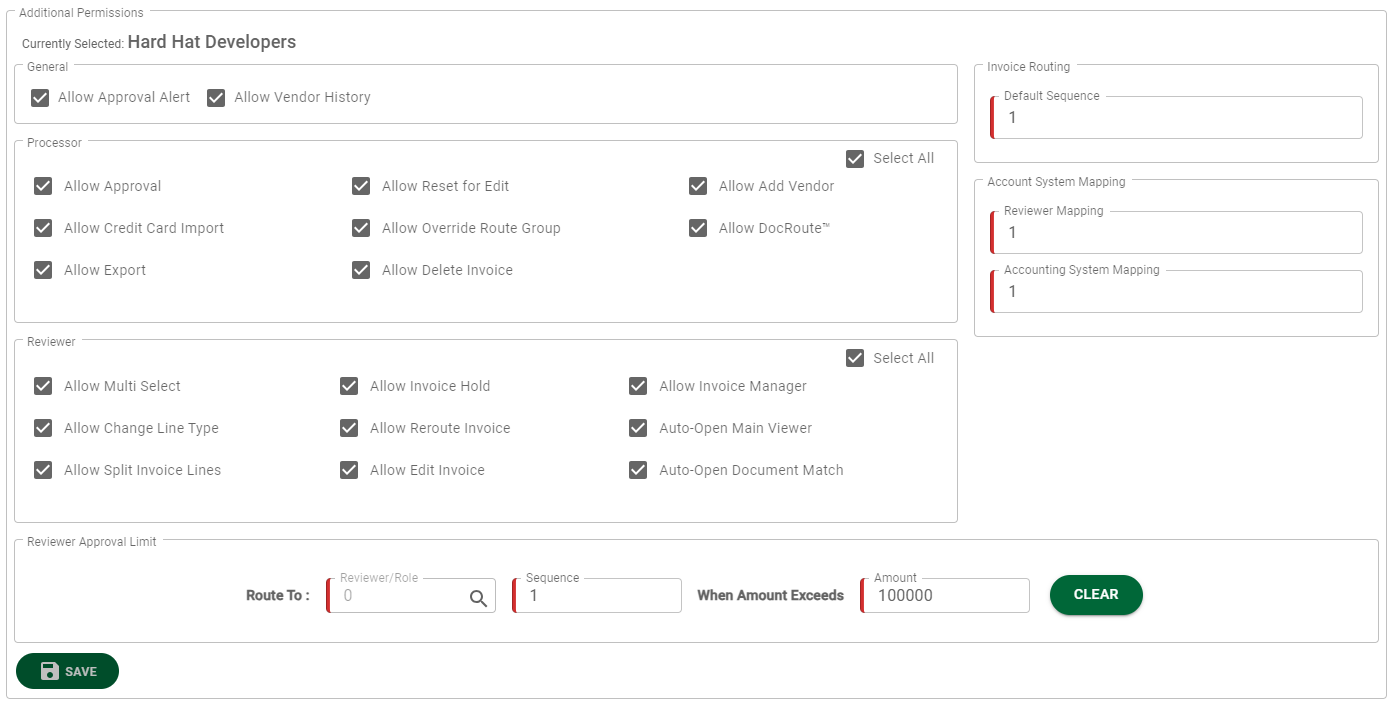
6.If the Payment Manager module should be visible to this user for any or all vault(s) that display in this grid, click the checkmark associated with each appropriate vault.
This user must be given access to at least one bank account. Click here for details.
Note: If Payment Manager does not display in the left navigation bar within the APFlow dropdown menu after populating the check box(es), refresh the page.
7.If the Greenlight™ tab is visible (only System Administrators and Greenlight Administrators have the proper permissions to access the Greenlight tab) and users should be set up for specific Greenlight roles and granted the appropriate access, click the Greenlight tab.
If the Greenlight tab is not visible, click the QUEUES tab.
•For GREENLIGHT tab details, click here.
•For QUEUES tab details, click here.