This tool can be used to locate a certain invoice or to verify that invoices are being coded properly against specific jobs or phases. Managers can use Invoice Search for reporting purposes using the search criteria on a recurring basis.
All users have access to Invoice Search based on index level security. (Click here on index level security details.) Supervisors are not filtered by index level security since they already can view everything through Invoice Manager. If a user does not have access to view the invoice, the invoice is not visible to that user through the Invoice Search functionality. Additionally, if users do not have access to AP Invoice or AP Invoice Confidential, they are not able to access the page.
Navigation
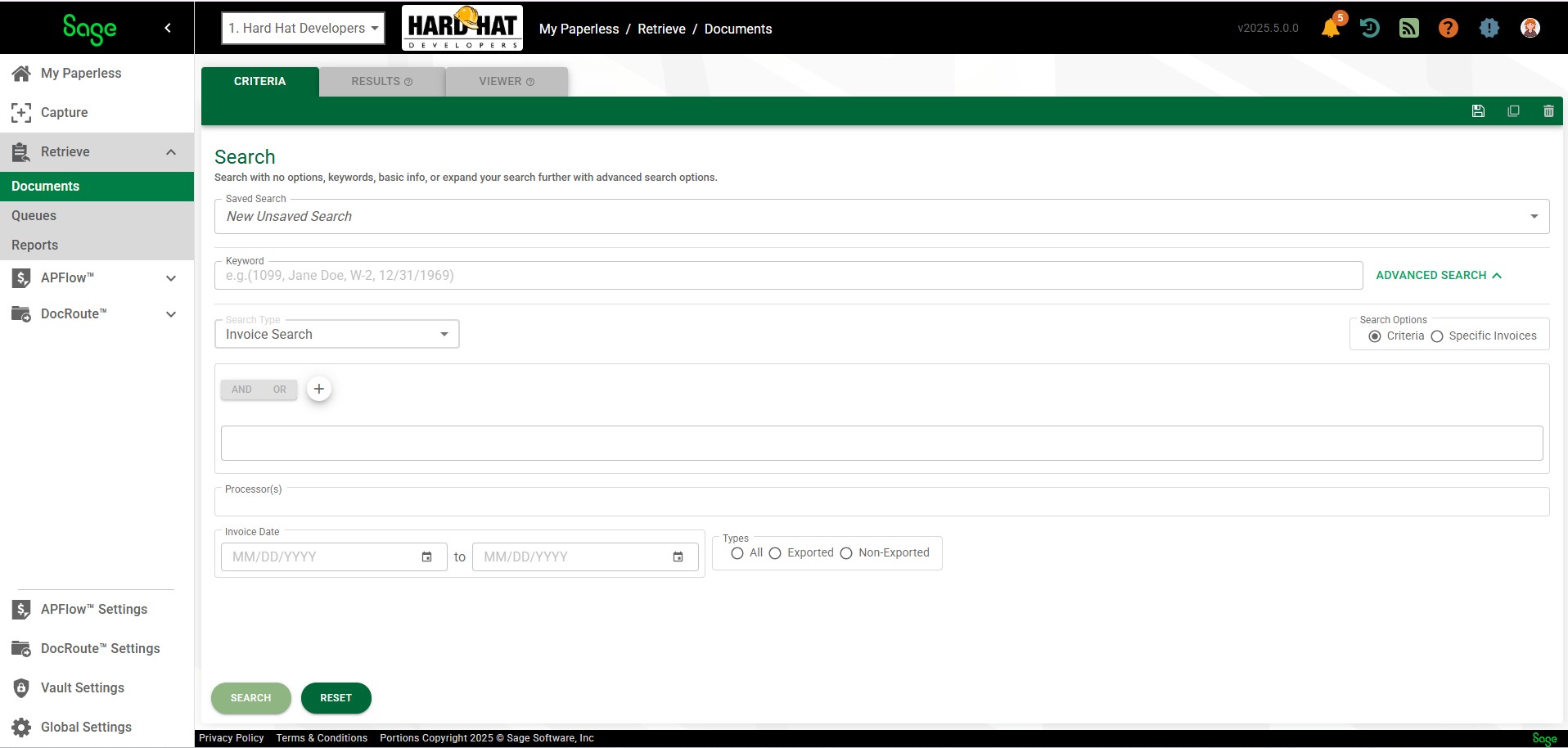
1.The Criteria radio button in the Search Options field is selected by default. If you want to narrow your search to Specific Documents, click that radio button.
If you select Specific Documents as your search option, your Search Options are reduced to the Invoice ID field. In this field you can enter specific identification numbers or leave the field blank to include all.

2.If using several index criteria in the search, the option of And / Or is available.

AND allows the combination of several index criteria in the search. All index criteria must be met to return a result.
OR allows any one of the index criteria to return a result.
3.When you click in the Processor(s) field, all users assigned to the current vault displays in a lookup dialog. You can scroll through the list or start typing the user's name to populate the field. If you do not know which Processor indexed the invoice(s) you are searching for, leave this field blank.
4.In the Invoice Date fields, click the field calendar icons to select dates.
5.For the Types to be included in the search, click the All, Exported or Non Exported radio button.
6.Click SEARCH.